


Reference Sections, what are they and how do I create one? I will answer both these questions and show you how to create one in 3 easy steps.
Firstly what is a Reference Section? It may be that up until now you have never heard of a reference section or didn’t know that Revit has the capability of creating one. We all know what a section is, if not then you had better check out my article on how to create a section view and some of the cool stuff you can do with sections such as Creating a 3D Section View.
A Reference Section starts life as a traditional section, using the section tool.
How it differs though is that it doesn’t actually create a new section view, but what we do is link it to an existing section or drafting view instead. We still get the section line annotation in our floor plans which we draw in the same manner but it now instead links to an existing view.
This is useful, for example if you have drafting view with a detailed cross section with notes which you want to link to a location or multiple locations on a project.
So how do you create a Reference Section?
How To Create A Reference Section
I will show you how in a 3 simple steps you can create a Reference Section.
1. Section Tool
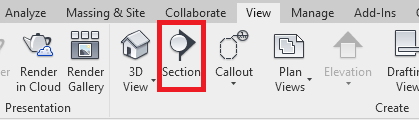
Firstly we need to start the section tool, you can do this by using the Quick Access Toolbar or go to the View tab on the Ribbon Bar and click the Section tool.
2. Reference Other View
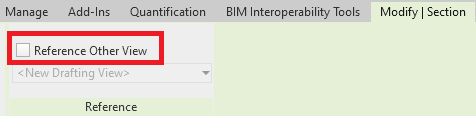
Before placing the section, in the Ribbon bar under Modify, tick the box for “Reference Other View”.
3. Select View
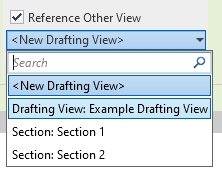
You should now be able to select a view from the dropdown which you want your reference selection to link to or choose to create a new drafting view and then place the section line as normal.
Congratulations you have now created a reference section.
Still got Questions?
Book Training
Our Revit courses cover everything from the skills required to use the software, to design and share information between project teams, through to creating custom family elements.
Contact Us
We are here to ensure you receive a consistently high service and quality solutions for your business needs. We promise you won’t regret speaking to us, and if we can’t help you, we will try to find someone that can.