

In this blog I’m going to show you how to navigate a model in an organised workflow, using the tools in the windows panel under the view tab in Autodesk Revit.
Multiple Views
When working in Autodesk Revit, efficiency is everything. As projects become larger and more complex, managing multiple view effectively can significantly improve your workflow. One of the most overlooked yet powerful areas of Revit is the Windows panel, located on the View tab.
Whether you’re comparing floor plans, coordinating with elevations, or organising your workspace across multiple monitors, the Windows panel provides the tools you need to stay productive.
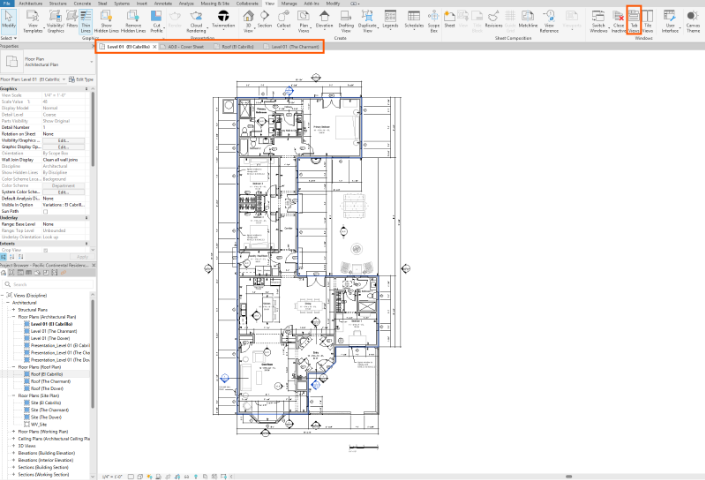
The Windows panel in the View tab provides tools for managing open Revit views.
Where to Find the Windows Panel
Navigate to View Tab > Windows panel:

The windows panel contains the following commands:
- Close Inactive
- Tab Views
- Tile Views
- User Interface
Each command serves a unique purpose in helping you organise your workspace.
Close Inactive
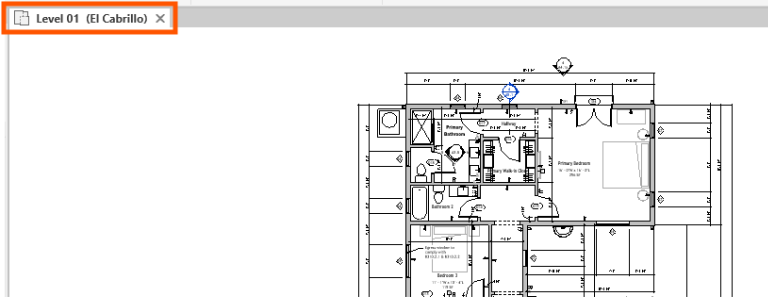
Purpose: Closes every open view except the one you’re currently working in.
It’s common to have numerous views open while modelling: plans, sections, elevations, schedules, sheets, and 3D views. Over time, this can clutter your workspace and consume system resources.
Instead of manually closing each tab, Close Inactive instantly keeps only the active view open.
Example:
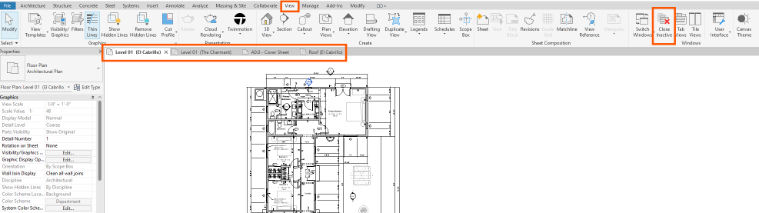
Simply click Close Inactive, and Revit closes every other view while leaving your current one open.
Benefits:
- Reduced screen clutter.
- Makes navigation easier.
- Improves focus.
- Can slightly improve performance on larger projects.
Tab Views
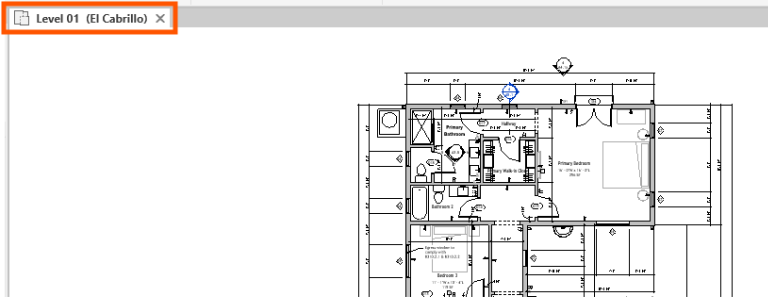
Purpose: Displays all open view as tabs across the top of the Revit window.
This is Revit’s default workspace arrangement.
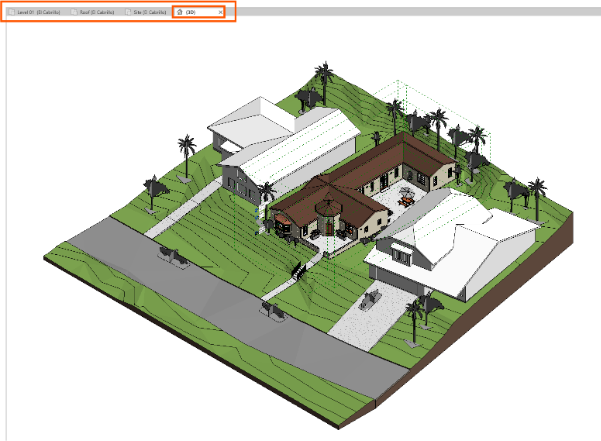
Tabbed views are ideal when:
- Working on a single monitor.
- Switching between drawings one at a time.
- You prefer a clean workspace.
Advantages:
- Easy navigation.
- Minimal screen clutter.
- Maximizes drawing space.
- Familiar interface for most users.
Best for:
- Daily modelling.
- Documentation.
- Annotation.
- Small to medium projects.
Tile Views
Purpose: Displays multiple open views simultaneously.
Instead of switching between tabs, Revit automatically arranges your views side by side.
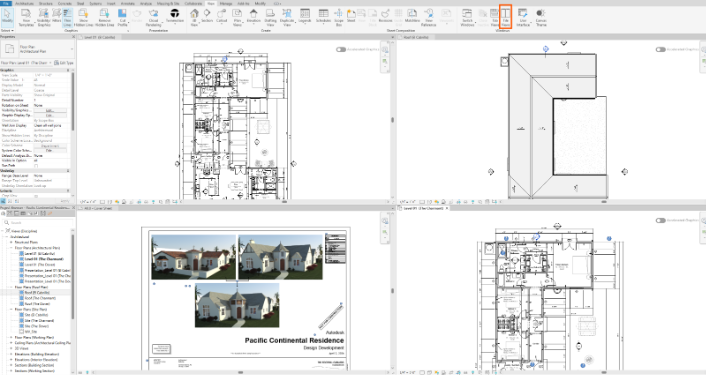
Many design tasks require comparing different views at the same time.
Changes made in one view update instantly in the others, making coordination much easier.
Practical example: Suppose you’re placing windows. With tiled views, you can have: floor plan on the left and exterior elevation on the right. As you move a window in the plan, you immediately see its position update in the elevation. This reduces mistakes and eliminates constant switching between tabs.
Tips for even better productivity:
- Use tiled views on large monitors.
- Use dual monitors if available.
User Interface
Purpose: Allows you to control which interface elements are visible in Revit.
Rather than changing your model, this command customises your workspace.
Available Options, depending on your Revit version, you can show or hide items such as:
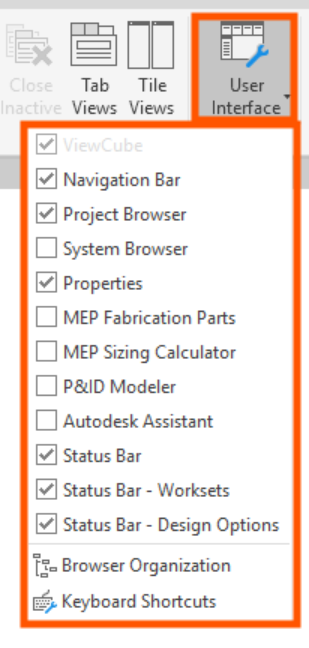
Sometimes interface panels occupy valuable screen space.
For example: When presenting a model to a client, you may want to hide unnecessary interface elements to create a cleaner, more professional appearance. Alternatively, if you accidentally close the Properties Palette or Project Browser, you can quickly restore them through the User Interface menu.
Benefits:
- Customise your workspace.
- Increase modelling space.
- Improve presentation quality.
- Quickly restore hidden panels.
- Combining the Windows tools for maximum productivity.
The Windows panel becomes even more effective when its commands are used together. A common workflow might look like this:
- Open several view needed for coordination.
- Use Tile Views to display them simultaneously.
- Compare and edit the model across multiple views.
- Return to Tab Views when you only need one active view.
- Finish by selecting Close Inactive to clean up your workspace.
This simple routine keeps your project organised and minimises distractions.
The Windows panel may seem like a small part of the Autodesk Revit interface, but it can have a significant impact on your daily productivity. By mastering Close Inactive, Tab Views, Tile Views, and User Interface, you can streamline navigation, reduce visual clutter, and work more efficiently on projects of any size.
Whether you’re a beginner learning Revit or an experienced BIM professional, incorporating these tools into your daily workflow will help you stay organised and focused. The less time you spend managing windows, the more time you can dedicate to designing and delivering high-quality projects.
Still got Questions?
Book Training
Our Revit courses cover everything from the skills required to use the software, to design and share information between project teams, through to creating custom family elements.
Contact Us
We are here to ensure you receive a consistently high service and quality solutions for your business needs. We promise you won’t regret speaking to us, and if we can’t help you, we will try to find someone that can.