


Are you using the Model Viewer? I ask this because after about 20 years of using the Object Viewer, I keep accidentally using it instead of the rather excellent Model Viewer. There are some limitations, but it’s definitely a massive improvement.
Joe Wright creates the UKIE country kit and you can find his latest instructional video here: Civil 3D UKIE Country Kit 2027 New Features and Content Instructional Video. With the 2026.1 UKIE country kit, Joe did an excellent job creating new code-sets for this viewer so make sure you have it installed. If you’re using 2026.0 or earlier, or even worse, not using the country kit, you need to put that right at the first opportunity.
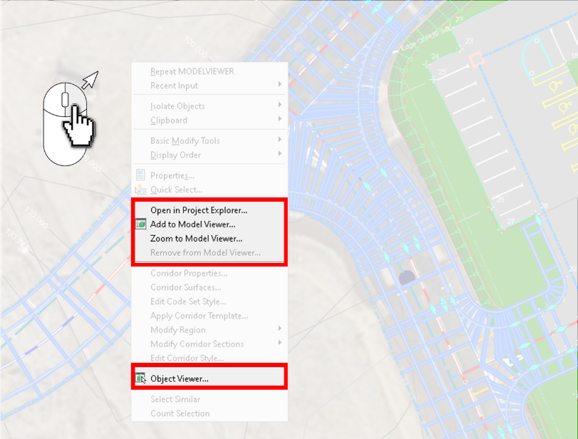
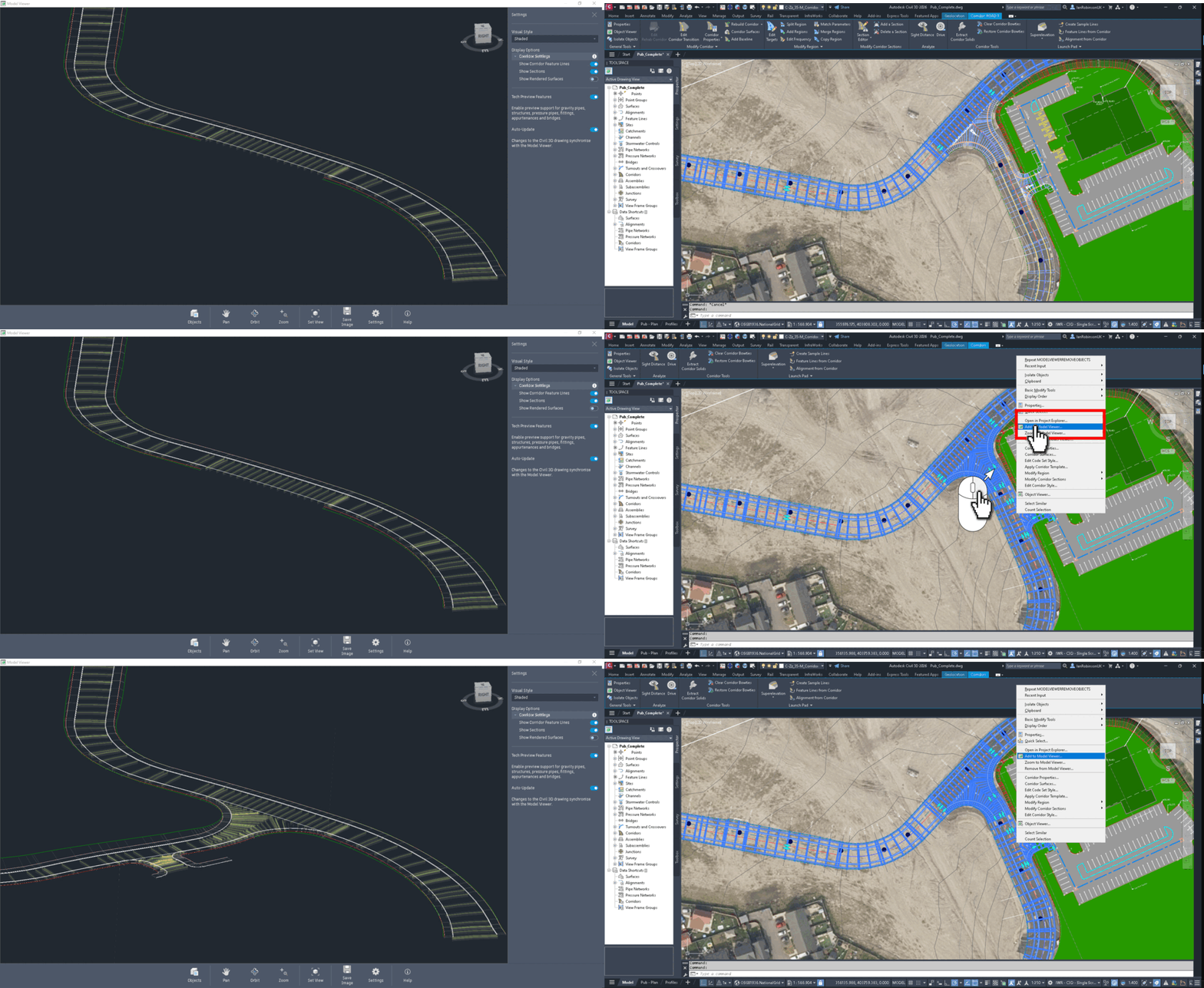
To use the Model Viewer, simply select an object and right click int he model space. The Object Viewer is still there, and still in the same place on the ribbon, but we now have the additional options of ‘Adding to Model Viewer’ and ‘Zoom to Model Viewer’.
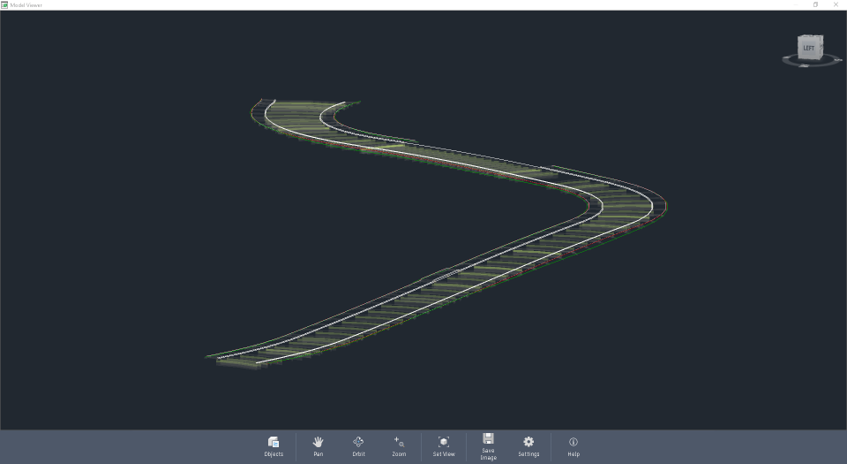
Model Viewer is a much easier tool to navigate around and has some very useful features. Firstly, it zooms and rotates around the mouse position, so you’ll instantly find it much more intuitive to use.
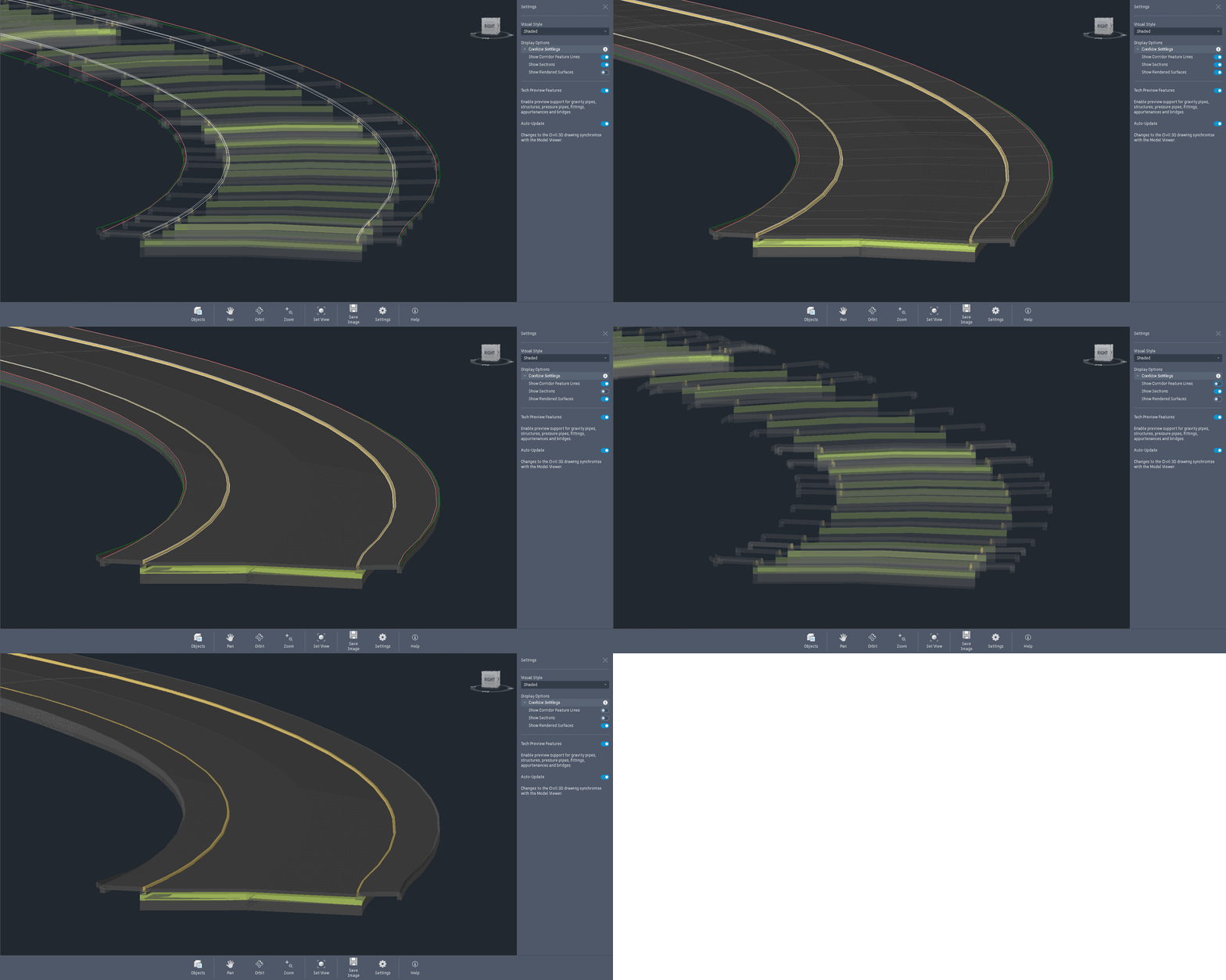
In Model Viewer you can adjust the appearance by selecting the settings button.
You can also change the Visual Style here and turn on the Station Tracker (yes! I know we call it Chainage, but this is not the battle we want)! This allows you to track your mousse position from the 3D model. A great way to identify the location of any problems you might see in the 3D viewer. After all, one of its primary functions is to show you any issues.
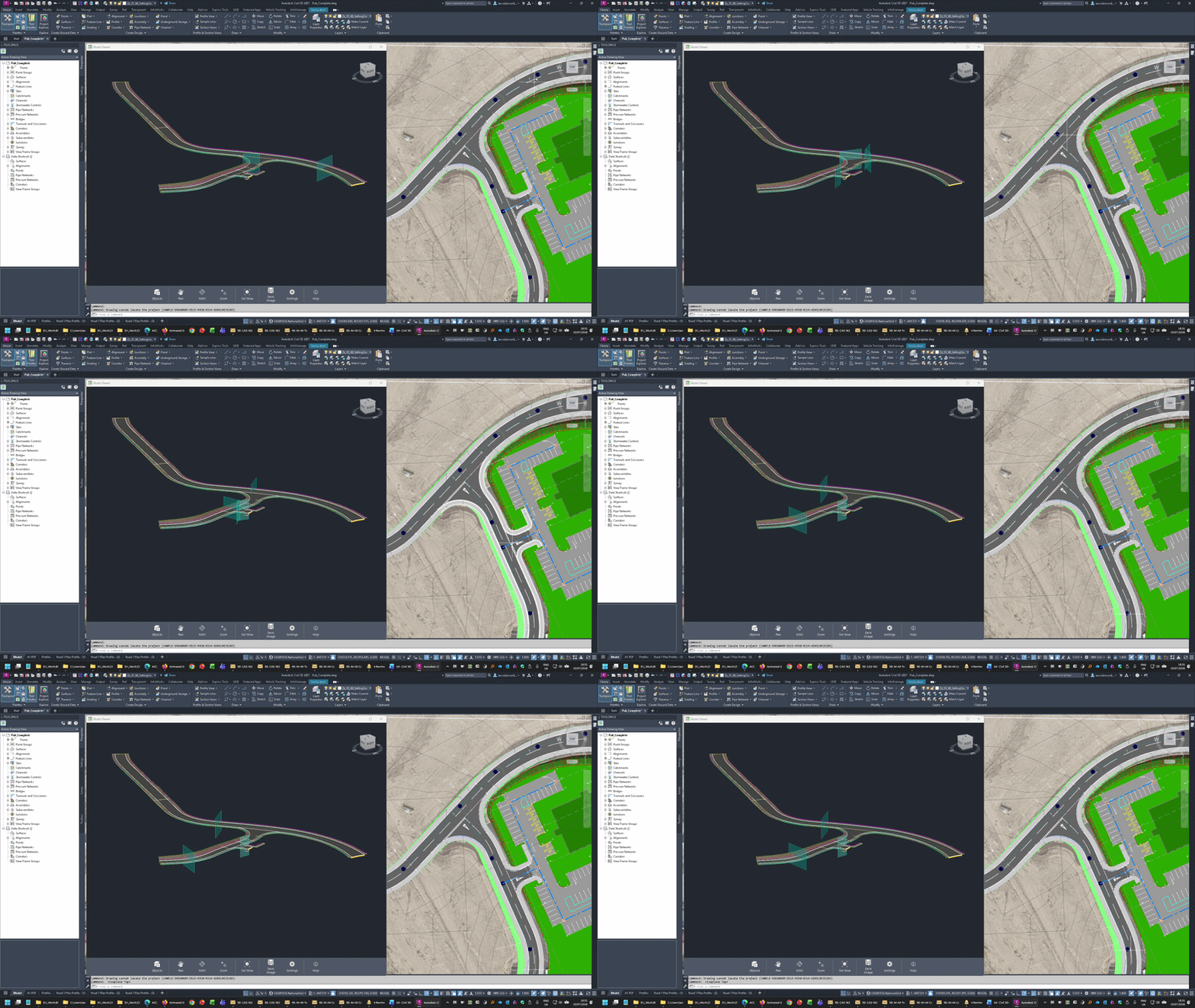
As well as being easier to navigate, you can also carry on working with the Viewer open and it will automatically update when your model changes.
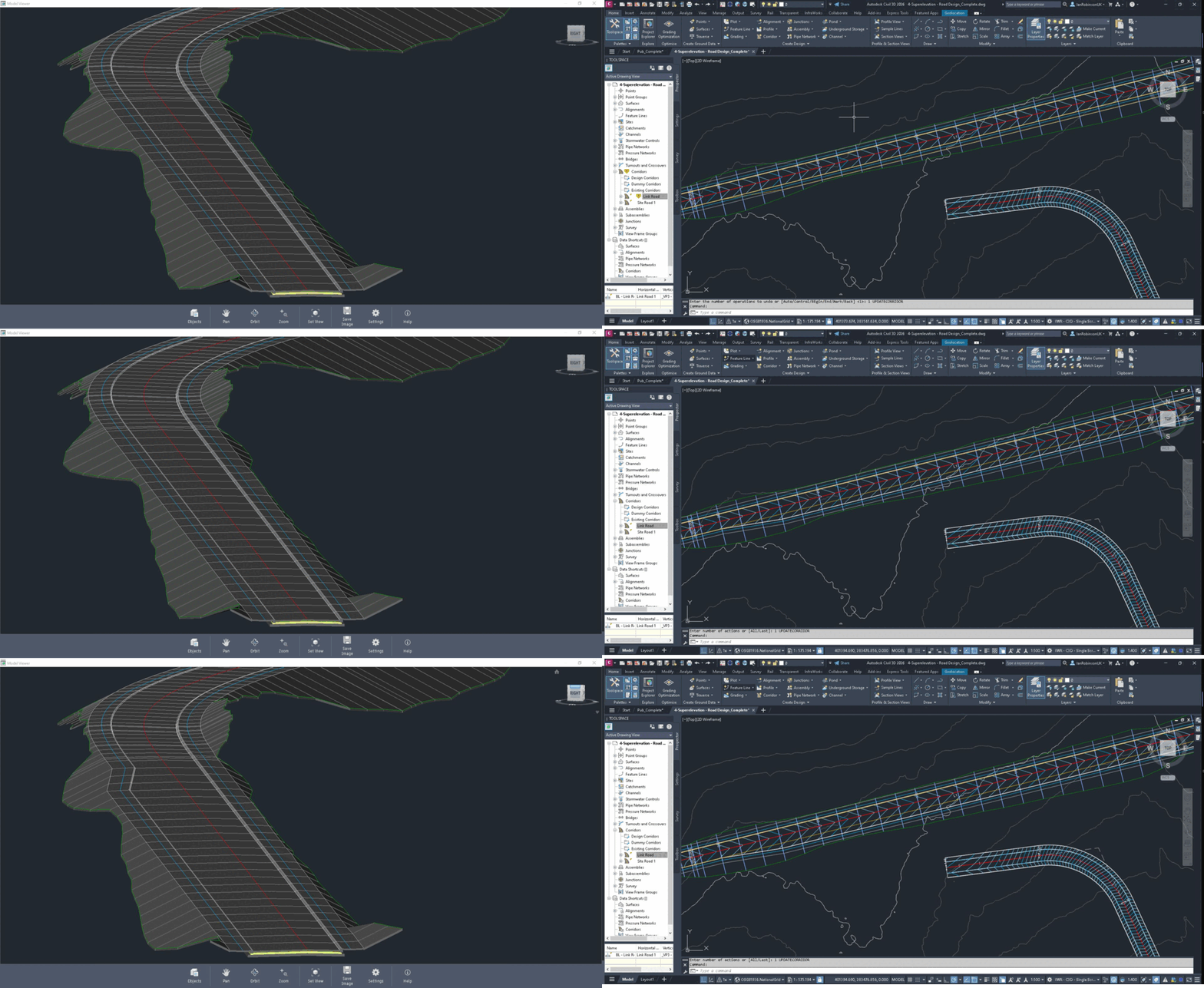
The ability to have the Model Viewer open on another screen and you can continue working in the model is the biggest improvement in my opinion. When you change something in the model, the 3D Model Viewer automatically shows the updated model.
This is a game change. If you change an alignment for example, the profile dynamically updates, then the corridor dynamically update, extracted dynamic Featurelines update, extracted solid update, then the corridor surface updates followed by your final design surface. And you get to see it all happen live in both 2 and 3 dimensions.
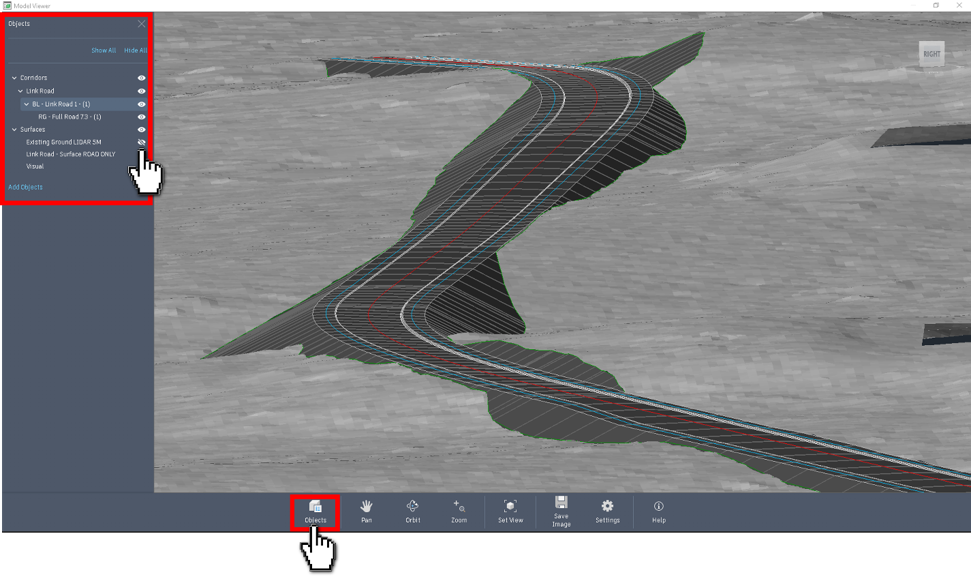
When you have your Model Viewer open and you want to add or remove something, you can. You no longer have to close the viewer down and reselect the objects. Just add or remove them. To remove them, you have 2 choices: either remove by selecting, right clicking and selecting ‘Remove from Model Viewer’, or just turn them off with the Objects button in the Viewer.
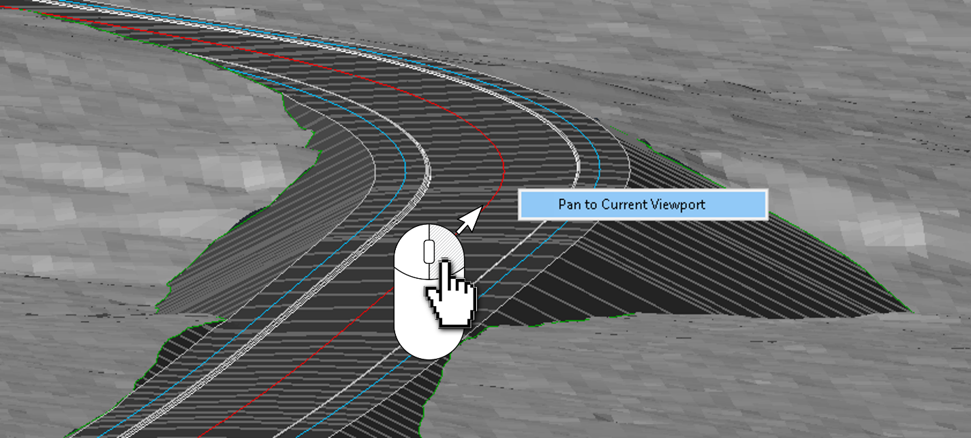
And finally on this subject, one addition I really like is the ability to pan the model to the place you pick in the Model Viewer. Just right click anywhere in the Model Viewer and select ‘Pan to Current Viewport’. Used alongside the Chainage Tracker (I know I said what I said, but I just can’t!), you can locate issues really easily.
Still got Questions?
Book Training
Our Civil 3D training will teach everything you need for surveying, mapping, design, documentation and analysis. It’ is designed for Civil Engineers and Surveyors who want to take advantage of the software.
Contact Us
We are here to ensure you receive a consistently high service and quality solutions for your business needs. We promise you won’t regret speaking to us, and if we can’t help you, we will try to find someone that can.