


Did you know in Revit there is a button to temporarily apply a view template to a view. This allows you without changing the setting of the view to apply another view template and just as easily switch back to the views settings.
The button is called Temporary View Properties and is located at the bottom of the view.
You will most likely have overlooked this none descript button however it can be very useful.
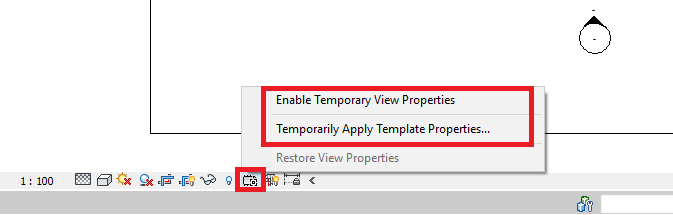
To apply a temporary view template simply click the Temporary View Properties and choose either to apply an existing view template or to temporarily change the view settings.
Once you are finished simply select the Temporary View Properties button again and select Restore View Properties, and its as simple as that.
Still got Questions?
Book Training
Our Revit courses cover everything from the skills required to use the software, to design and share information between project teams, through to creating custom family elements.
Contact Us
We are here to ensure you receive a consistently high service and quality solutions for your business needs. We promise you won’t regret speaking to us, and if we can’t help you, we will try to find someone that can.