


Have you ever found it annoying in Revit how when you save a 3D view, it can accidentally be rotated or moved about? What if there was some way we can lock the 3D view to stop it accidentally being changed. There is a tiny button which allows us to do exactly this which is often over looked.
How To Lock a 3D View
1. Create and save the 3D view so it appears in the project browser.
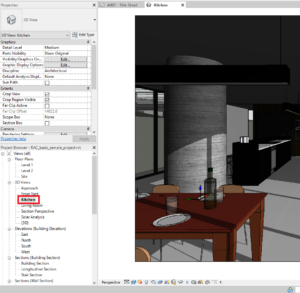
2. Setup the 3D view to how you want it to look.
3. To lock the 3D View click the “Locked 3D View” button found at the bottom of Revit, it looks like a house with a padlock.

This will now have locked the 3D view stopping any accidental changes to it. If you do need to make some changes to the saved 3D view simply click the Locked 3D View button again to unlock it while you adjust your 3D view.
Still got Questions?
Book Training
Our Revit courses cover everything from the skills required to use the software, to design and share information between project teams, through to creating custom family elements.
Contact Us
We are here to ensure you receive a consistently high service and quality solutions for your business needs. We promise you won’t regret speaking to us, and if we can’t help you, we will try to find someone that can.