


In this blog, I will explain how to update and synchronize AutoCAD block attributes using the Attribute Sync command in standard AutoCAD.
When creating new or editing existing attributes within a block you may have noticed that the existing blocks in a drawing do not show the changes immediately. This is because attributes do not automatically synchronize to existing blocks in the drawing the same way that geometry does.
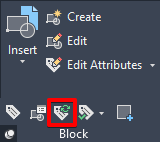
On the Home tab,
Block panel, expand the menu, the Attribute Sync icon is shown above, the
command is ATTSYNC.
Once activated, you will be prompted to ‘Name’ or ‘Select’ the block you need to update. The default option to ‘Select’ where you can select the block you wish to update, press Yes to update, your new or updated attributes will show all changes you have made.
To conclude, don’t forget the ATTSYNC!!!
Still got Questions?
Book Training
With our range of AutoCAD courses we can teach you best-in-class 2D and 3D design skills. This includes drawing, taking measurements, producing templates and everything required to create your designs.
Contact Us
We are here to ensure you receive a consistently high service and quality solutions for your business needs. We promise you won’t regret speaking to us, and if we can’t help you, we will try to find someone that can.