


Want to model in a 3D view in Revit? Then your going to need to know how to use the Work Plane.
The work plane is the plane which you are working on, in a 2D plan view your working on the level the view is associated so you don’t need to think about work planes. But when in a 3D view you will need to change between horizontal and vertical work planes and also think about depth and even custom angles.
Here is how to pick a new work plane in 5 simple steps.
1. On the Architecture tab, Work Plane group, click Show to show your current work plane.
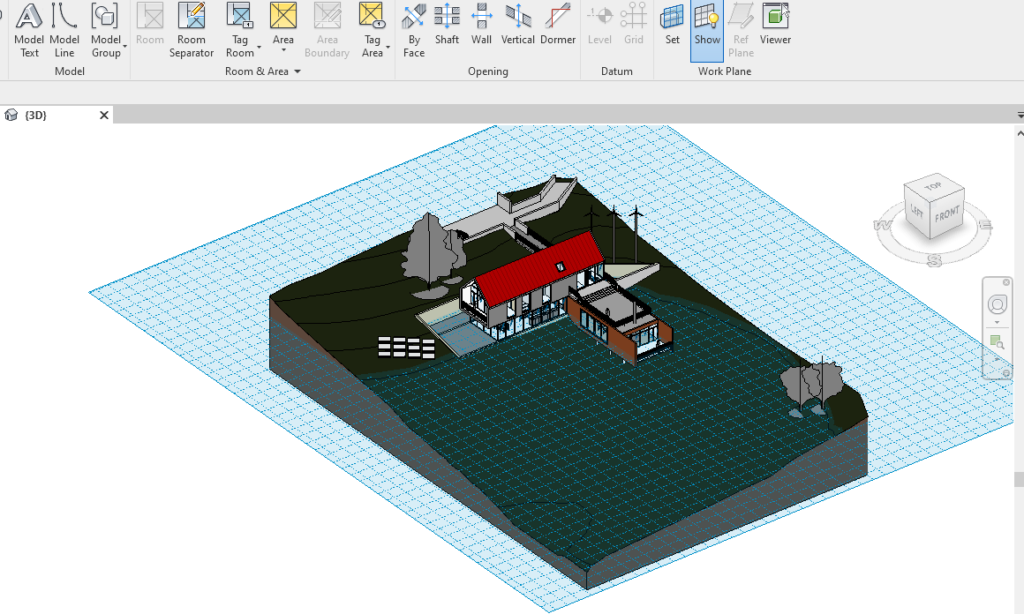
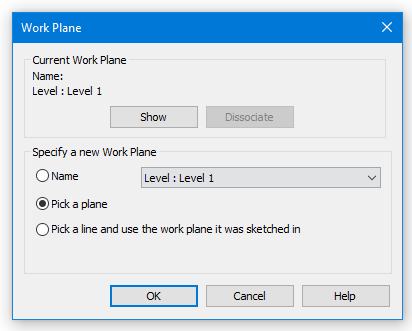
2. Click Set to open the Set Work Plane window.

3. Choose Pick a Plane.
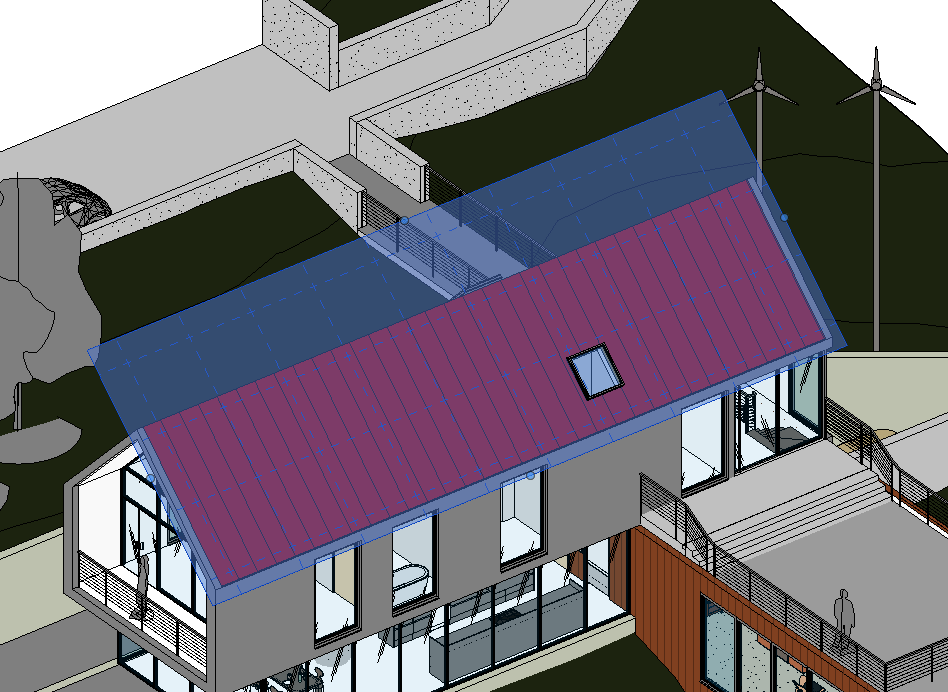
4. Click on an elements face to set it as the new Work Plane.
Still got Questions?
Book Training
Our Revit courses cover everything from the skills required to use the software, to design and share information between project teams, through to creating custom family elements.
Contact Us
We are here to ensure you receive a consistently high service and quality solutions for your business needs. We promise you won’t regret speaking to us, and if we can’t help you, we will try to find someone that can.