


In Revit, each view has a discipline assigned to it, this controls what elements are visible and which are hidden.
For example in an architectural view we can see walls, windows and doors but we might not be able to see structural elements such as beams and trusses or mechanical elements such as ducts.
There are 6 disciplines to choose from:
- Architectural
- Structural
- Mechanical
- Electrical
- Plumbing
- Coordination
Coordination is different to the others in that it doesn’t hide anything by default but shows all disciplines. This is as the name suggests very useful if you are trying to coordinate between different disciplines.
Setting a View Discipline
To set a view discipline open the view in Revit.
Make sure you have nothing selected
The properties window will display the properties for the current view
Under the Graphics heading you will find the property for “Discipline”
clicking in the value box a dropdown will present you with the 6 options previously mentioned
Select an option and click Apply.
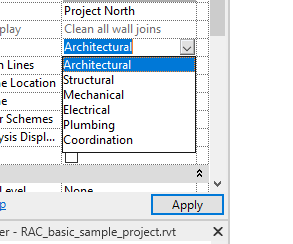
Your view will now update based on the disciple selected.
Still got Questions?
Book Training
Our Revit courses cover everything from the skills required to use the software, to design and share information between project teams, through to creating custom family elements.
Contact Us
We are here to ensure you receive a consistently high service and quality solutions for your business needs. We promise you won’t regret speaking to us, and if we can’t help you, we will try to find someone that can.