


When starting to use Enscape to render your scenes from Revit, you may come across an issue with your materials appearing white.
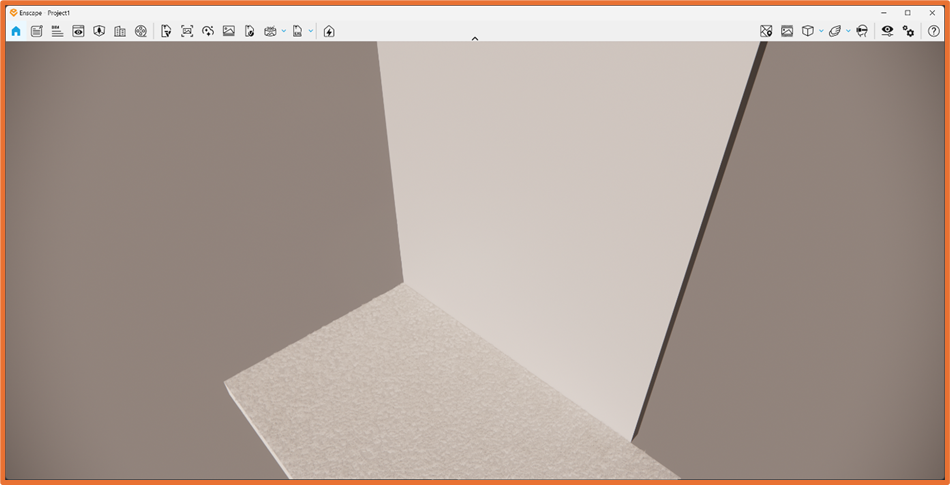
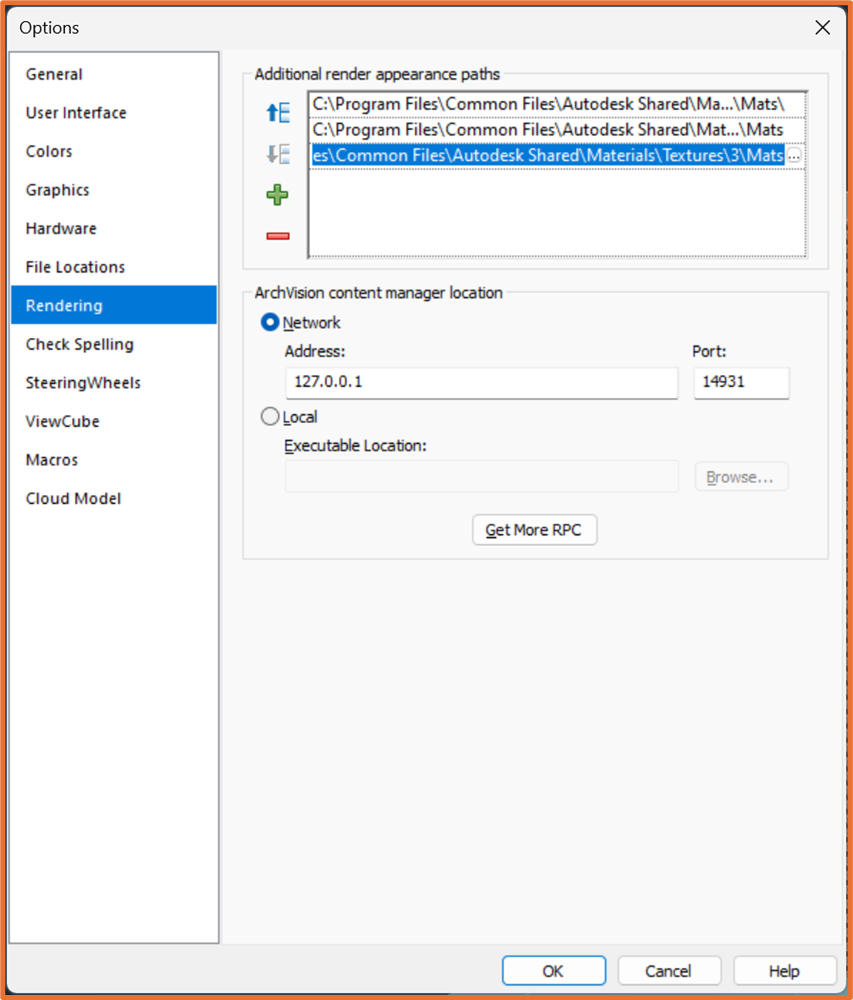
This is more than likely sure to your Rendering mapping within Revit. Head into Options > Rendering. Autodesk products share material libraries found within your Program files.. add these paths to the Additional render appearance paths in Revit:
- C:\Program Files\Common Files\Autodesk Shared\Materials\Textures\1\Mats
- C:\Program Files\Common Files\Autodesk Shared\Materials\Textures\2\Mats
- C:\Program Files\Common Files\Autodesk Shared\Materials\Textures\3\Mats
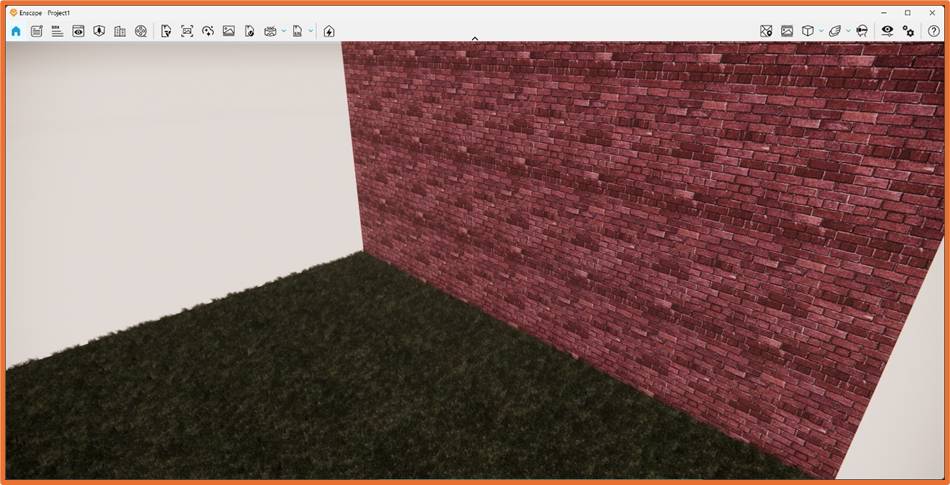
Restart Enscape, on launch you should now see your materials pulled through and showing correctly.
Still got Questions?
Book Training
Our Revit courses cover everything from the skills required to use the software, to design and share information between project teams, through to creating custom family elements.
Contact Us
We are here to ensure you receive a consistently high service and quality solutions for your business needs. We promise you won’t regret speaking to us, and if we can’t help you, we will try to find someone that can.