


Did you know you can add dimensions in a 3D view?
In revit dimensions can only be placed on a 2D surface, if your in a 3D view you will find that all your dimension tools are greyed out.
So how can we add dimensions onto a 3D view?
Adding Dimensions to a 3D View
First of all, open your 3D view.
Next go to the Work Plane tools on the Ribbon bar, this can be found on the Architecture, Structure, Steel & Mechanical tabs.
In the work Plane tools select “Set”.
Choose “Pick a Plane”
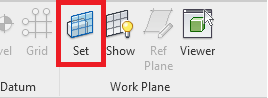
This allows you to select a surface within the view to act as the 2D work plane on which to add your dimentions.
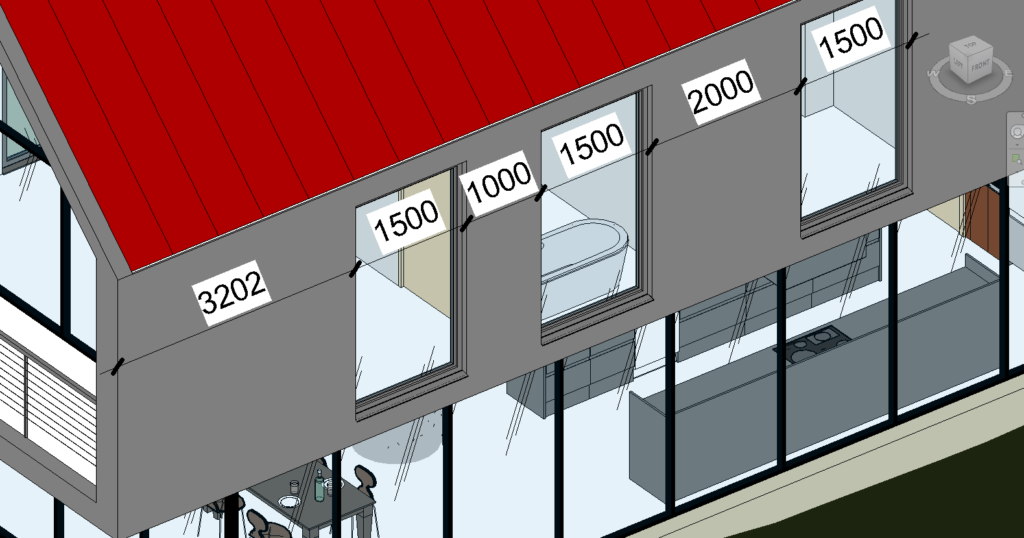
You are now free to draw dimensions in your 3D view on your chosen plane.
Still got Questions?
Book Training
Our Revit courses cover everything from the skills required to use the software, to design and share information between project teams, through to creating custom family elements.
Contact Us
We are here to ensure you receive a consistently high service and quality solutions for your business needs. We promise you won’t regret speaking to us, and if we can’t help you, we will try to find someone that can.