


When a model has been set as a workshared model and saved on your local network, it will become a model which can now be used by multiple team members who can work on it at the same time.
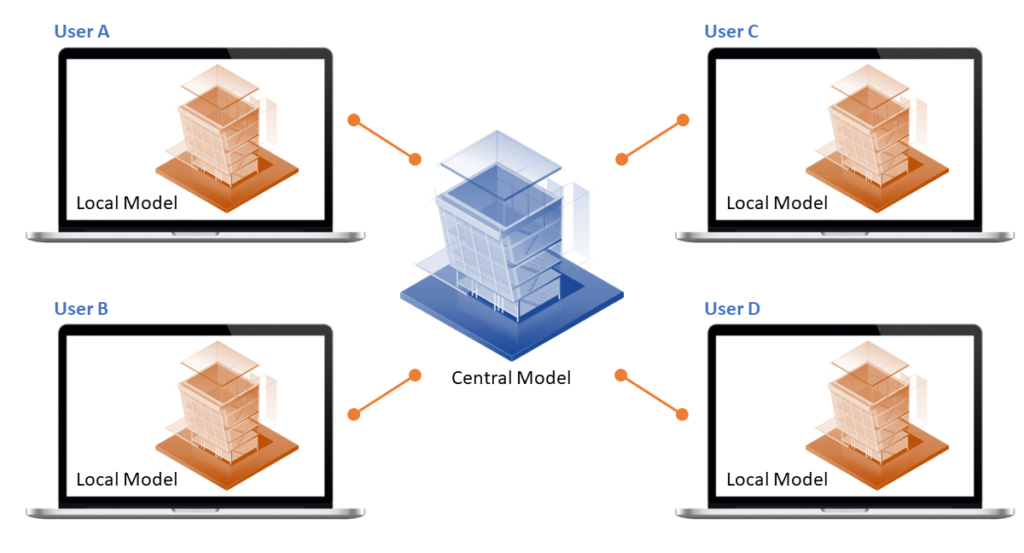
Now the central model file is set up there will no longer be backup files as before but a folder directory of backup files. The folder naming will be as follows: filename_backup.
Backup Files
Each time you save locally and synchronize to the central model a backup file is created.
Your local backups folder will generally be saved in your documents folder on your machine. The backups folder for the central file will be in the same folder as the Revit model file.
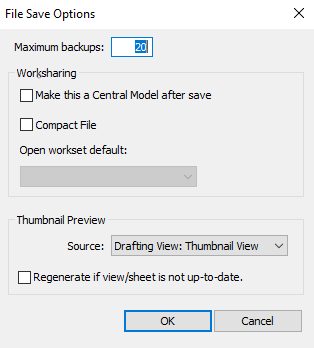
In the save-as options dialog box you can control the number of backups retained just like you can for a standalone Revit file. You may want to set this number to a high number say 20 maximum backups.
Roll Back to a Previous Model Version
It is possible to roll back either a central model or a local model of the project.
Your local backups folder will generally be saved in your documents folder on your machine. The backups folder for the central file will be in the same folder as the Revit model file is saved.
In the save-as options dialog box you can control the number of backups retained just like you can for a standalone Revit file. You may want to set this number to a high number. e.g 20 maximum backups.
Dos and Don’ts
- Do not delete or rename the backup folders or files in these folders.
- If you rename the project model file, make sure you rename the backup folder appropriately also.
- If you move or copy the project (central) model make sure you do the same with the backup folder as well.
To find out more information about backup files for workshared projects see the Autodesk Knowledge Network online here.
This is part two of three saving your Revit model. Part one covers saving your model locally, you can check it out here.
Still got Questions?
Book Training
Our Revit courses cover everything from the skills required to use the software, to design and share information between project teams, through to creating custom family elements.
Contact Us
We are here to ensure you receive a consistently high service and quality solutions for your business needs. We promise you won’t regret speaking to us, and if we can’t help you, we will try to find someone that can.