


Many objects within Revit have a specific orientation, doors swing left or right, windows have sills on the outside, or just general elements such as furniture.
After placing these items, they can be mirrored or rotated using the respective commands but there is an easier way.
By using the Space Bar we can rotate or flip elements, we can do this when placing elements or afterwards by selecting them.
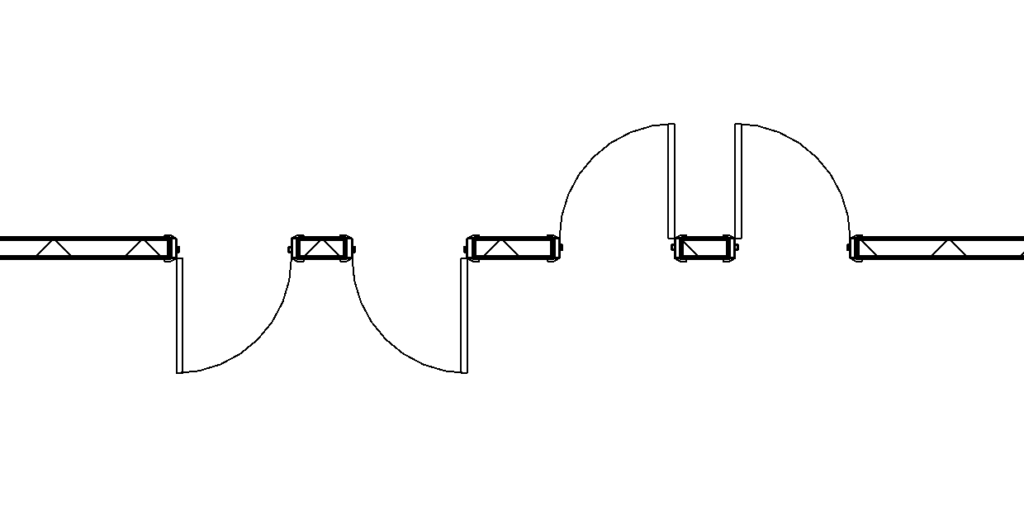
For a door we can change the direction it swings and if it opens into or out of a room.
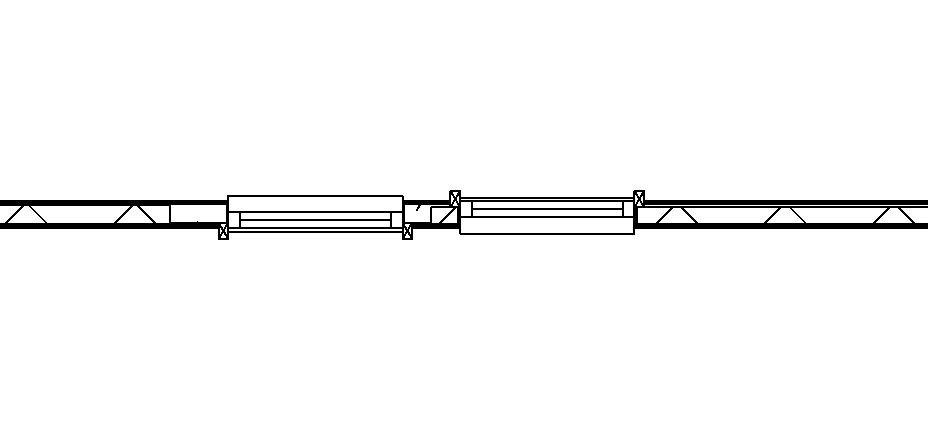
For a Window it flips from sill inside to sill outside.
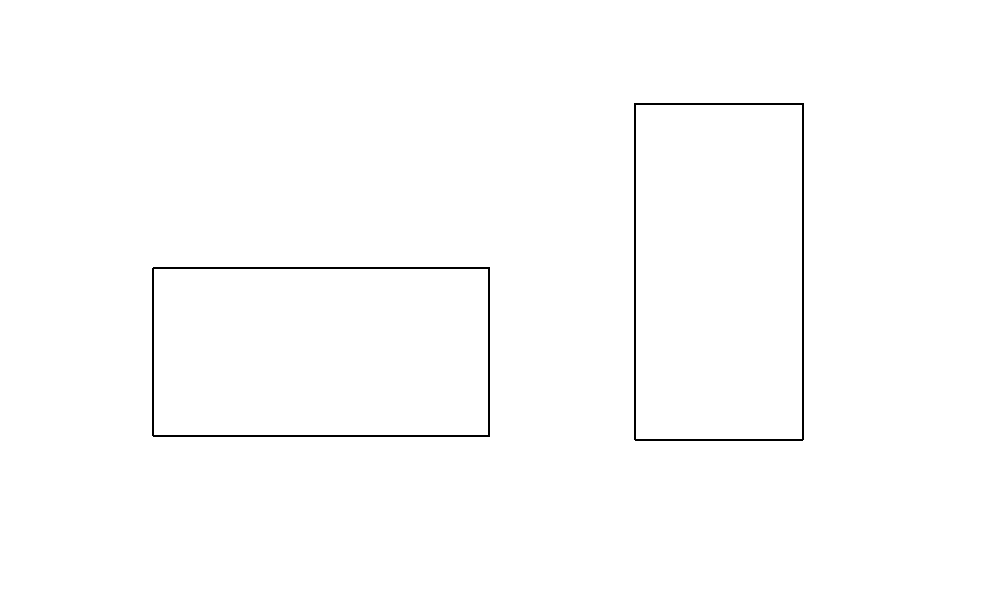
And for free standing elements they rotate by 90 degrees.
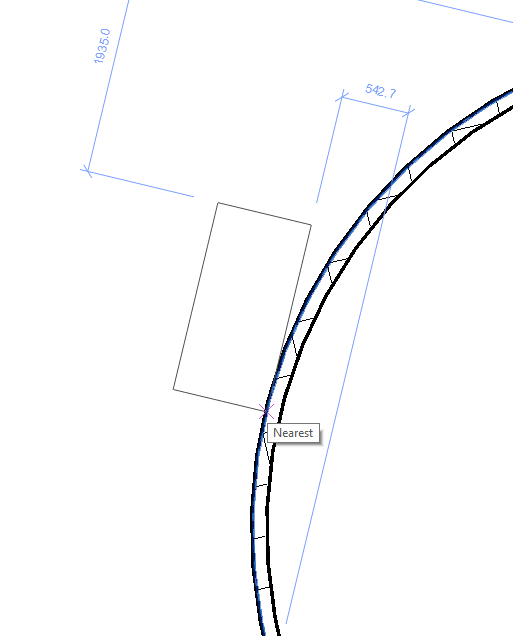
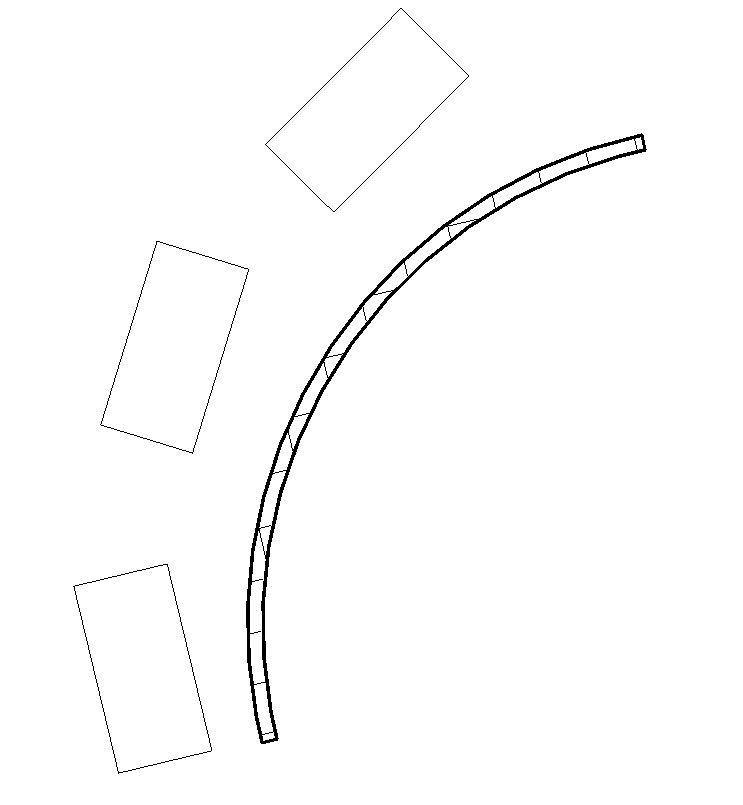
The cool thing about the space bar rotate is that we can also orientate to curves. In the example below I’m placing a chair against a curved wall, by moving the chair over the wall before placement and pressing space it will orientate and follow the curve of the wall.
Conclusion
Using the spacebar for rotating and flipping elements is fast and productive. It’s a feature which isn’t obvious and many people still manually flip and rotate using the Modify Tools.
Still got Questions?
Book Training
Our Revit courses cover everything from the skills required to use the software, to design and share information between project teams, through to creating custom family elements.
Contact Us
We are here to ensure you receive a consistently high service and quality solutions for your business needs. We promise you won’t regret speaking to us, and if we can’t help you, we will try to find someone that can.