


**Please note, as of 24th March 2026, the Autodesk Construction Cloud has joined the Forma industry cloud and has been rebranded as Forma. Find out more details here.**
When you save your Revit model in Autodesk Docs or BIM 360 Docs you will notice that is sometimes just one view and other times it has loads of views. So how do we control what view we wish to be visible within Docs?
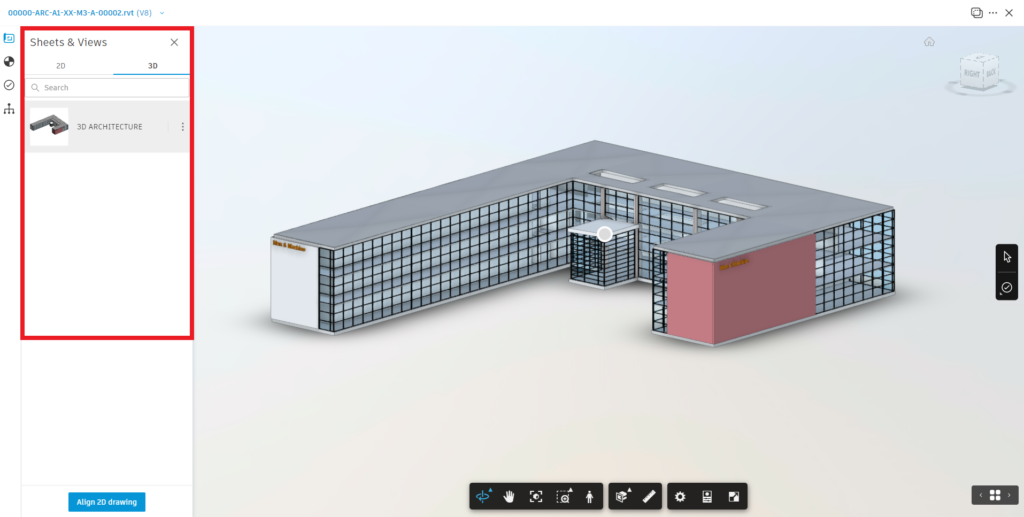
This is controlled by the Revit users similar to when you export to DWG format or print to PDF.
On the Ribbon in Revit > Collaborate (tab) > Manage Models (panel) > Click Publish Settings.

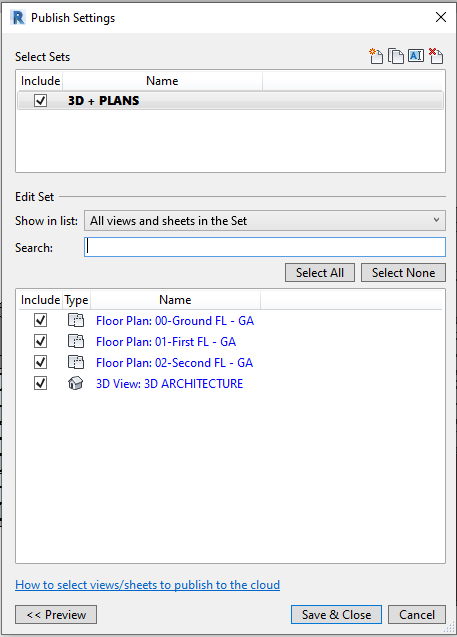
In the published settings dialogue box we can select views and sheets in our project and add them to a ‘Set’ which can be used for publishing to Autodesk Docs, print or export to DWG format.
At certain points in the project, you might only wish to share one view such as a 3D view, which is used when you coordinate other models together in the Model Coordination (BIM Collaborate) module. So, you can control what elements are in the view.
Remember even though the Revit user saves the model it still needs to be published to the next version within Autodesk Docs. The model can be published from Revit or if the BIM Collaborate product is active, a member can control when models are published through the Design Collaboration module.
Still got Questions?
Book Training
We have developed a robust set of onboarding and deployment services to ensure best-in-class implementation of Autodesk Forma (formerly the Autodesk Construction Cloud).
Contact Us
We are here to ensure you receive a consistently high service and quality solutions for your business needs. We promise you won’t regret speaking to us, and if we can’t help you, we will try to find someone that can.