


Some long-awaited functionality has just been introduced into Fusion operations; the ability to import products from Fusion and Vault. Though some setup is required for the Vault integration.
Import
Product import is available on the Products page of Fusion Operations. Products are imported using the Add Product dropdown by selecting either Import from Fusion or Import from Vault.
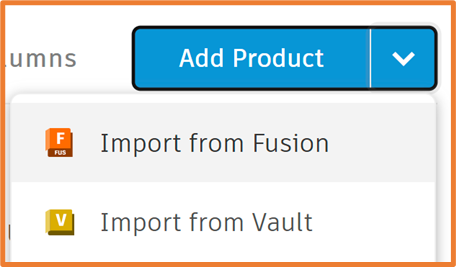
Due to its cloud-based functionality, Import from Fusion works straight out the gate, provided the current Fusion Operations user has access to a relevant Fusion Hub. The Vault option requires a little more setup, which we cover in the Vault Integration section.
Import Workflow
Whether using Import from Fusion or Vault, a dialogue box shows the folder structure of the desired database. This allows for easy navigation to the required files, and selection in the main window.

If a Product within Fusion Operations already has the same name as the selected files, a warning will pop up confirming this. Since Fusion Operations requires unique naming, there is the option of adding a Prefix or Suffix to the name to ensure unique naming. This could be a revision number, or any other unique identifier.


Once the name has been accepted, selecting import will begin the import process into Fusion Operations. If an Assembly file is selected, there is also the ability to bring in sub-components as dependants in the Fusion Operations BoM.
At present, this process only imports the names of the products, and relationships between parents/children. However, this is a great starting point for integrating CAD and MES. We look forward to seeing this develop further in future releases.
Vault Integration
The Vault integration required a little more setup before files can be imported. The import process uses Vault Gateway as a connection point for Fusion Operations.
Vault Gateway
Before setting up the Vault connections, the source Vault requires a Gateway connection. Vault Gateway is a cloud-based connection point to the Vault server, allowing access to servers from outside of its local network. This functionality was introduced in the 2023 release of Vault. We have detail the setup process for Gateway in this video: Autodesk Vault without VPN – How to Configure Vault Gateway.
More information related to Vault Gateway can be found here: Vault 2023 Help | Vault Gateway | Autodesk.
The user trying to access Vault through Fusion Operations will also require access to Vault in order to set this up.
Vault Integration
Once Vault Gateway is set up and running, the Vault connection is set up through the Integrations administration pare, against the Vault Integration options.
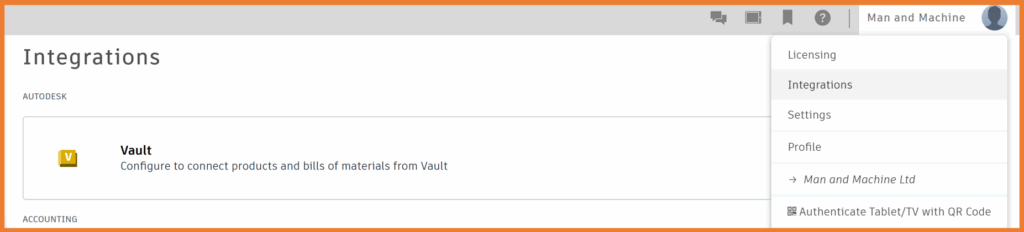
The Gateway URL and Vault name will need to be entered for each required Vault server. There is a further option to add the files Revision to the respective Product Code to enforce unique naming.

Once the integration is set up, the import process detailed above will be available for Vault files.
Still got Questions?
Book Training
Through hands-on exercises, you will acquire the key skills and knowledge required to design models using Fusion. It will teach you everything from product development to simulation and fabrication.
Contact Us
We are here to ensure you receive a consistently high service and quality solutions for your business needs. We promise you won’t regret speaking to us, and if we can’t help you, we will try to find someone that can.