


If your AutoCAD workflow involves creating multiple versions of the same block, you’re not alone. From resizing components to adjusting layouts, many users rely on duplicating and modifying blocks just to get the variation they need. It works, but it’s inefficient, messy and increases the risk of errors.
There’s a better way!
Dynamic Blocks are one of AutoCAD’s most powerful yet underused features, allowing you to create a single, intelligent block that adapts to different situations without redrawing or duplicating anything.
What are Dynamic Blocks?
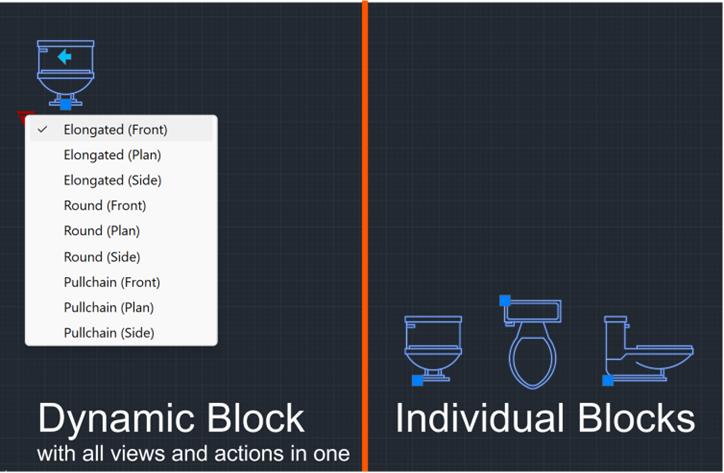
Dynamic Blocks are flexible, customisable blocks that can change shape, size or configuration within a single instance. Instead of creating individual blocks for every variation, you build one block with adjustable parameters and actions. Think of it as turning a static symbol into a smart, interactive tool.
Why Dynamic Blocks Matter
Using standard blocks often leads to:
- Bloated libraries filled with near-identical variations.
- Time wasted searching for the right version.
- Inconsistencies across drawings.
Dynamic blocks solve all of this by consolidating multiple versions into one intelligent object.
The Result?
- Faster drafting.
- Cleaner files.
- More consistent designs.
One Dynamic Block vs many blocks in the library.
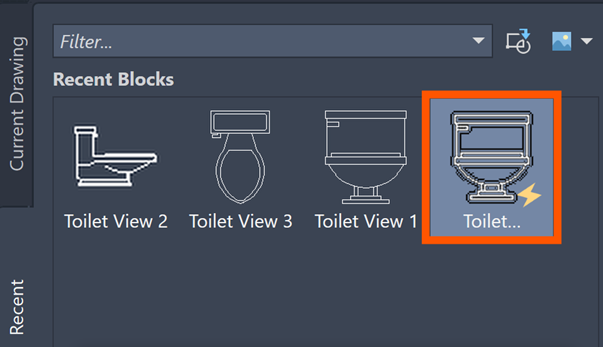
Key Features that make Dynamic Blocks so powerful:
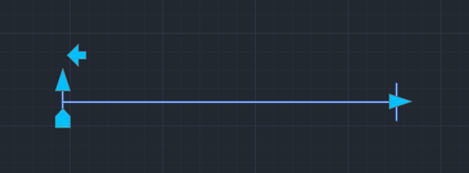
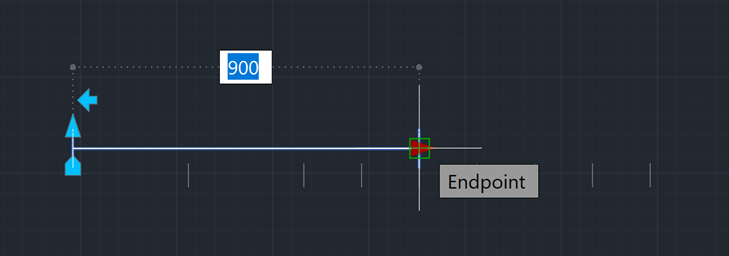
- Stretch and scale without redrawing: With Dynamic Blocks, you can stretch geometry directly using predefined grips, no need to explode or recreate the block. It allows quick adjustments without breaking your workflow.
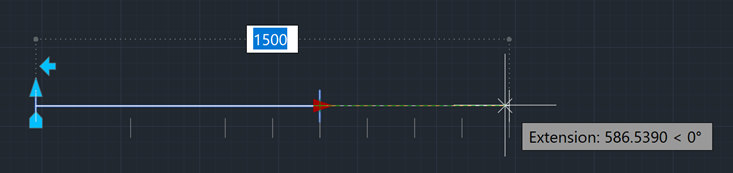
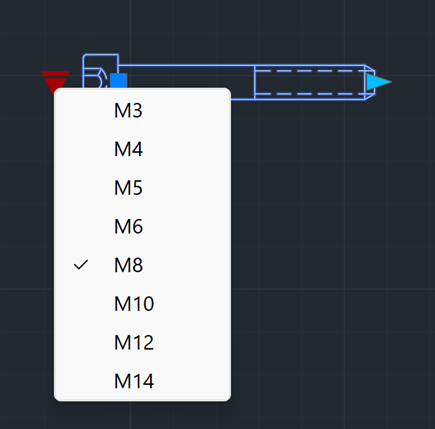
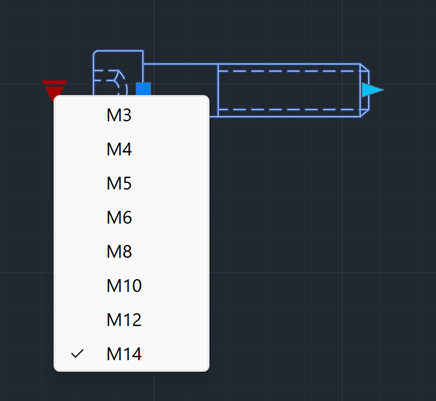
- Visibility states for multiple variations: You can store multiple versions of a block (eg, different configurations or components), inside a single block and toggle between them. Example: A block with multiple sizes or styles all in one place with no more scrolling through endless block libraries.
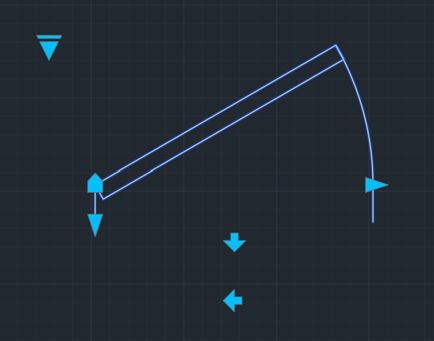
- Rotation and alignment controls: Dynamic blocks allow you to define how objects rotate or align within your drawing, giving you more precisions and fewer manual tweaks during replacement.
- Custom parameters for total control: You can define exactly how a block behaves, whether that’s distance, angles or positions. This results in standardised designs that still allow flexibility.
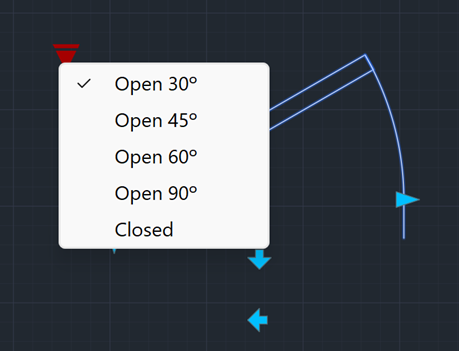
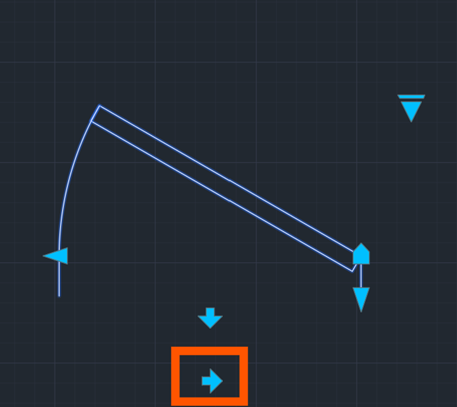
Take the next step!
Want to learn how to create and use Dynamic Blocks effectively? Join our Autodesk training sessions to discover how to:
- Build intelligent, flexible blocks.
- Streamline your workflows.
- Reduce rework across your projects.
Stop duplicating effort, start designing smarter!
Still got Questions?
Book Training
With our range of AutoCAD courses we can teach you best-in-class 2D and 3D design skills. This includes drawing, taking measurements, producing templates and everything required to create your designs.
Contact Us
We are here to ensure you receive a consistently high service and quality solutions for your business needs. We promise you won’t regret speaking to us, and if we can’t help you, we will try to find someone that can.