


After installing Autodesk Vault client for a new user, you may encounter an issue when they attempt to log in. A Vault user account is tied directly to the server and in this guide we’ll look at the steps to creating a new user account.
First, we’ll need to sign into an account with an administrator role (you’ll notice the bar at the bottom changes colour indicating the user is an admin).
Head to Tools > Global Settings > Security > Manage Access.
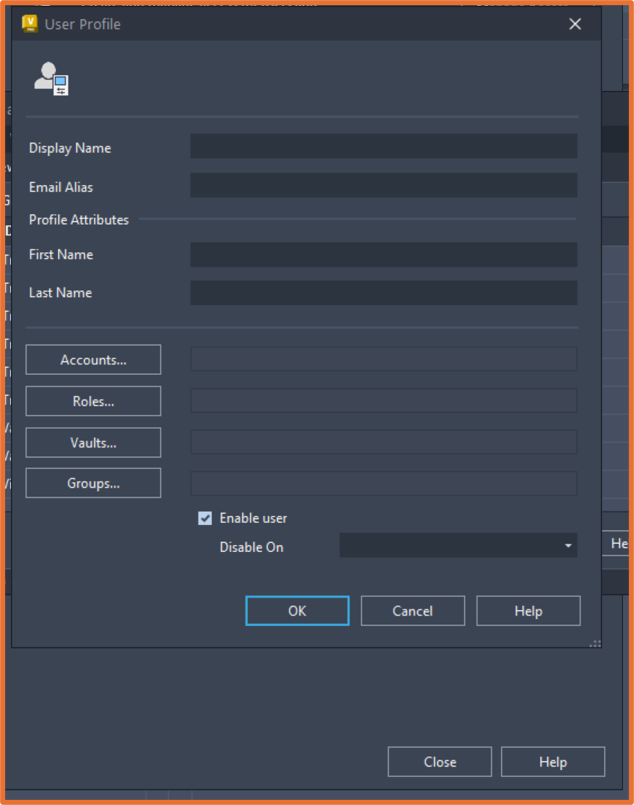
A new dialog will appear showing all users within your Vault. Let’s select New and from here we can enter the Display Name (what shows whilst the user is logged in), email and first/last name.
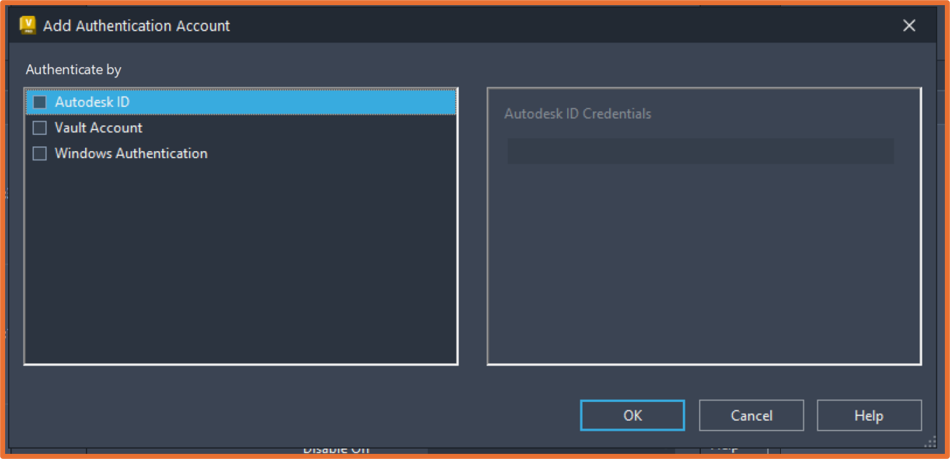
Next let’s select Accounts, and another dialog will appear as below. This setting changes how the user logs in. There are three different methods, multiple can be selected:
- Autodesk ID – Link an email with an Autodesk account to the Vault user.
- Vault Account – A standard login comprising of a username and password.
- Windows Authentication – Add an account from the Active Directory to link to the Vault user.
From here, spending on your environment, you can assign roles or groups, granting the user specific permissions within Autodesk Vault.
Finally, select Vault and enable the Vault(s) the user can access. Hit Ok, now attempt to sign in with the new user account.
Still got Questions?
Book Training
With our Autodesk Vault training you will learn to consolidate and organise all product information securely for easy reference, sharing and re-use. Make sure you contact us to find out which course is right for you.
Contact Us
We are here to ensure you receive a consistently high service and quality solutions for your business needs. We promise you won’t regret speaking to us, and if we can’t help you, we will try to find someone that can.