


If you work with large AutoCAD drawings, you already know how frustrating it can be to update outdated blocks manually. Whether you’re replacing old title blocks, updating symbols, or standardising components across a project, the BlockReplace tool can save hours of repetitive work.
Let’s look at what BlockReplace does, why it matters and how to use if efficiently in AutoCAD workflows.
The BlockReplace command in AutoCAD allows you to replace all instances of a specific block, with a different block.
- Position
- Scale
- Rotation
Instead of deleting and re-inserting blocks one by one, BlockReplace changes them instantly. This is especially useful for:
- Architectural symbols.
- Electrical components.
- Mechanical parts.
- Furniture layouts.
- Title blocks.
- Company CAD standard updates.
Why Use BlockReplace?
Here are some common scenarios where BlockReplace becomes invaluable:
- Standardising Legacy Drawings: Older project often contain outdated symbols or naming conventions. BlockReplace helps modernise drawings quickly.
- Updating manufacturer Components: If a supplier changes a part or symbol, you can replace all old blocks with the new version without redrawing.
- Improving CAD Standards: CAD managers frequently use BlockReplace to ensure all teams use approved block libraries.
- Saving Time: Replacing hundreds of blocks manually can take hours. BlockReplace reduced the task to minutes.
Let’s look at this together!
1 – Open your drawing.
Start AutoCAD and open the drawing containing the blocks you want to replace.
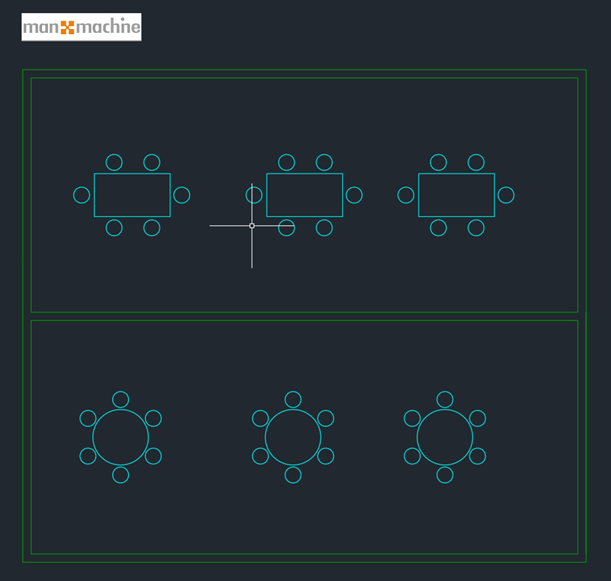
2 – Start the BlockReplace command.

Or type: BLOCKREPLACE into the command line and press Enter.
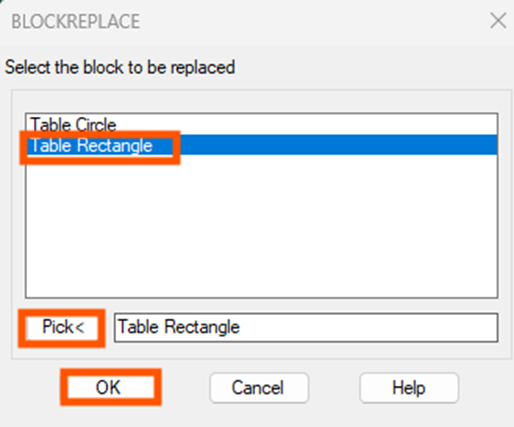
3 – Select the existing block.
Click the block you want to replace, either by selecting the name in the list or by selecting Pick and choose a block in the drawing. Then click OK. AutoCAD will identify the current block definition.
4 – Choose the replacement block.
A list of all available blocks appears.
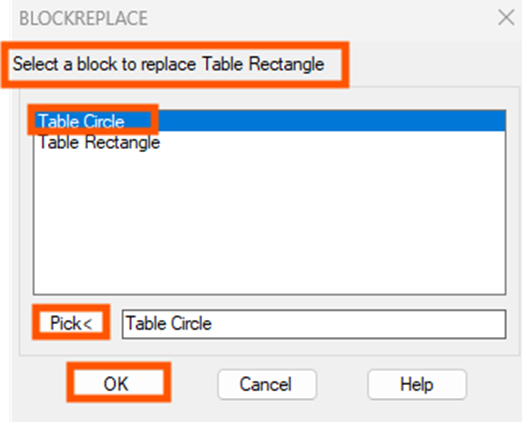
Select the new block you want to use as the replacement. You can purge unreferenced items when finished – Yes by default, or change to No.

You may need to do a REGEN (RE) to see the changes.
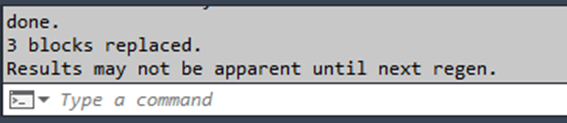
5 – Confirm replacement.
Press Enter to complete the replacement. AutoCAD automatically preserves the original insertion point, scale and orientation.
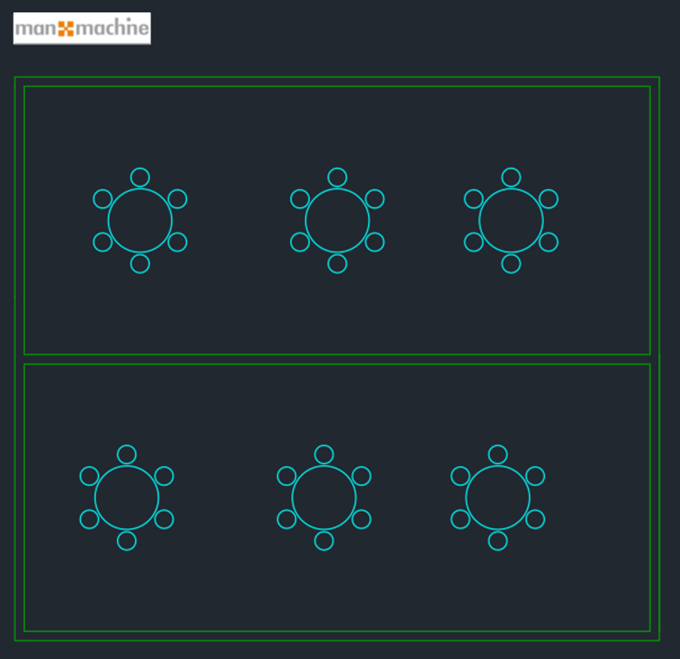
Example Workflow
Imagine you have 250 outdated lighting fixture symbols in a floor plan. Instead of:
- Deleting each block.
- Re-inserting the new symbol.
- Rotating and scaling manually.
You can:
- Run BLOCKREPLACE.
- Select one old fixture.
- Choose the updated fixture block.
- Replace all matching instances.
The update happens almost instantly.
Remember to keep block origins consistent. If the old and new blocks use different base points, the replacement may shift position unexpectedly.
The BlockReplace tool is one of AutoCAD’s most underrated productivity features. It simplifies drawing maintenance, improves consistency, and dramatically reduces repetitive editing work.
Once those are in place, replacing hundreds of blocks becomes a quick, reliable process instead of tedious manual tasks.
Still got Questions?
Book Training
With our range of AutoCAD courses we can teach you best-in-class 2D and 3D design skills. This includes drawing, taking measurements, producing templates and everything required to create your designs.
Contact Us
We are here to ensure you receive a consistently high service and quality solutions for your business needs. We promise you won’t regret speaking to us, and if we can’t help you, we will try to find someone that can.