


Creating repeated features manually in CAD can quickly become time consuming and error prone. Fortunately, the Pattern tool in Autodesk Inventor makes it easy to duplicate features, bodies or components with precision and consistency. If you are familiar with AutoCAD, this would be similar to the Array tool.
Whether you’re designing bolt holes, gear teeth, ventilation slots, or repeated assembly components, mastering pattern tools can significantly improve your workflows and productivity.
Let’s dive in and explore more about the Pattern functionality in Autodesk Inventor.
The Pattern tool allows you to create multiple copies of geometry in a controlled arrangement. Instead of recreating the same feature several times, you define a pattern once and let Inventor generate the repetitions automatically.
Patterning is commonly used for:
- Hole arrays
- Circular bolt patterns
- Repeated ribs or fins
- Gear teeth
- Fasteners in assemblies
- Ventilation grids
- Structural supports
Using patterns also improve model parametrics, making future design changes much easier.
In a part file:

In an assembly:

Types of Patterns in Autodesk Inventor
Autodesk Inventor provides several pattern options depending on your design requirements.
- Regular Pattern
- Creates copies in linear rows and columns.
- Best for:
- Hole grids
- Slots
- Heat sink fins
- Repeating cutouts
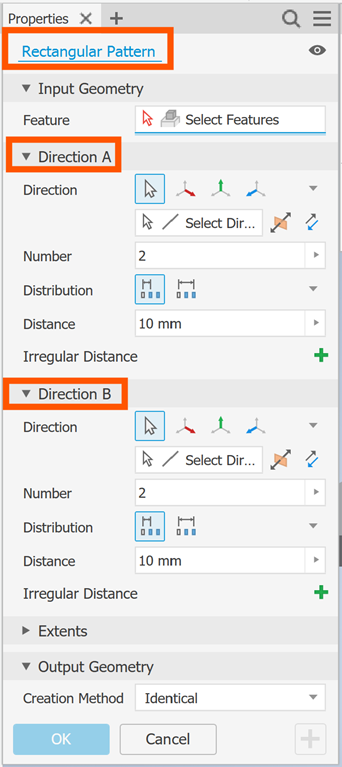
- Circular Pattern
- Creates copies around an axis or centre point.
- Best for:
- Bolt circles
- Gear teeth
- Fan blades
- Radial components
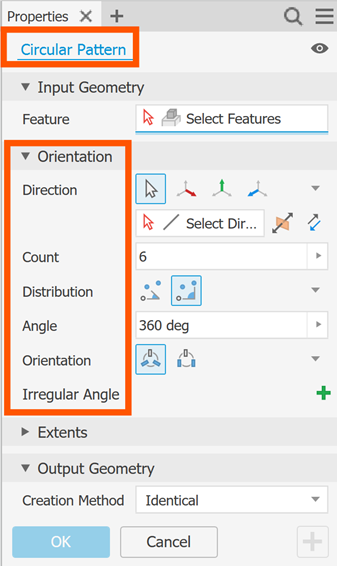
- Sketch Pattern
- Duplicates sketch geometry before features are created.
- Best for:
- Repeated sketch profiles
- Construction geometry
- Early-stage layout design
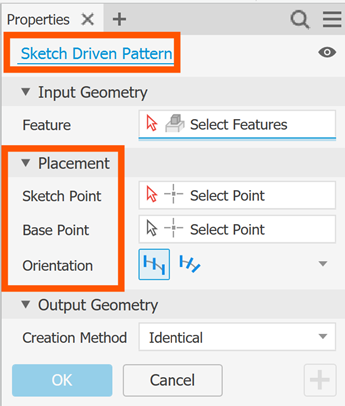
- Component Pattern (Assembly Environment)
- Repeats entire components inside assemblies.
- Best for:
- Bolts and nuts
- Fastener arrays
- Structural frameworks
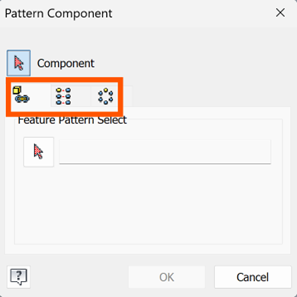
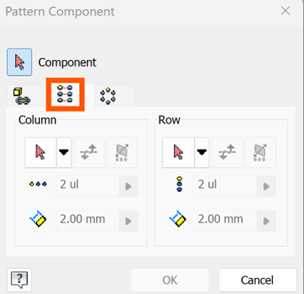
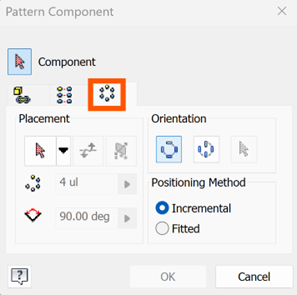
Let’s walk through a basic rectangular pattern example.
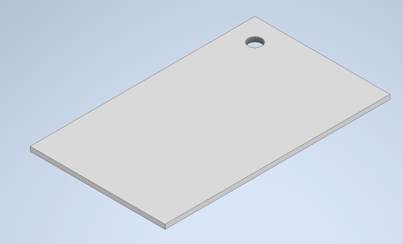
- Create the Base part, like the below, as an example.
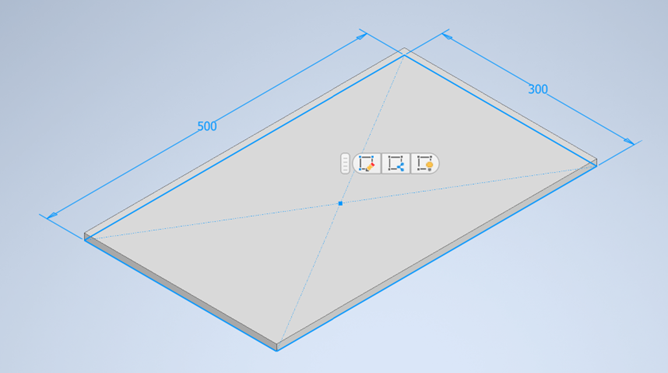
- Then create a Cut.
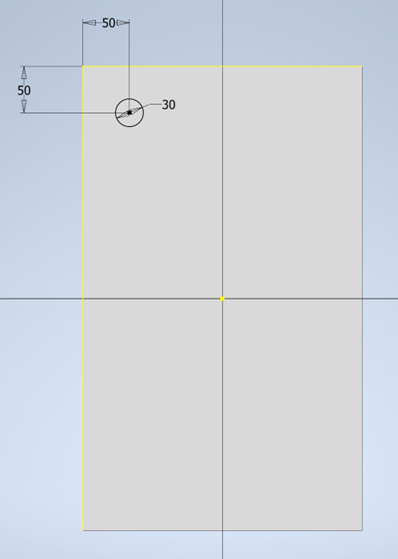
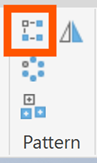
- Open the Pattern tool.
- Navigate to 3D Model > Pattern Panel > Rectangular
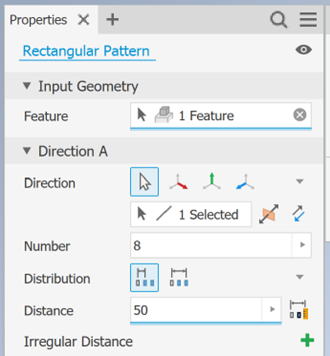
- Select the Feature – click the feature you want to duplicate, in this case the cut.
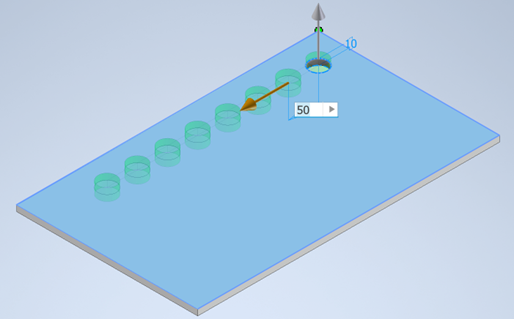
- Define Direction 1 – Choose an edge, axis, or sketch line to define the first direction.
- Then specify:
- Number: 8
- Distance: 50mm
- Define Direction 2 (Optional) – Add a second direction to create rows and columns. Choose an edge, axis, or sketch line to define the second direction, you may have to flip the direction.
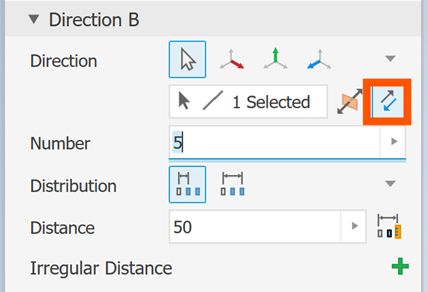
- Then specify:
- Number: 5
- Distance: 50mm
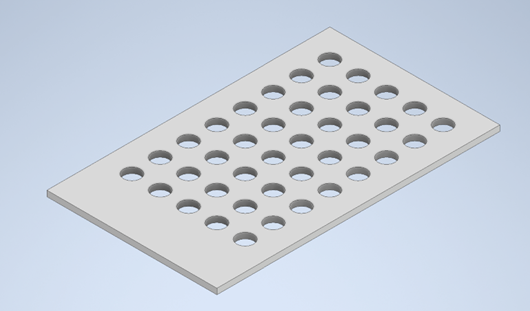
Now you have an 8 x 3 grid.
- Confirm the pattern – Click OK to generate the pattern.
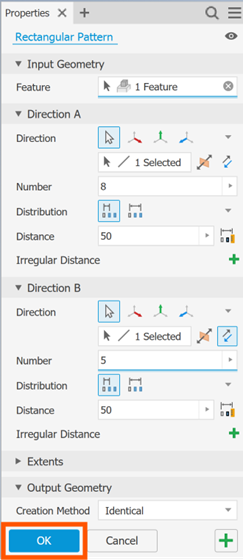
Your repeated geometry is now fully parametric.
Inventor offers several calculation methods on the Output Geometry dropdown:
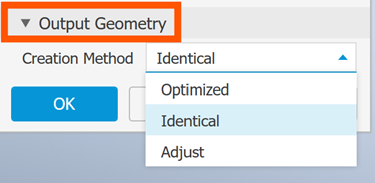
- Optimized: Fastest option for simple geometry.
- Identical: Maintains exact feature copies.
- Adjust: Re-calculates each instance independently.
Best Practices for Using Patterns
- Pattern Features Instead of Sketches: Feature patterns are generally more stable and efficient than large sketch patterns.
- Use Symmetry: Leverage centrelines and axes to reduce modelling effort.
- Keep Models Lightweight: Large patterns can slow performance.
To improve speed:
- Suppress unnecessary features.
- Use optimied compute mode.
- Limit excessive quantities.
Top Tip: Name your features! Clear feature names make pattern editing easier later on.
The Pattern tool in Autodesk Inventor is one of the most powerful productivity features available for 3D modelling and assemblies. By learning how to create rectangular, circular, and component patterns efficiently, you can dramatically reduce repetitive work while keeping your models clean, parametric and easy to modify.
Still got Questions?
Book Training
Our range of Autodesk Inventor training courses will teach you how to create production-ready parts and assemblies through hands-on learning experience. Make sure you contact us to find out which course is best for you.
Contact Us
We are here to ensure you receive a consistently high service and quality solutions for your business needs. We promise you won’t regret speaking to us, and if we can’t help you, we will try to find someone that can.