


When managing licenses and renewals, you may want to disable auto-renew for some/all licenses. Please note, only the Contract Manager or Purchaser can disable auto-renew.
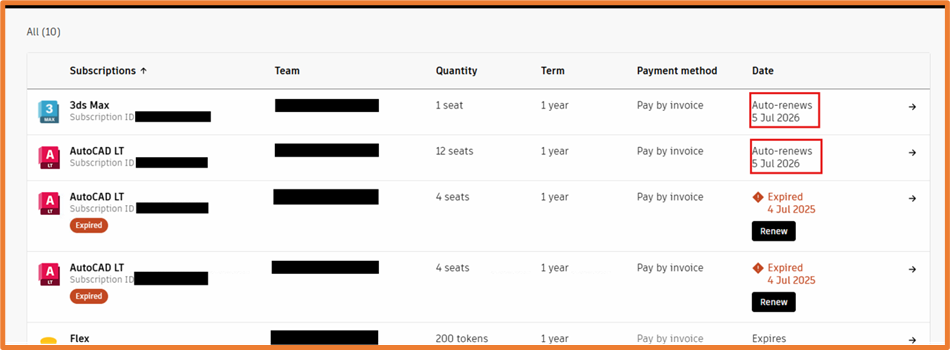
First, head into your management portal (https://manage.autodesk.com/home), navigate to Billing and Orders, then Subscriptions and Contracts. Within this area, you’ll be met with a list of licenses containing the following information:
- Subscription ID
- Team
- Quantity
- Term
- Payment
- Date
Within the date column, you can see which licenses have auto-renew enabled, as per the below. Any new purchase will have this option enabled by default.
Click on one of the licenses to expand the detail, scrolling to the bottom of the page. Sitting within the renewal detail section, hit the button to turn off auto-renew.
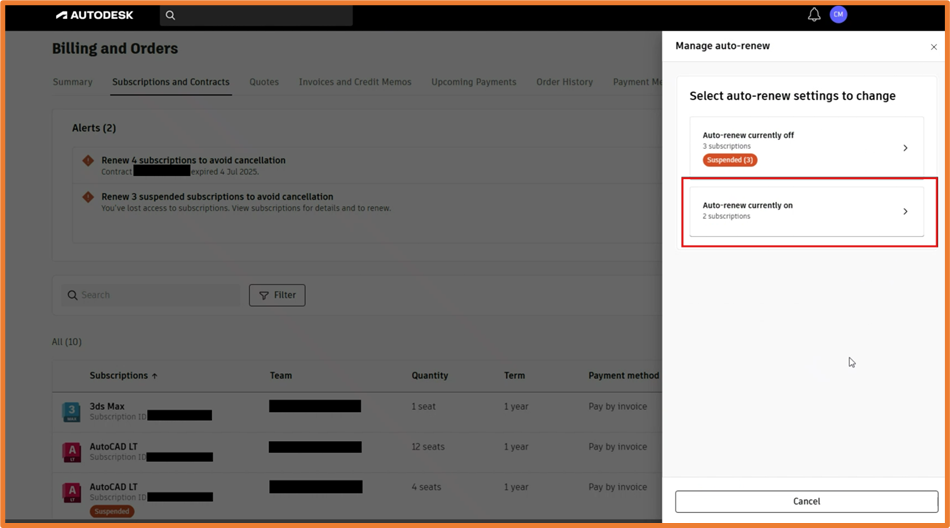
If you own many licenses and find the workflow time-consuming, you have the ability to bulk disable auto-renew. Head back to the Subscriptions and Contracts area, ten hit the bulk actions button on the right. Select all subscriptions you want disables and hit continue.
If you’re unable to disable auto-renew, please reach out to us for further assistance.
Still got Questions?
Buy Software
Autodesk is a global leader in software for architects, builders, engineers, designers, manufacturers, 3D artists and production teams. Contact us now to find out which software is right for you.
Contact Us
We are here to ensure you receive a consistently high service and quality solutions for your business needs. We promise you won’t regret speaking to us, and if we can’t help you, we will try to find someone that can.