


How do you create custom reports in the Plant 3D Data Manager?
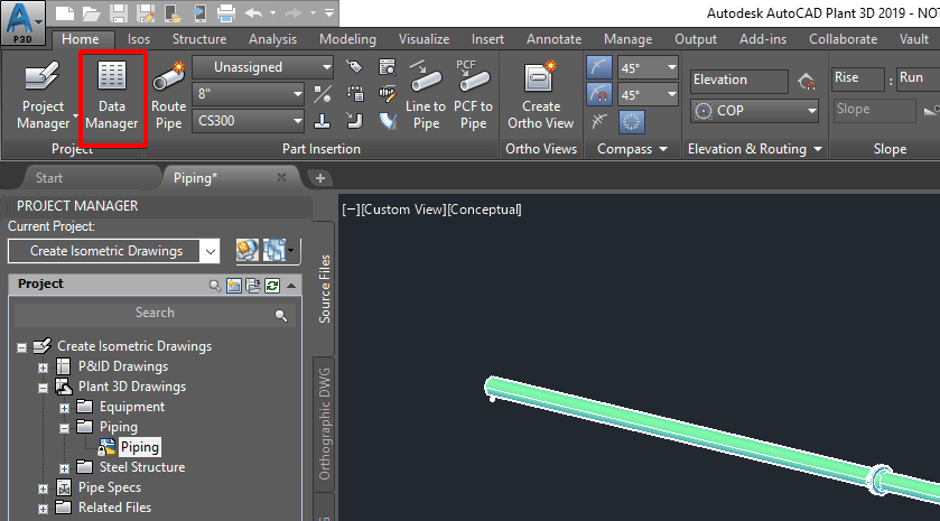
If you have been using Plant 3D you would probably have noticed the data manager, which contains all the meta data of your Plant 3D project. It’s a very powerful tool which enables you to analyse, search and even edit the data quickly and easily.
The data manager can filter the database so that it only shows the data you require as well as create reports which carry out pre-defined filters on the data. The image below gives you an example of and Equipment List report.
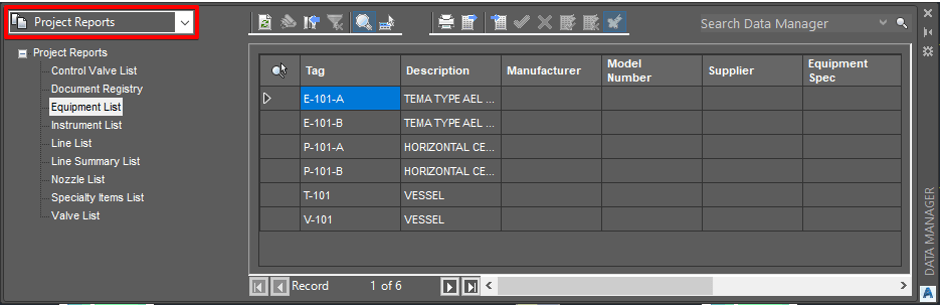
So how can you create your own pre-defined reports. Well it is relatively simple. First activate the project setup and browse to General Settings>Reports:
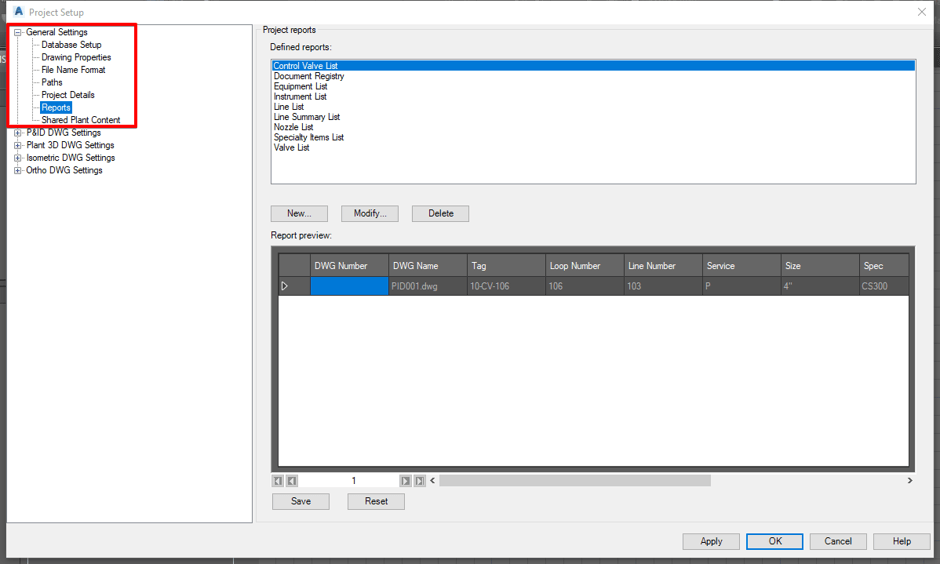
Here you can see a list of reports already in the Project. You have three self-explanatory options; New, Modify and Delete.
To create a new report select ‘New’ then chose and existing report to copy, change the name and replace the table with the property you wish to filter the report by, in my example I want a pump report, as pumps are classed as equipment I will use the Equipment table to copy and swap the Equipment table property for the Pump property:
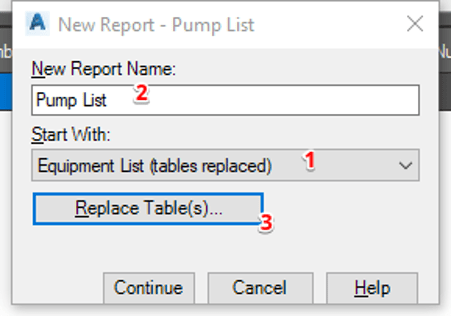
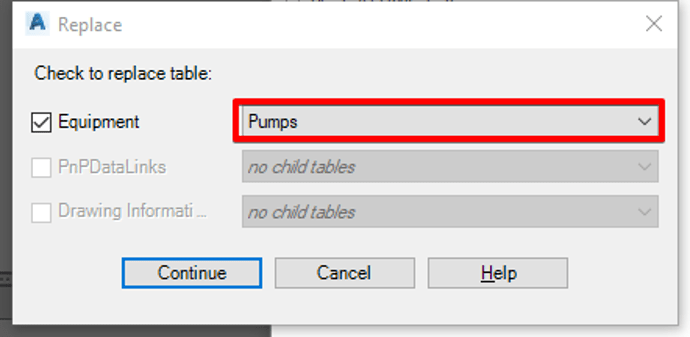
Click continue then choose the properties you want to include in the report table. Save your new report.
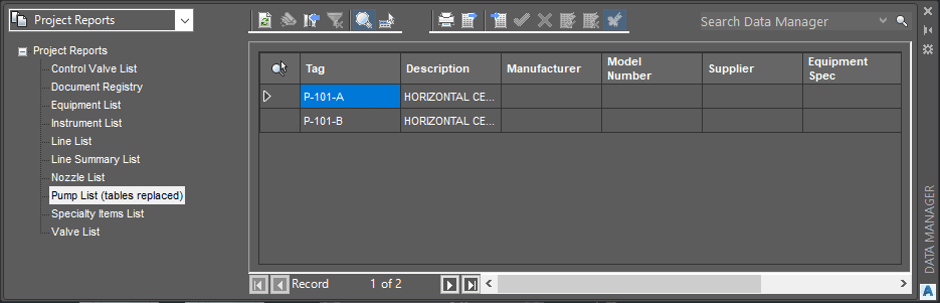
Apply the changes to you project setup and exit to view your new report in the data manager.
Still got Questions?
Book Training
With our Plant 3D training, you will learn how to use Autodesk Plant 3D and AutoCAD P&ID to complete a plant design project as well as common workflows used in plant design and how to solve validation issues.
Contact Us
We are here to ensure you receive a consistently high service and quality solutions for your business needs. We promise you won’t regret speaking to us, and if we can’t help you, we will try to find someone that can.