


**Please note, as of 24th March 2026, the Autodesk Construction Cloud has joined the Forma industry cloud and has been rebranded as Forma. Find out more details here.**
If you are a Revit user who has been using the software as a mainstay for your Architectural, Structural and MEP design for consecutive versions, it is likely you will have projects that exist in multiple different versions of Revit. Many of you will know that Revit files are not backwards compatible, in that you cannot open a newer version of a file in an older version of Revit (eg, it is not possible to open a Revit 2026 file in Revit 2025).
**Revit files created in a newer release of the same year version can still be opened by someone using the older release (eg, a file create in 2026.2 can be opened in 2026.1).
This has typically meant that it can be difficult to identify which version of Revit a project is saved in, especially with projects saves to the Autodesk Construction Cloud (ACC).
Whilst there was historically a ‘hidden’ way of finding out the version by navigating to settings > Revit Cloud Model Upgrade in Docs as a project admin, there is now a new feature within the Autodesk Construction Cloud that means identifying the Revit version is just a case of hovering over the Revit file in the ACC file viewer.
It is then clear that other Cloud Workshared Revit projects in that ACC project are also in the same version, as ACC automatically locks an ACC project to the Revit version of the first Cloud Workshared Revit file uploaded to it, likely for coordination purposes to streamline collaboration in the cloud.
**Note that non-workshared cloud models of different Revit versions can still be saved to a project.

Opening the file to edit is then simply a case of opening the correct version of Revit and selecting files from the cloud (‘Autodesk Projects’ option from the home screen Revit).
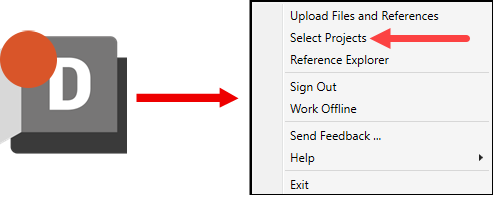
**Tip: If you still do not see the project in Revit, access Desktop Connector > Settings Cog > Select Projects, and ensure that the project is selected from the list. You may also want to ensure that you have been given access to the project from the Project Administrator in ACC.
Did you know?
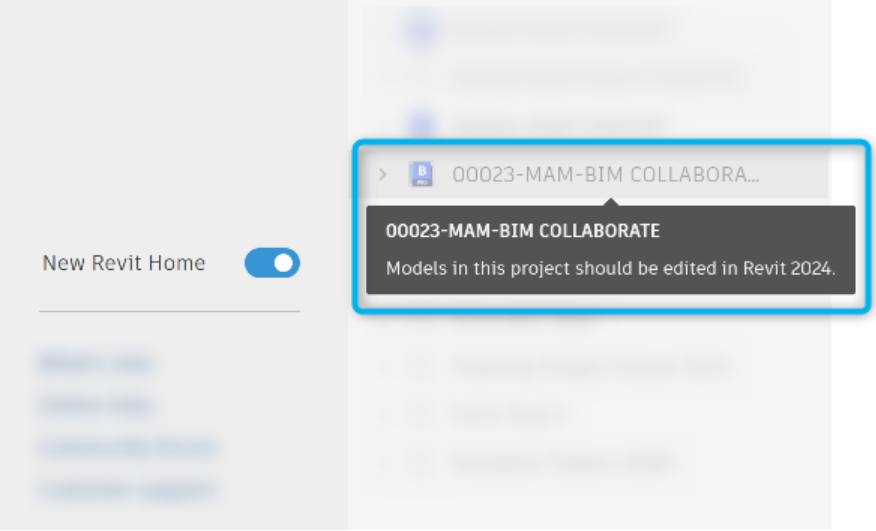
As a Revit user, you can show all projects that you have access to from the Revit home screen. If they are not created in the version of Revit that you are using, they will show in halftone, and you can again hover over the name of the project to see which version of Revit the file exists in.
This was initially a new feature in the Tech Preview in Revit 2024 and added to the Revit 2025.3 release, but many people still do not know it exists as the option to turn on the projects exists from within a project, rather than directly from the home screen.

Again, to see a project in the list, make sure it is turned on from the ‘Select Projects’ list in Desktop Connector. You can select up to 80 projects.
Follow the steps below to view other Revit versions’ projects from Revit home:
- Using the toggle in the bottom-right of Revit home, turn on ‘New Revit Home’.

- Select Autodesk Projects and navigate to a project that has been created in the version of Revit you are using.
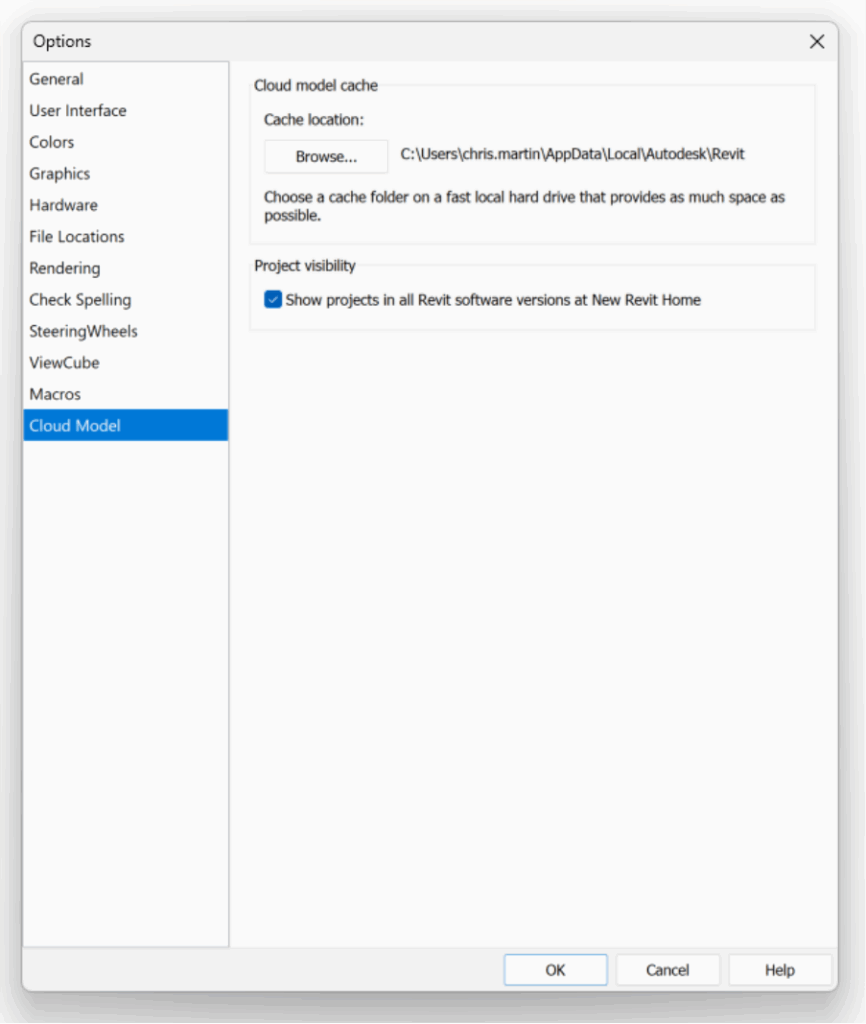
- Once the project has opened, go to File > Options.
- In the Options dialog box, select Cloud Model.
- Check the box for Project Visibility: ‘Show projects in all Revit software versions at New Revit Home’.
Once you navigate back to the home screen, accessing Autodesk Projects and the correct hub from the dropdown at the top of the screen will show a more complete list of projects. Again, whilst the files are not accessible to be opened from this version of Revit, hovering over them will give you information about what version of Revit the file should be edited in.
Still got Questions?
Book Training
We have developed a robust set of onboarding and deployment services to ensure best-in-class implementation of Autodesk Forma (formerly the Autodesk Construction Cloud)
Contact Us
We are here to ensure you receive a consistently high service and quality solutions for your business needs. We promise you won’t regret speaking to us, and if we can’t help you, we will try to find someone that can.