


Hub libraries are a new way of managing and sharing machining tools in Autodesk Fusion CAM. They are now available in the Tool library, offering a much simpler way of controlling and viewing your tools across the company.
Once enabled, this allows anyone working within a collaborative hub to have access to the same central tool library. This removed the need to push updates our to all your colleagues, or each person creating their own custom tools.
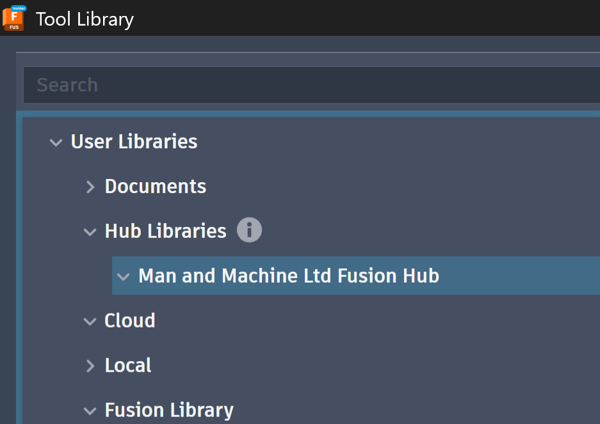
Functionally, Hub libraries work the same way as any other User library, the core difference is the way they are shared across all active users. This allows for the creation of Folders for structure management, and tools for use in Fusion. The current libraries are either local to your machine, or cloud-based but only accessible by individual users.
Creating and Populating Hub Libraries
Hub libraries are available for any Fusion Hub which has Collaborative editing enabled. This is rolling out to all Hubs, so if you don’t already have it, hang tight.
If your Hub is set up for Collaborative editing, you should see a new ‘Hub Libraries’ folder in your User libraries. Simply right click and enable it to get started.
Once your library is active, you can either populate it with new folders and tools. Otherwise, you can copy your existing libraries into this new folder. Navigate to any existing library, select either the entire library or an individual tool, then copy (Ctrl+C), and paste (Crtl+V) it into your new Hub library.
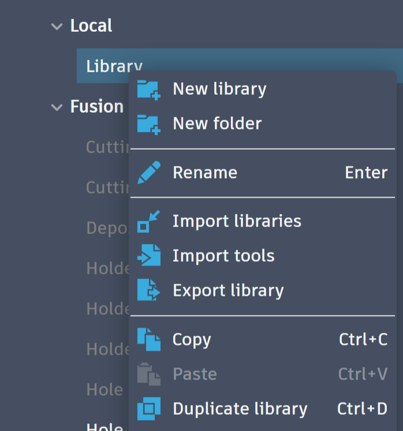
If your existing libraries are a little outdated or messy, there is no time like a migration to sort these out.
Still got Questions?
Book Training
Through hands-on exercises, you will acquire the key skills and knowledge required to design models using Fusion. It will teach you everything from product development to simulation and fabrication.
Contact Us
We are here to ensure you receive a consistently high service and quality solutions for your business needs. We promise you won’t regret speaking to us, and if we can’t help you, we will try to find someone that can.