


**Please note, as of 24th March 2026, the Autodesk Construction Cloud has joined the Forma industry cloud and has been rebranded as Forma. Find out more details here.**
Firstly, what is a Transmittal in Autodesk Docs?
A transmittal is a formal, auditable package of documents sent to internal or external recipients, It records:
- What was sent
- When it was sent
- Who sent and received it
- Which versions of the documents were included
This makes transmittals ideal for contractual communication, design review packages, and milestone documentation.
Can you send a Transmittal to a non-member?
The biggest question around transmittals is; can I send a transmittal to someone that is not a member of the project and does not have a license of ACC, however I have information I need to send to them?
Yes. Autodesk Docs allows you to send transmittals to people who are not members of your project. They will receive a secure email with a link to download the files. No Autodesk account is required unless you choose to require sign-in.
Let’s look at this process step by step:
- Open your ACC project in Docs.
- Go to the Transmittal tool. **You need to be or request the project admin to activate the send to a non-member. This is NOT on by default. Follow the steps below to do this.
- In the Transmittal tool, go to Settings > Advanced Settings (top right), as shown in the below image.

- Select the slider button to change from OFF to ON.

- You will be directed to a pop-up dialog box requesting you to enable this functionality. Click Enable.
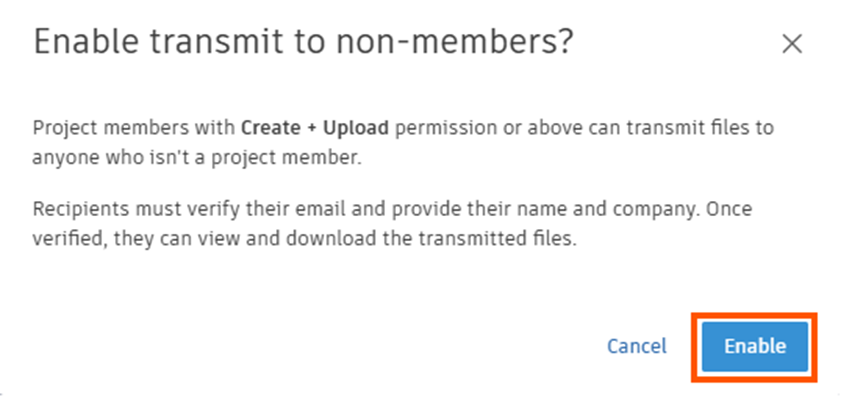
- Now this has been enabled, we can go back and create a Transmittal a non-member.
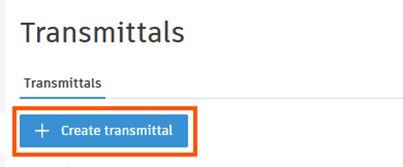
- Select Create Transmittal either above the settings or in the Tools area, as below.

- Click on Create Transmittal.
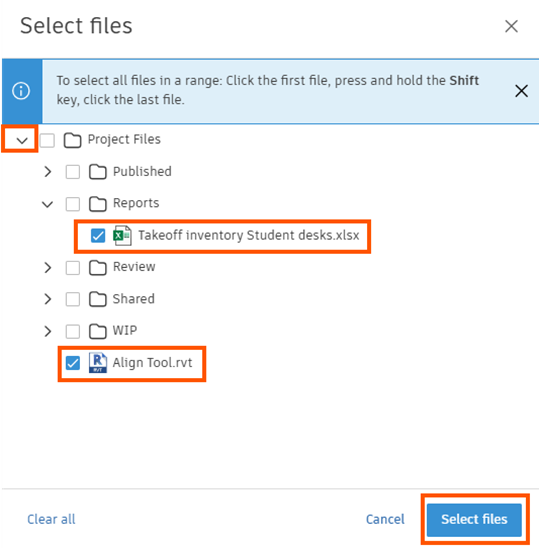
- Select the files you want to include in the transmittal.
- Add your title.
- Add the email address of the person you want to send this information to, that is not a member of the project.
- Add a message (optional).
- Select the files.
- Check the box at the bottom of the left dialog box – email me a copy of the notification (optional).
- Click Create.

What will the non-member see on their side?
- The person you sent the transmittal to will receive an email as below:
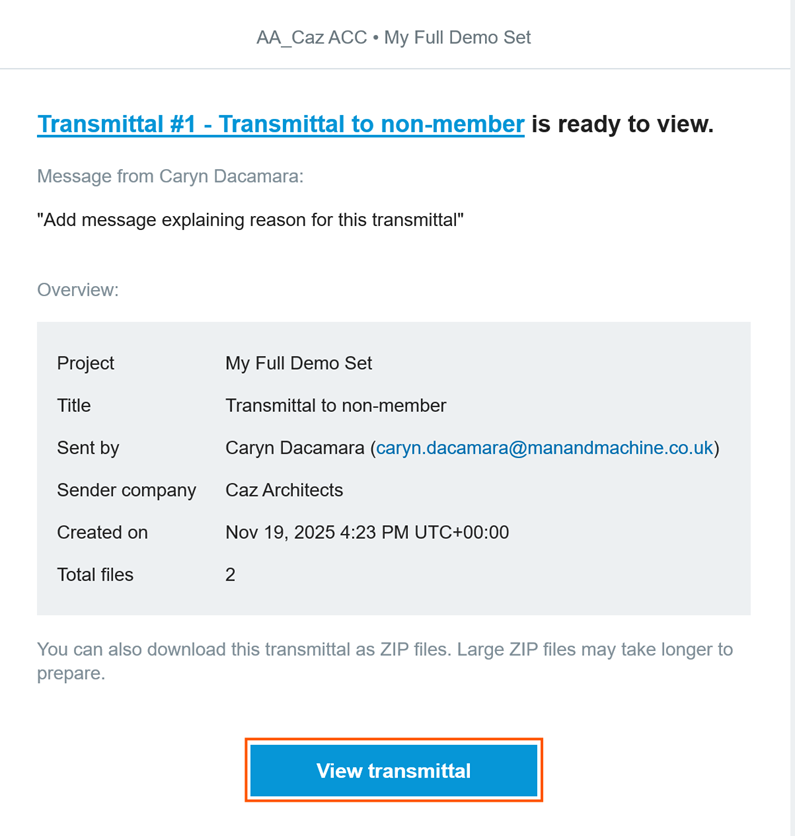
- Here they will select the View transmittal button, verify their identity by entering their email address, which will send them a verification code.
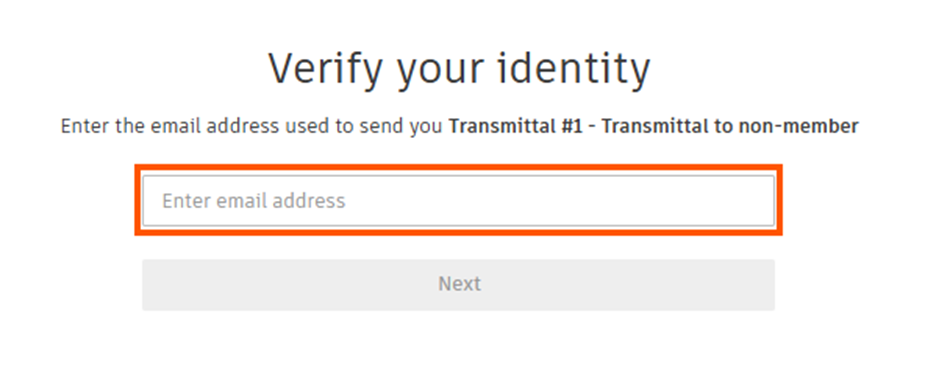
- This is on a time limit, so they will require another code if they are not able to enter the code in time.
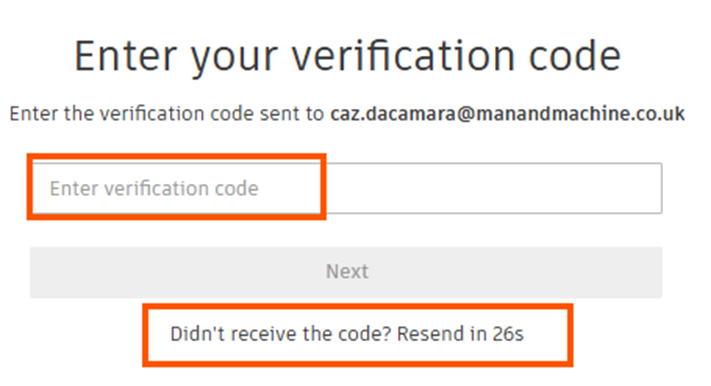
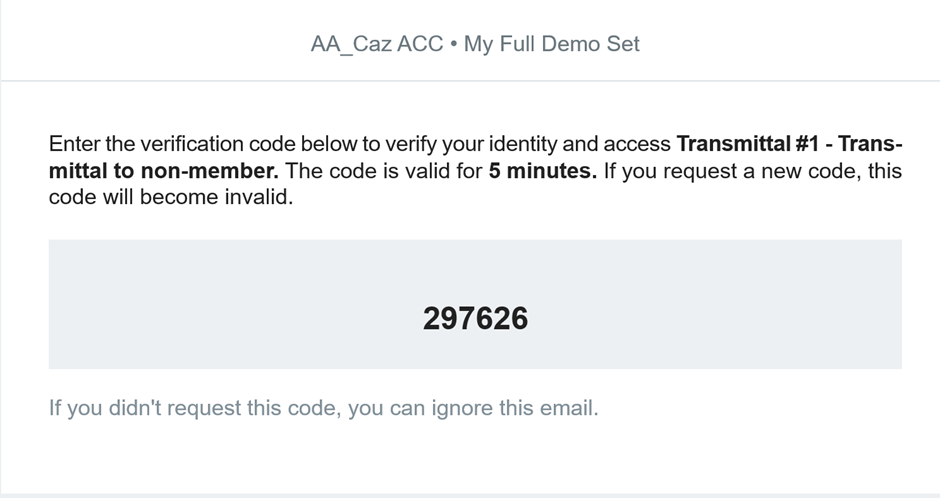
- They will receive an email with the code to insert in Enter verification code area.
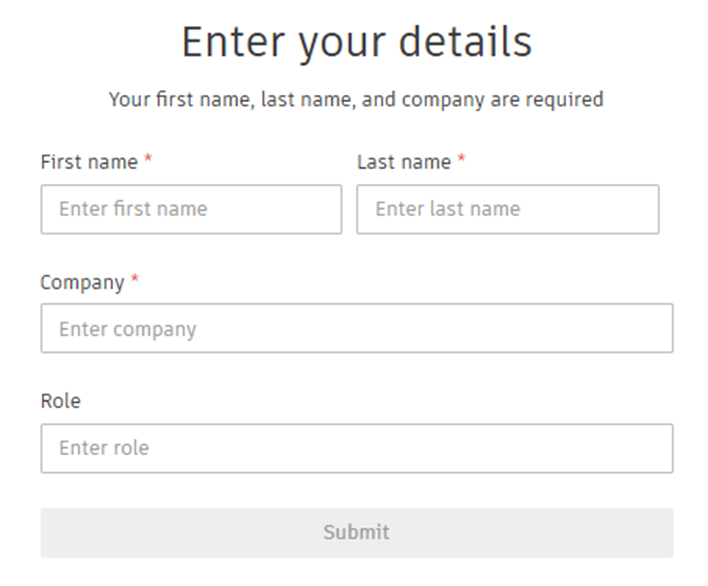
- For further security purposes, they will be required to add the below additional information. This will reflect back in your project for traceability.
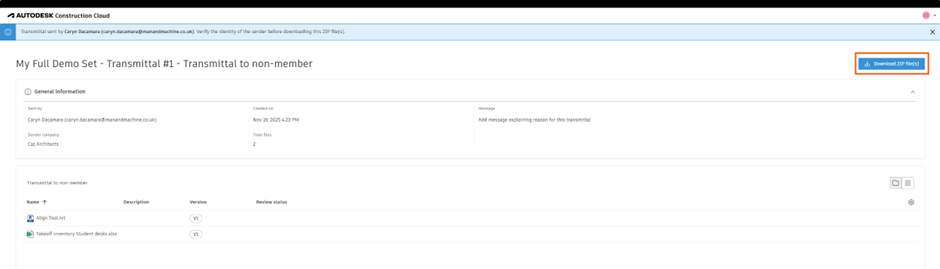
- Once this is all complete, the recipient will see the below information. Here they can download the zip file.
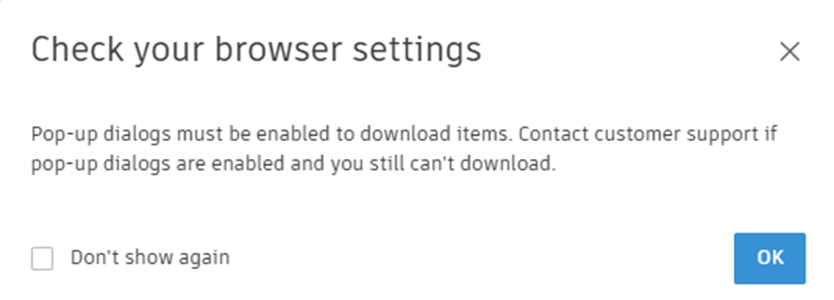
- If they see the below pop-up, they can just click OK.
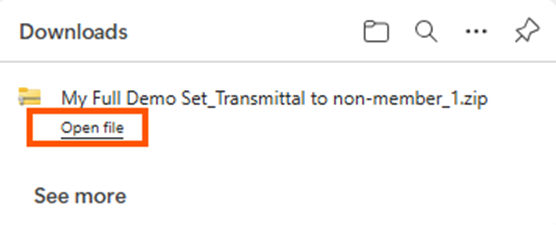
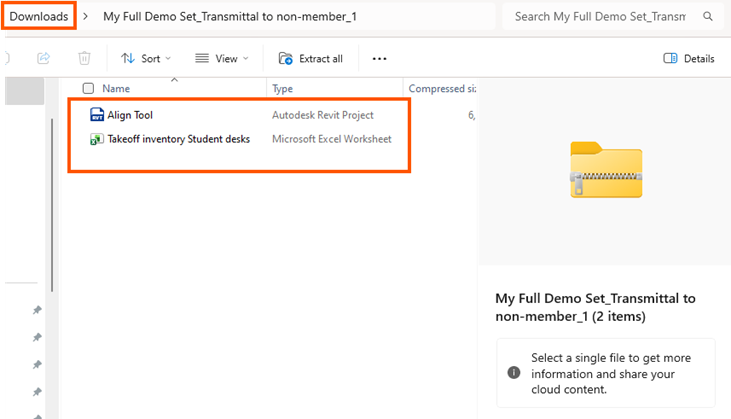
- In their download file, they will find the downloaded zip file to extract the files from. They will need to be opened in the native software. This does not give them access to the project at all.
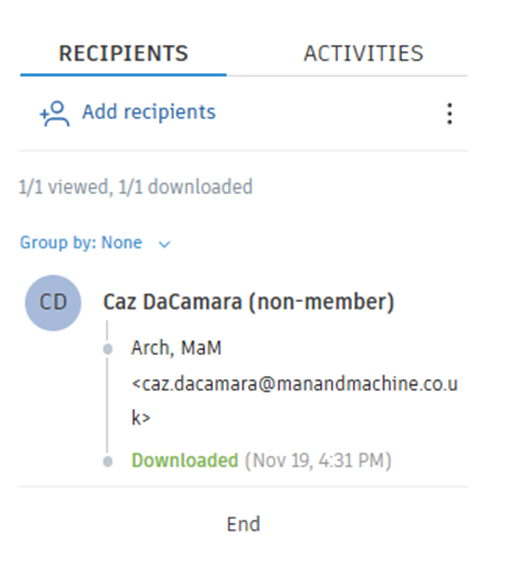
- On your side, in the transmittal, you will see the below:

Sending a transmittal to a non-member in Autodesk Docs is simple, secure and built for traceability. Whether you’re coordinating with owners, outside consultants or regulatory agencies, using transmittals keeps your documentation clean and compliant.
Still got Questions?
Book Training
We have developed a robust set of onboarding and deployment services to ensure best-in-class implementation of Autodesk Forma (formerly the Autodesk Construction Cloud)
Contact Us
We are here to ensure you receive a consistently high service and quality solutions for your business needs. We promise you won’t regret speaking to us, and if we can’t help you, we will try to find someone that can.