


**Please note, as of 24th March 2026, the Autodesk Construction Cloud has joined the Forma industry cloud and has been rebranded as Forma. Find out more details here.**
Autodesk regularly releases new functions and enhancements to the Autodesk Construction Cloud (ACC), designed to streamline document management and improve collaboration. These updates often introduce powerful features that can simplify workflows, boost productivity and help teams stay aligned across every stage of a project.
That’s where ongoing training makes a real difference. Staying up to date ensures you’re taking full advantage of every release, helping you boost efficiency and work smarter, not harder.
Let’s take a closer look at one the most powerful features in Autodesk Docs: the Compare Versions function. This tool allows you to quickly identify changes between document versions, giving you clear visibility of updates, revisions and potential issues. Instead of manually scanning through files, you can instantly see what’s new, what’s been modified and what’s been removed, saving time and reducing errors. Let’s go through the required steps to compare versions:
- Go to a project in your ACC Docs account:

- Make sure you are in the file tab in Docs:
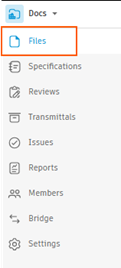
- Open a folder that you have permission to view, and find a file that has more than one version:

- Select the version as displayed by the pointer in the above image. A pop-up window will display all the versions. Click in the check box to select 2 versions to compare:
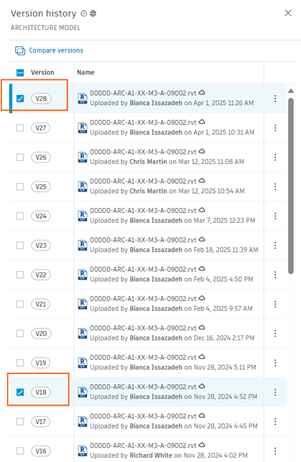
- Select ‘Compare versions’ at the top of this pop-up window:
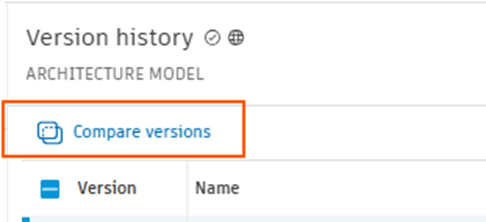
- You will see this dialog box; notice it has already selected the file and the versions in your previous selection. All you need to do it select Compare:

- This will leave you with a comparison of the two version overlayed on top of each other.
- Green = Added Objects
- Red = Removed Objects
- Yellow = Modified Objects

- You can change the overlay view to side by side, by switching overlay (bottom of the screen), to side by side:
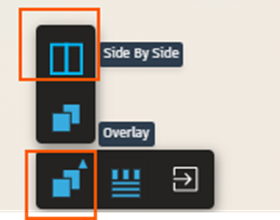
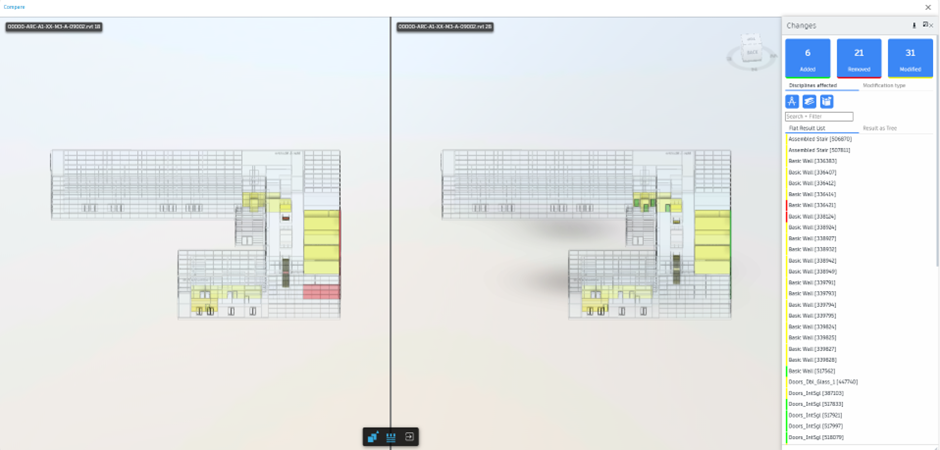
- You can further use this dialog box, in either view, to filter out the information according to Added, Removed or Modified as well as the disciplines. Do this by simply clicking to toggle on/off:


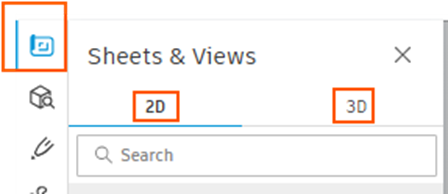
This is one way to compare directly from the file list. The other way is to select the file name, and in the viewer select Sheets and Views. Here you can select 2D or 3D, and repeat the compare function as above from step 6.
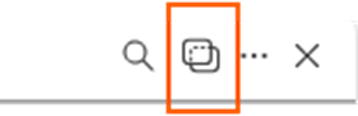
And then select Compare (top right of screen):
Still got Questions?
Book Training
We have developed a robust set of onboarding and deployment services to ensure best-in-class implementation of Autodesk Forma (formerly the Autodesk Construction Cloud).
Contact Us
We are here to ensure you receive a consistently high service and quality solutions for your business needs. We promise you won’t regret speaking to us, and if we can’t help you, we will try to find someone that can.