


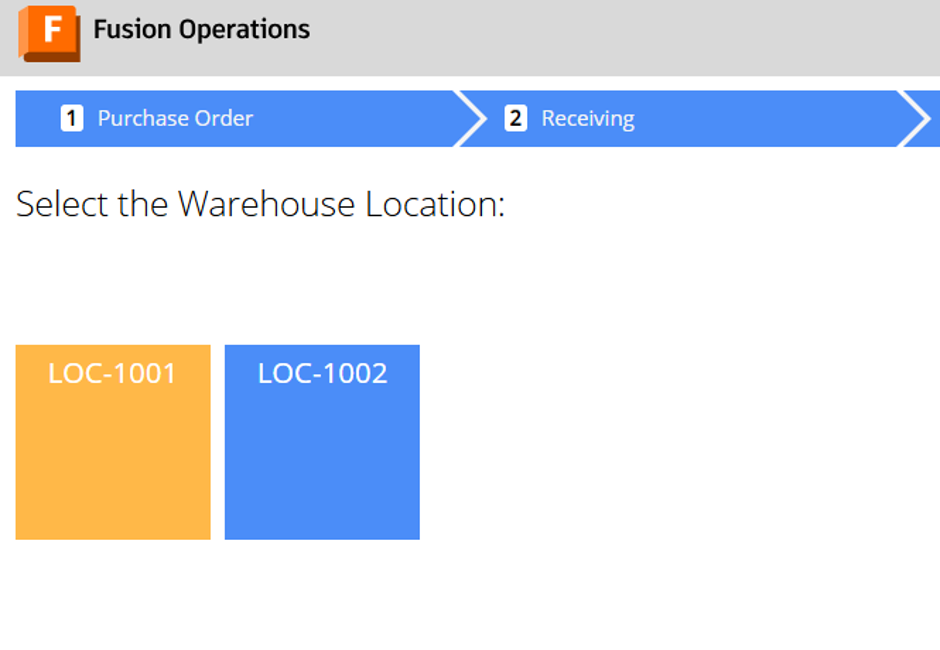
With the ability to manage and track stock in multiple warehouses and set locations in each warehouse, selecting the correct location during checking can get a little tricky. Using Preferred Products against each warehouse location helps smooth this process, by highlighting the available locations on check in.
Setting This Up
To set this up, within the Administrative portal, navigate to Inventory > Warehouse Locations.
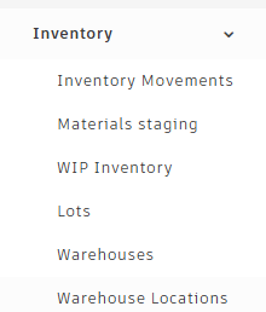
Select the required location from the list.
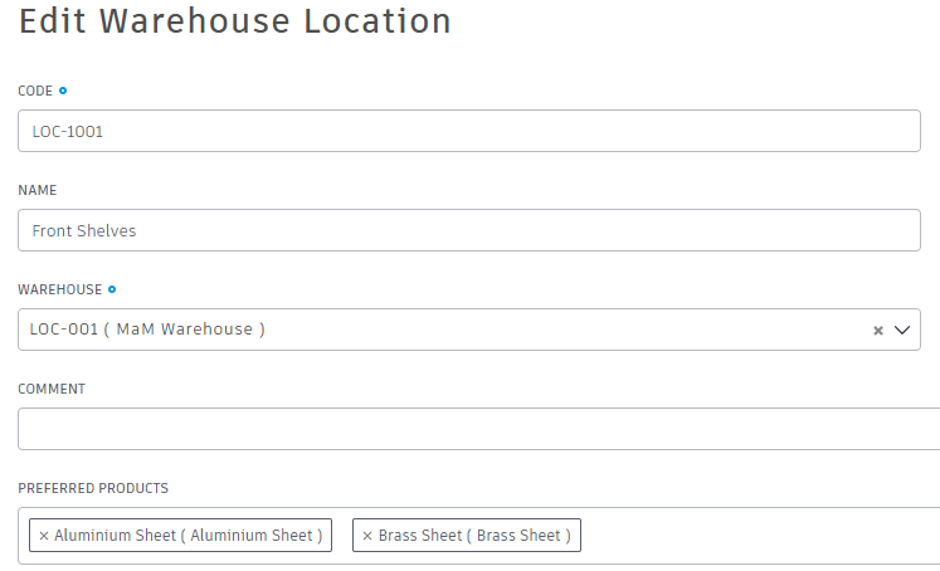
There is a dedicated field for Preferred Products, simply type the name of the product required, which will populate a dropdown list of all relevant products. The field supports multiple products, allowing more than one product per location.
Using Preferred Products
Once the preferred products are set up, Autodesk Fusion will highlight all relevant locations when receiving purchase orders.
Still got Questions?
Book Training
Through hands-on exercises, you will acquire the key skills and knowledge required to design models using Fusion. It will teach you everything from product development to simulation and fabrication.
Contact Us
We are here to ensure you receive a consistently high service and quality solutions for your business needs. We promise you won’t regret speaking to us, and if we can’t help you, we will try to find someone that can.