

Building on an already powerful rendering environment, the September release of Autodesk Fusion brings some great improvements to Rendering. This improvement comes with the brand new custom Light options.
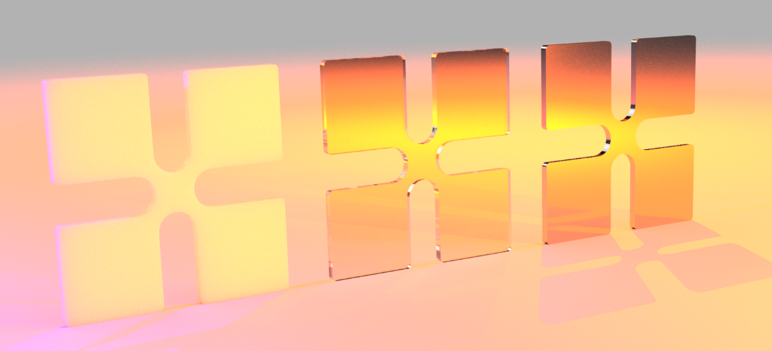
Adding Lighting to Renders
The Lighting options add an optional step to your existing Rendering workflows. Generally, this takes place once the product is assembled or designed and positioned correctly.
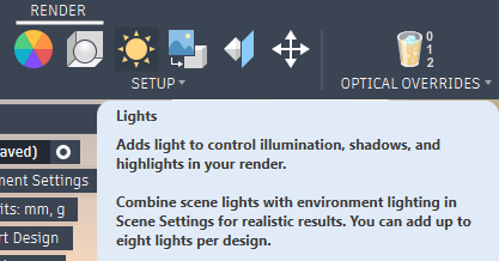
The Lights tool can be found in the Setup panel.
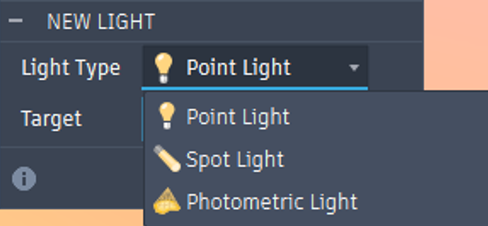
Where the Light type and Target can be selected:
The Target will drive the initial angle of the light in relation to the target.
The selection of the target uses surface grips, similar to joints.
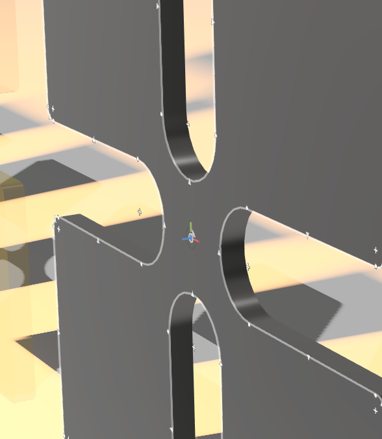
Once the Type and Target are selected, the light position can be adjusted. This will take into consideration the distance and direction from the target, as well as the intensity of the light to adjust the final lighting of the scene.
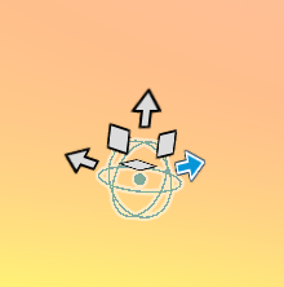
Point Light
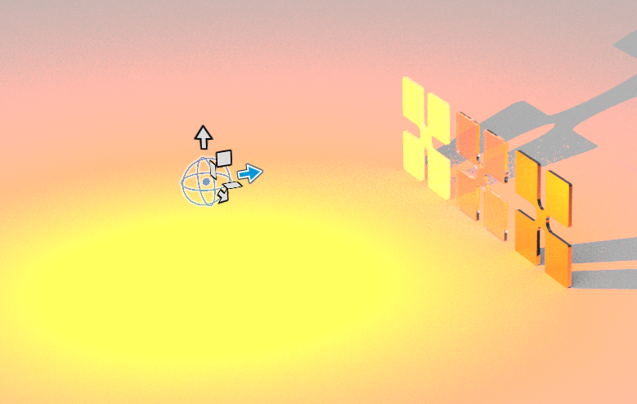
The first type of light available is the Point Light. This will emit light in all directions from the position selected. The intensity and colour filter of the light can be adjusted. Increasing the intensity gives the light a greater volume of effect; the further it is away from the target, the less effect it has on those surfaces.
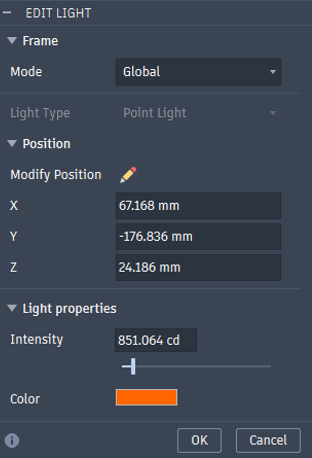
Spot Light
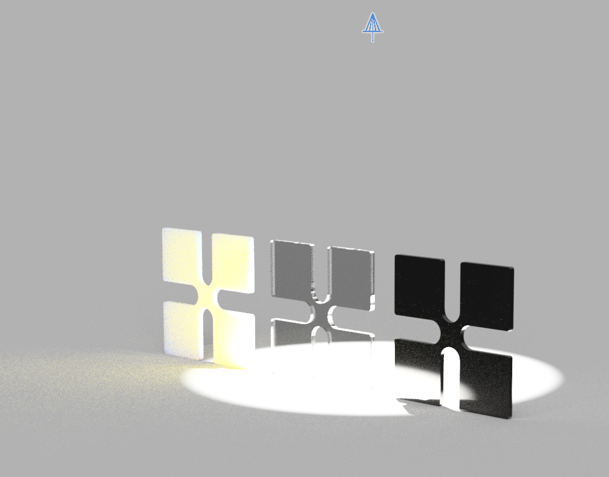
The second light type is Spot Light which will allow a concentrated beam of light to aim at the target position. Once defined, the position and angle of the light can be incrementally adjusted.
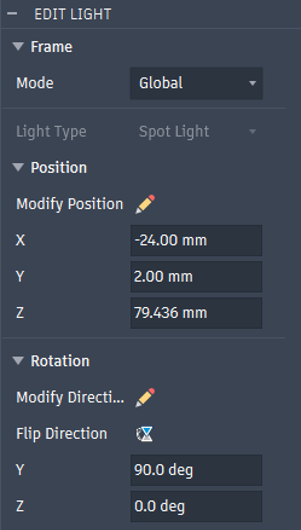
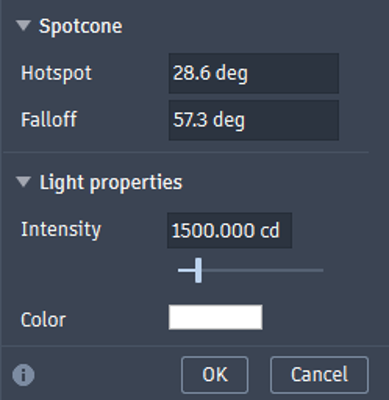
The Spot Light options include Hotspot angle, which defines the illuminated area, and Falloff angle which drives how sharp the fall off is from the illuminated area. Both are input as angles.
Photometric Light
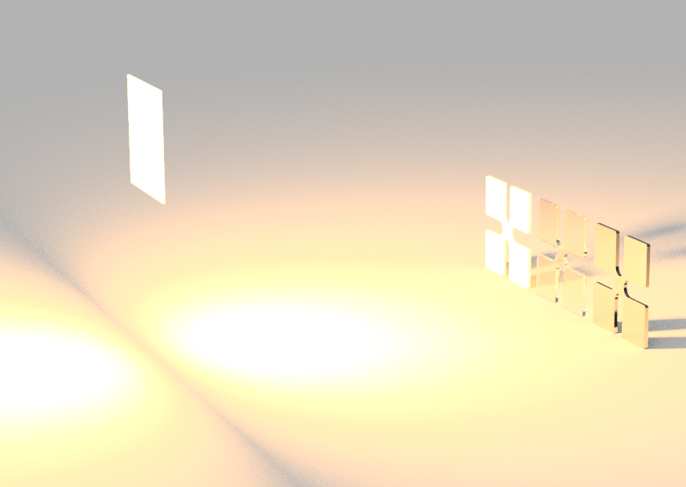
The final light type is Photometric; this type enables a lot more customisation.
This includes the position and rotation options available in Spot Lights.
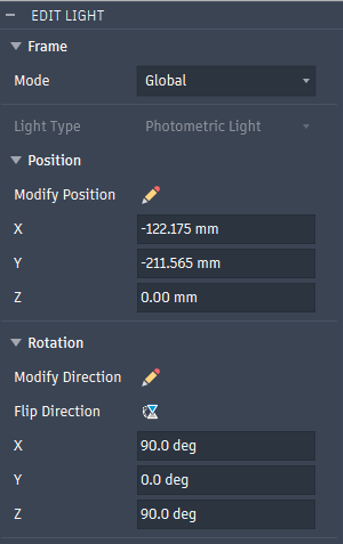
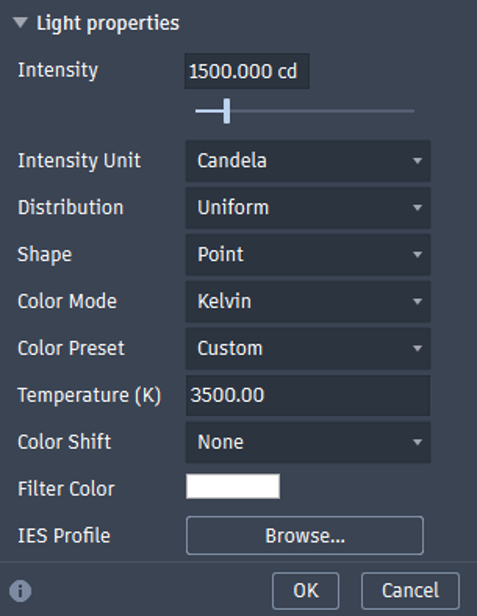
The Light Properties for Photometric Lights include the Intensity which can be defined in different units of measure.
It also includes options for Distribution, Shape, Colour Mode and Preset, Temperatures and colour shifts.
If your lighting supplier has an IES Profile, this can be imported for more accurate definition.
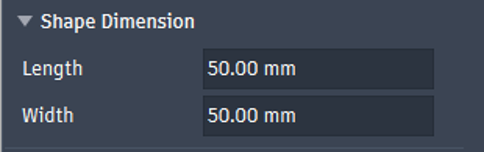
If a Shape has been selected, a dynamic section appears where the dimensions of the shape can be defined.
Still got Questions?
Book Training
Through hands-on exercises, you will acquire the key skills and knowledge required to design models using Fusion. It will teach you everything from product development to simulation and fabrication.
Contact Us
We are here to ensure you receive a consistently high service and quality solutions for your business needs. We promise you won’t regret speaking to us, and if we can’t help you, we will try to find someone that can.