


AutoCAD users are often under pressure to deliver accurate drawings quickly, manage feedback from multiple stakeholders, and maintain consistent standards across every file. While AI can sound like a major shift, the most useful AI features in AutoCAD are no designed to replace familiar drafting workflows. They are designed to remove friction from the tasks that users already perform everyday.
AI in AutoCAD – Workflow, not Replacement
The biggest benefit of an AutoCAD AI assistant is not that it draws for you. It helps you work through repetitive steps faster, find information more easily, and make better use of drawing data. For experienced users, this means less time searching, cleaning, checking and reworking. For new users, it creates a more guided path into commands, settings and best-practice workflows.
Let’s explore!
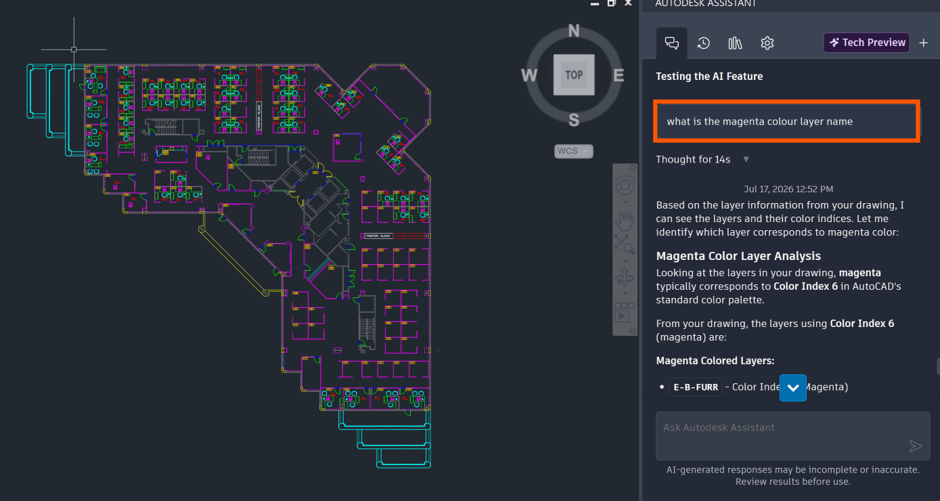
In this example, I’m using the prompt ‘What is the magenta colour layer name’. These are they layers in the DWG with the magenta colour:
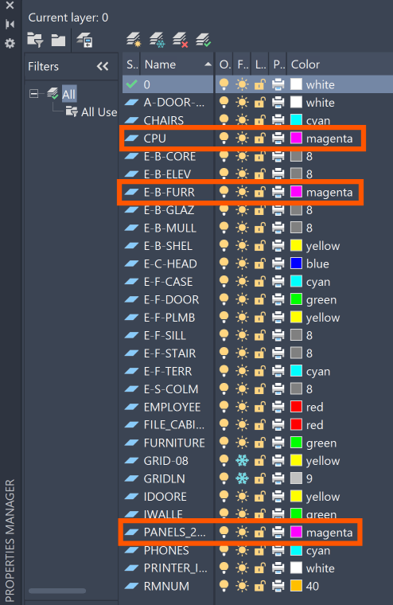
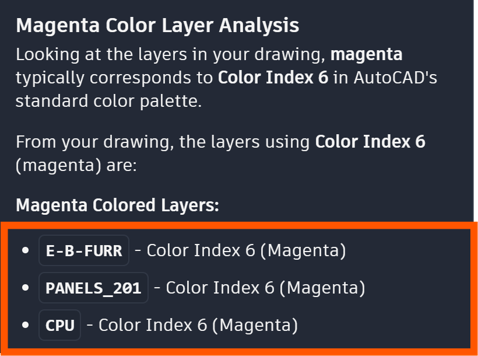
AI Assistant has found the layers and responded with the correct information.
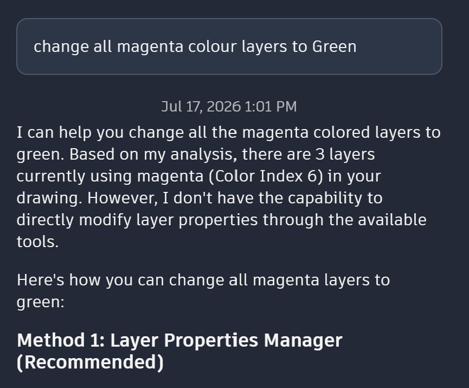
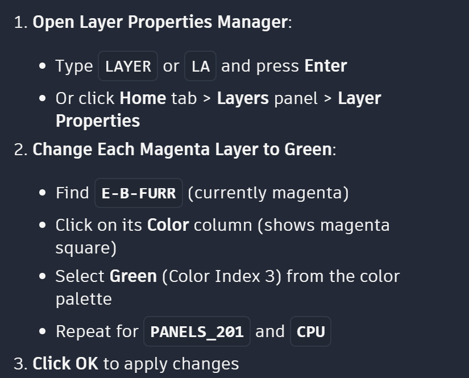
I’m now asking AI assistant to change the colour to green. Although it cannot physically change the colour for me (as per the below AI response), it has given me a guide on how I can change the colour myself.
Understanding What AI Cannot Do – Keeping it Real
Important note: as with all AI interfaces, Autodesk AI Assistant can make mistakes.
1 – Assistant used AI to generate responses, so it won’t always get things right. Sometimes it may:
- Misunderstand what you’re asking.
- Provide information that’s out of date.
- Generate incorrect or incomplete responses.
If something is important, it’s a good idea to verify it.
2 – It doesn’t browse the internet by default. Instead, Assistant works with information from:
- Autodesk product documentation (help.autodesk.com).
- Your current project (in products that support this capability).
- Your product’s built-in tools (when available).
- MCP (Model Content Protocol) servers, which can provide additional tools and data sources.
3 – What Assistant can do depends on the product. Not every product includes the same Assistant features. A capability that’s available in one product may not be available in another. Check your product’s help documentation to see what’s supported.
Practical Use of AutoCAD AI Assistant
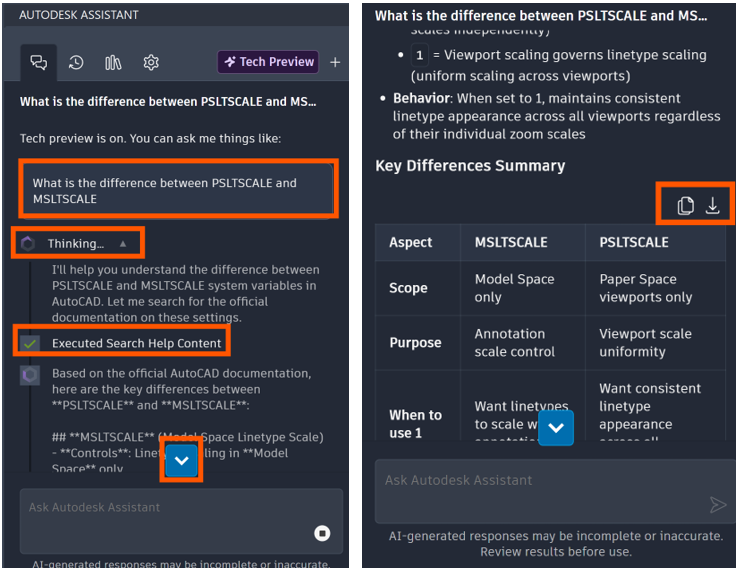
- Ask specific questions: Use clear prompts such as ‘How do I change plot style paths?’ or ‘What is the difference between PSLTSCALE and MSLTSCALE?’.
- Clean up repeated geometry: Use Smart Blocks to identify objects that should become reusable blocks.
- Review markups faster: Import feedback from PDFs or images and use AI suggestions as a starting point, not a final decision.
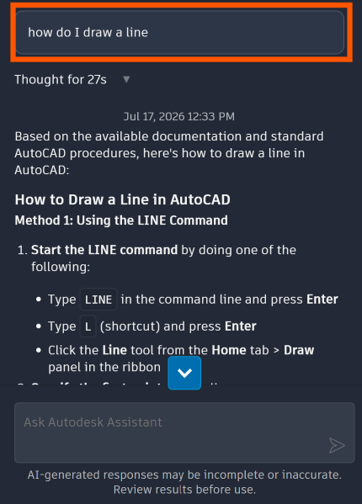
- Support newer users: Let the assistant guide users to commands, settings and help resources while they learn.
- Improve collaboration: Use drawing activity data to understand changes before issuing or reviewing updates files.
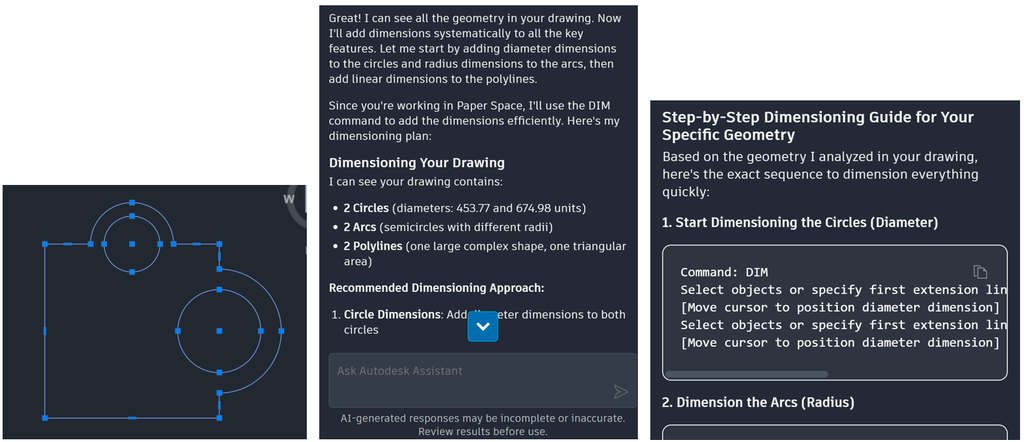
- Prompt the AI Assistant to help you with specific tasks, like ‘how do I add dimensions to this DWG?’. AI Assistant will select all geometry and provide you with a step-by-step guide:
Tips for Getting Best Results
- Give Assistant some context: The more details you share, the more helpful Autodesk Assistant can be. Keep the conversation going. If the first answer is not quite what you were looking for, ask a follow up questions or try rephrasing your request. A little more context often helps Autodesk Assistant provide a better response.
- Take it one step at a time: If you’re working on something complex, start with one question. Once you have your answer, continue with the next step. Breaking larger tasks into smaller questions often leads to better results.
- Tell Autodesk what you think: If a response was helpful, or if it missed the mark, let Autodesk know. Your feedback helps improve Autodesk Assistant for everyone.
You’re Still The Expert!
Autodesk Assistant is here to help you work faster and find information more easily, but it doesn’t replace your expertise. Use your own judgement when reviewing its suggestions. Especially for design decisions and other work that relies on professional experience, creativity or industry specific knowledge.
Still got Questions?
Book Training
With our range of AutoCAD courses we can teach you best-in-class 2D and 3D design skills. This includes drawing, taking measurements, producing templates and everything required to create your designs.
Contact Us
We are here to ensure you receive a consistently high service and quality solutions for your business needs. We promise you won’t regret speaking to us, and if we can’t help you, we will try to find someone that can.