


Artificial intelligence is becoming part of everyday CAD work, but for AutoCAD users the real question is simple: does it help you draft faster, reduce repetitive work, and keep drawings more consistent? The answer is increasingly yes. Tools such as Autodesk Assistant, Smart Blocks, Markup Import, and Markup Assist are designed to support the way drafters, designers, architects, engineers and CAD managers already work, without replacing the judgement and precision that experienced AutoCAD users bring to very project.

What is AutoCAD AI Assistant?
An AutoCAD AI Assistant is a set of intelligent tools that helps users find answer, interpret markups, identify repeated objects, suggest blocks, and surface workflow guidance inside of the design environment. Instead of leaving AutoCAD to search for help, review documentation, or manually clean up every repeated object, users can rely on AI-supported features to speed up routine tasks and focus more attention on design quality.
Why AI Assistant Matters for AutoCAD Users
Most AutoCAD users spend a significant amount of time on tasks that are necessary but repetitive: finding the right command, converting objects into blocks, applying feedback from PDFs, checking drawing changes, or cleaning up files from other teams. AI features are useful because they target those friction points. They do not remove the need for CAD expertise, they help reduce the number of manual steps between identifying a problem and fixing it.
Key AI Features
- Autodesk Assistant: Autodesk Assistant gives users a conversational way to access support, learning resources, and troubleshooting guidance from within AutoCAD. For example, if you need help understanding a command, adjusting a setting, or finding the right workflow for a task, the assistant can provide guidance without forcing you to break concentration and search elsewhere.
- Smart Blocks: Smart Blocks help identify repeated geometry and suggest ways to convert or replace objects as blocks. This is especially useful when working with legacy drawings, imported DWGs, or files where repeated items were drawn manually, instead of being created as reusable block definitions. Cleaner block usage can make drawings easier to edit, standardise, and share.
- Markup Import and Markup Assist: Markup Import and Markup Assist help bring comments and redlines from PDFs, images and connected review workflows in AutoCAD. Instead of manually interpreting every note, users can review suggested actions and decide which changes to apply. This can shorten the feedback cycle between design review and drawing revision.
- Activity Insights: Activity Insights provide visibility into changed made across drawing sessions. For teams, this can be valuable when reviewing what changes, who worked on a file, and where updates may need closer checking. It support better collaboration by making drawing history easier to understand.
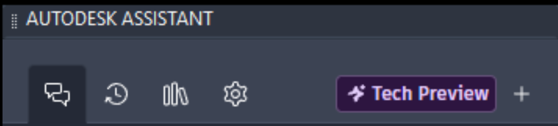
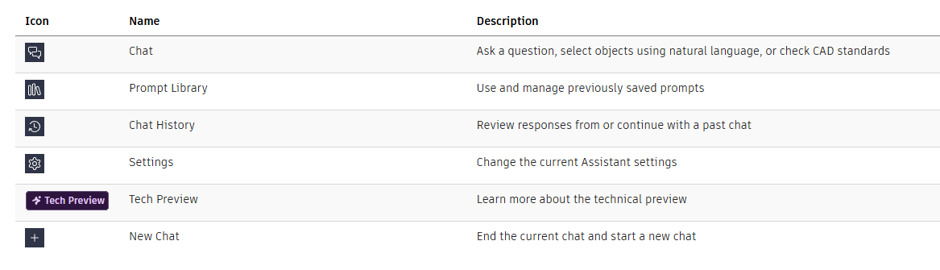
Like most AI platforms, the AutoCAD AI Assistant offers essential tools such as chat, chat history, settings etc, providing a familiar and intuitive user experience.
Tech Preview
Tech Preview gives you a chance to try the latest Autodesk Assistant features before they’re widely available. The first time you open Autodesk Assistant in a product, you can decide whether to turn Tech Preview on. As Autodesk continue to improve the Assistant, the features available in Tech Preview may change over time.
If you keep Tech Preview turned off, you can still ask Autodesk Assistant questions and get answers based on Autodesk product documentation at help.autodesk.com.
Turn Tech Preview On or Off
Not sure if Tech Preview is enables? Click the Tech Preview at the top of the Assistant panel to check.
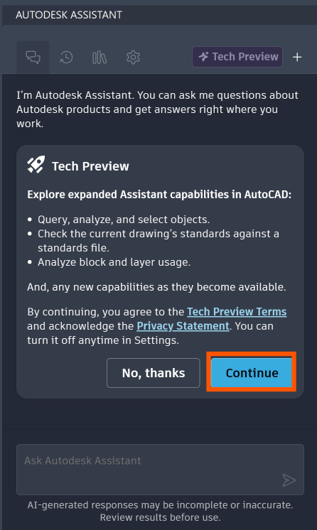
You can turn it off at any time if you prefer the standard Assistant experience, or turn is back on later from Settings.
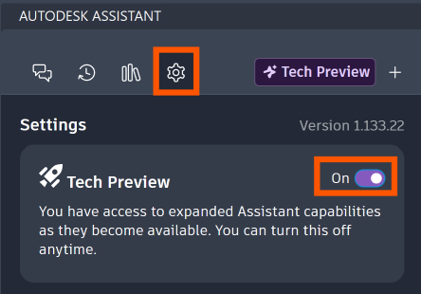
Your Tech Preview choice is saved for each Autodesk product. So, if you use Autodesk Assistant in more than one product, you can decide separately whether to use Tech Preview in each one.
What AI Will Not Do For You
AI assistance is powerful, but it is not a substitute for CAD standards, design intent, checking procedures, or professional judgement. Users should still verify suggestions, confirm markups against project requirements, and maintain drawing standards. Think of the assistant as a productivity partner: it can reduce searching, sorting, and repetitive steps, but the final decision remains with the AutoCAD user.
If Autodesk Assistant give you an incorrect answer or takes and unexpected action, here are a few things you can do:
- Undo the change: If Assistant made a change you did not want, use your product’s Undo command to reverse it.
- Tell Autodesk: Select the thumbs down and describe what happened. Your feedback helps Autodesk improve future responses.

- Try again again: Rephrase your questions or add a little more detail.
- Check the documentation: For detailed instructions and recommended workflows, Autodesk product documentation is the best place to look.
AI That Supports the AutoCAD User
For AutoCAD users, the value of an AI assistant is not about replacing expertise, it is about removing friction. By helping with support questions, repeated geometry, markups, and drawing history, AI can make day-to-day drafting faster and more consistent. The best result come when users combine these tools with strong CAD discipline, clear standards, and careful review. Used well, an AutoCAD AI assistant becomes less of a novelty and more of a practical companion for modern design workflows.
Still got Questions?
Book Training
With our range of AutoCAD courses we can teach you best-in-class 2D and 3D design skills. This includes drawing, taking measurements, producing templates and everything required to create your designs.
Contact Us
We are here to ensure you receive a consistently high service and quality solutions for your business needs. We promise you won’t regret speaking to us, and if we can’t help you, we will try to find someone that can.