


Working with large assemblies in Autodesk Inventor can become slow if certain modelling practices are not managed carefully. Below are the key issues and best practices to improve performance.
Overuse of Adaptivity
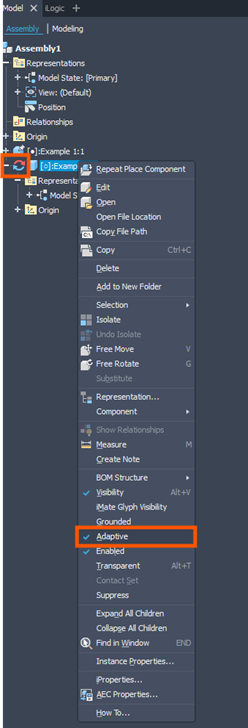
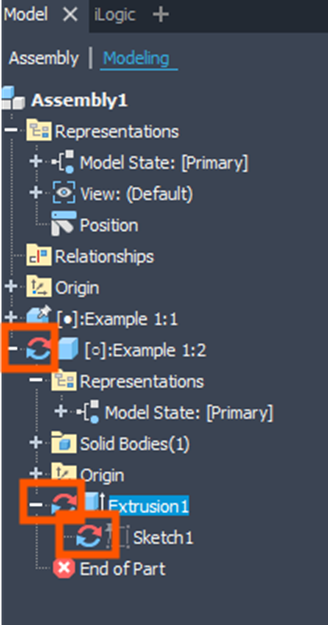
- Issues: Adaptivity forces parts to update dynamically, but overuse causes repeated regeneration across multiple components, slowing down performance.
- Best practice: Use adaptivity sparingly, define clear-driven relationships, avoid cascading adaptivity, and switch it off when not actively needed. Consider skeletal modelling instead.
Under-Constrained Subassemblies
- Issue: Flexible subassemblies expose all degrees of freedom at the top level, making behaviour unpredictable and increasing constraint solving load.
- Best practice: Fully constrain or ground subassemblies and avoid unnecessary constraints to origin planes unless motion is intended.


Mixed File Versions
- Issue: Opening older assemblies with newer components can lead to instability and potential corruption.
- Best practice: Maintain consistent Inventor versions across all files and avoid mixing versioned components (using the like of Vault to assist in managing this).
Low System Memory
- Issue: Large assemblies require significant RAM; insufficient memory causes swapping to disk, which slows performance significantly.
- Best practice: Use at least 16GB RAM (more for large projects), close background applications and use Level of Detail or Express Mode where appropriate.
Derived Parts in Drawings
- Issue: Using derived assemblies for detail views can force full model evaluation, reducing performance.
- Best practice: Avoid derived parts for drawing views; use Level of Detail or Design View Representations instead.

Over-Detailed Geometry
- Issue: Complex sketch patterns (threads, perforations, etc) increase regeneration time, especially in patterned components.
- Best practice: Use cosmetic features or appearances instead of fully modelled details where possible.
Contact Solver Left Running
- Issue: Leaving the contact solver active continues background calculations unnecessarily.
- Best practice: Turn the contact solver off after completing contact analysis.

Good performance in Autodesk Inventor depends on disciplined modelling – minimise adaptivity, control constraints, simplify geometry and manage system resource effectively to avoid slow performance in large assemblies.
Still got Questions?
Book Training
Our range of Autodesk Inventor training courses will teach you how to create production-ready parts and assemblies through hands-on learning experience. Make sure you contact us to find out which course is best for you.
Contact Us
We are here to ensure you receive a consistently high service and quality solutions for your business needs. We promise you won’t regret speaking to us, and if we can’t help you, we will try to find someone that can.