


Until recently, navigating Autodesk Fusion’s storage hub could be a confusing and long-winded process, with the main way of finding files being through the Data Panel. The introduction of the Home Tab has made this a lot easier and allows for quicker access to the relevant information. This new process provides a wider screen for viewing the data and folder structures used in data management, giving better visibility of files.
Home Tab
The Home Tab introduces a new way of navigating Fusion Hubs within the program itself.
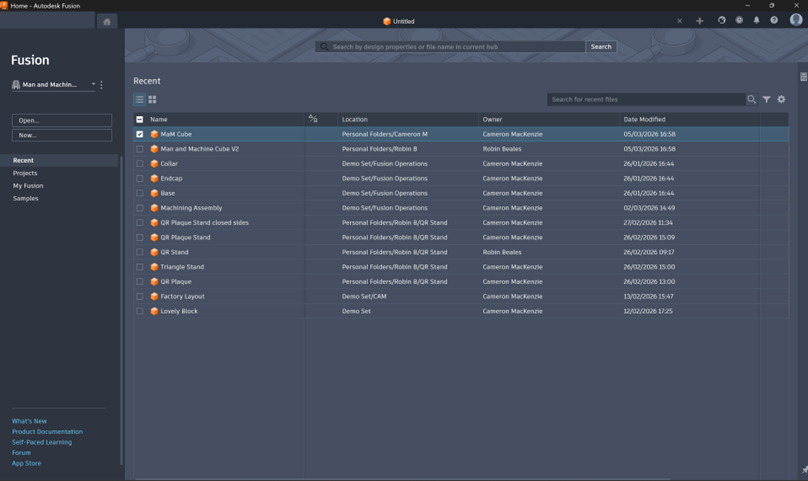
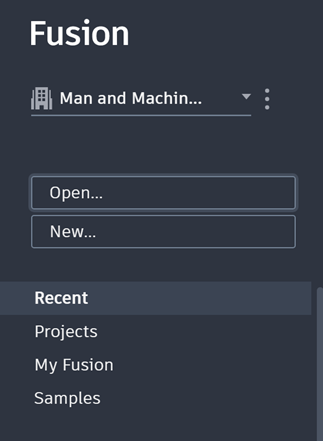
From here you can switch between Hubs, open existing files or create new ones, with the main view showing either recent documents of a projects overview.
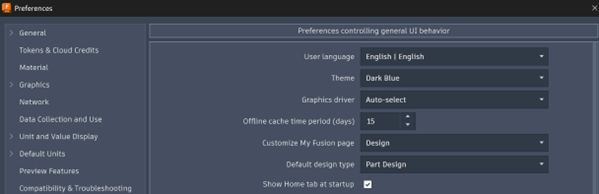
In some legacy installations of Autodesk Fusion, the Home tab may need to be enabled first. This can be done in the preferences (located in the use icon in the top right). Along with enabling the Home tab, it can be set to ‘Show … at startup‘.
Navigating
How you navigate in the home tab will differ based on the view you have selected.
The Recent view will display a flat list of all recently opened documents.
Projects will allow you to navigate through the folder structure of each project within a Hub. This view will also allow you to create new folders or upload local files into the folder structure.
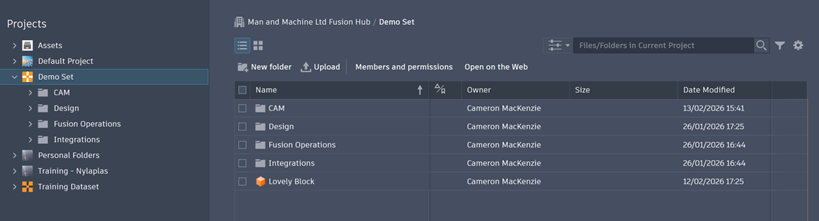
- Left-clicking the file name will open the file directly inside of Autodesk Fusion.
- Hovering over the file’s icon will show a thumbnail of the file where relevant.
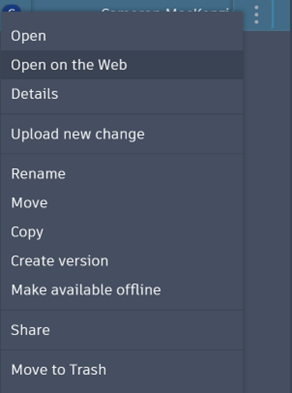
- Clicking on the three dots in the right most column brings up additional actions which can be done against the file. This includes opening on the web, moving or sharing among others.
Filters and Columns
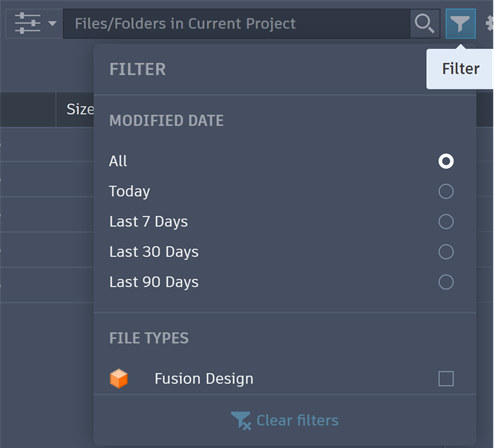
Views can be customised by filtering based on file names or folders, dates modified and file type.
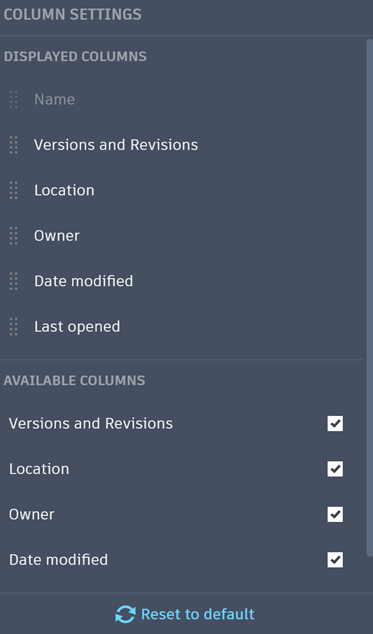
The columns shown can also be hidden or recorded as required.
Details
Various additional properties and information about the selected designs can be found within the Details panel. This is located on the right of the Home View and is often collapsed by default. This can be pinned if you prefer it to always be visible.
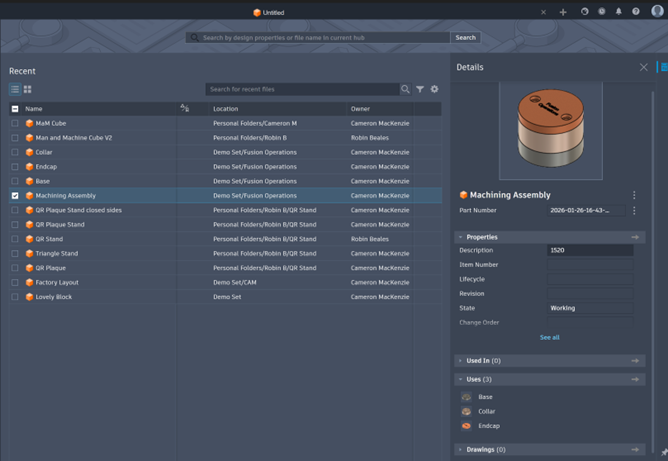
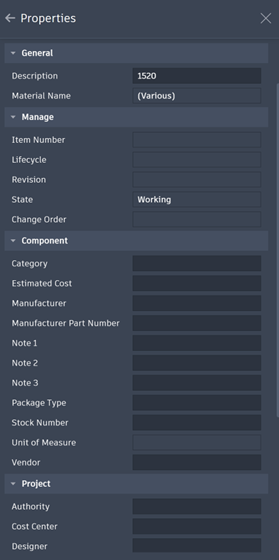
See All: Since the details panel is meant to be a compact over view of the design, you can dive deeper into the details of each section by clicking on the See All button.

This will take you to an expanded view of each section. Whether you want to see all the properties of a selected file:
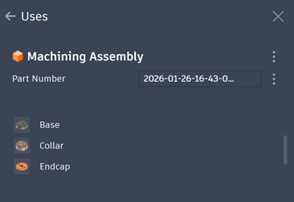
Or the file references hierachy:
Still got Questions?
Book Training
Through hands-on exercises, you will acquire the key skills and knowledge required to design models using Fusion. It will teach you everything from product development to simulation and fabrication.
Contact Us
We are here to ensure you receive a consistently high service and quality solutions for your business needs. We promise you won’t regret speaking to us, and if we can’t help you, we will try to find someone that can.