


We’ve all had a crash or a momentary lapse in concentration where we lose loads of work. It’s frustrating and we know we only have ourselves to blame. Had we done more sacrifices to the CAD Gods, we wouldn’t be in this mess. What I want to do here is make sure you understand how all variants of AutoCAD work when it comes to backups and autosaves. So first, what are backups and autosaves?
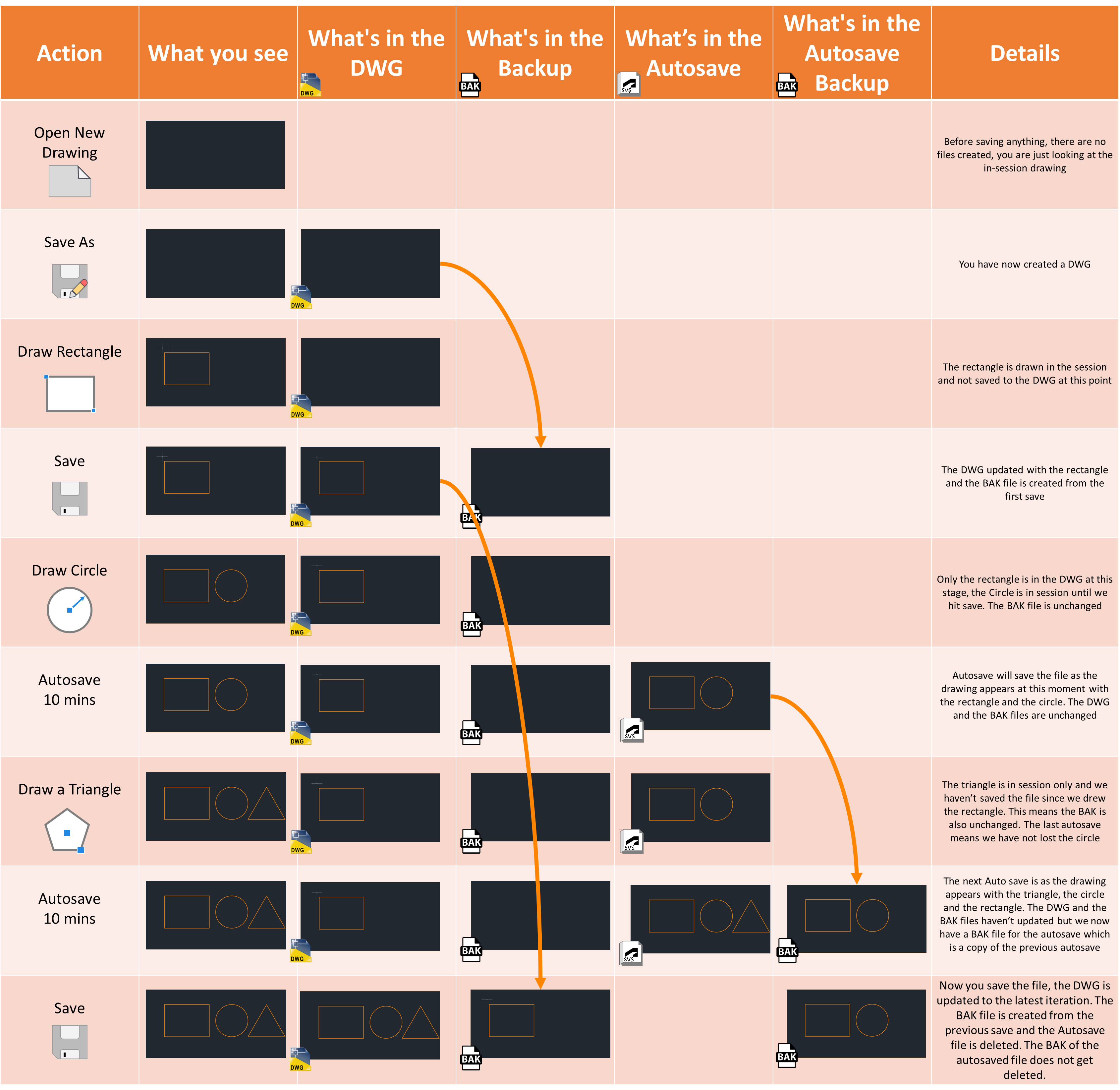
Back up files are a copy of your previous save. So, when you start a new drawing and hit “Save As”, only the .DWG file is created. When you next hit “Save” a .BAK file is also created and stored in the same folder as the DWG. It is an exact copy of the DWG from the previous save.
To open a .BAK file, just right click the file in windows explorer and rename the extension to .DWG. For example, a file called “My New Drawing.BAK” should be renamed “My New Drawing.DWG”.
Autosave files are created by default every 10 minutes and stored in the windows temporary folder here – C:\Users\[Your Profile]\AppData\Local\Temp. They are saved in a .SV$ format.
Top Tip! To get to your windows temporary folder you just have to type %TEMP% into the address bar of windows explorer:
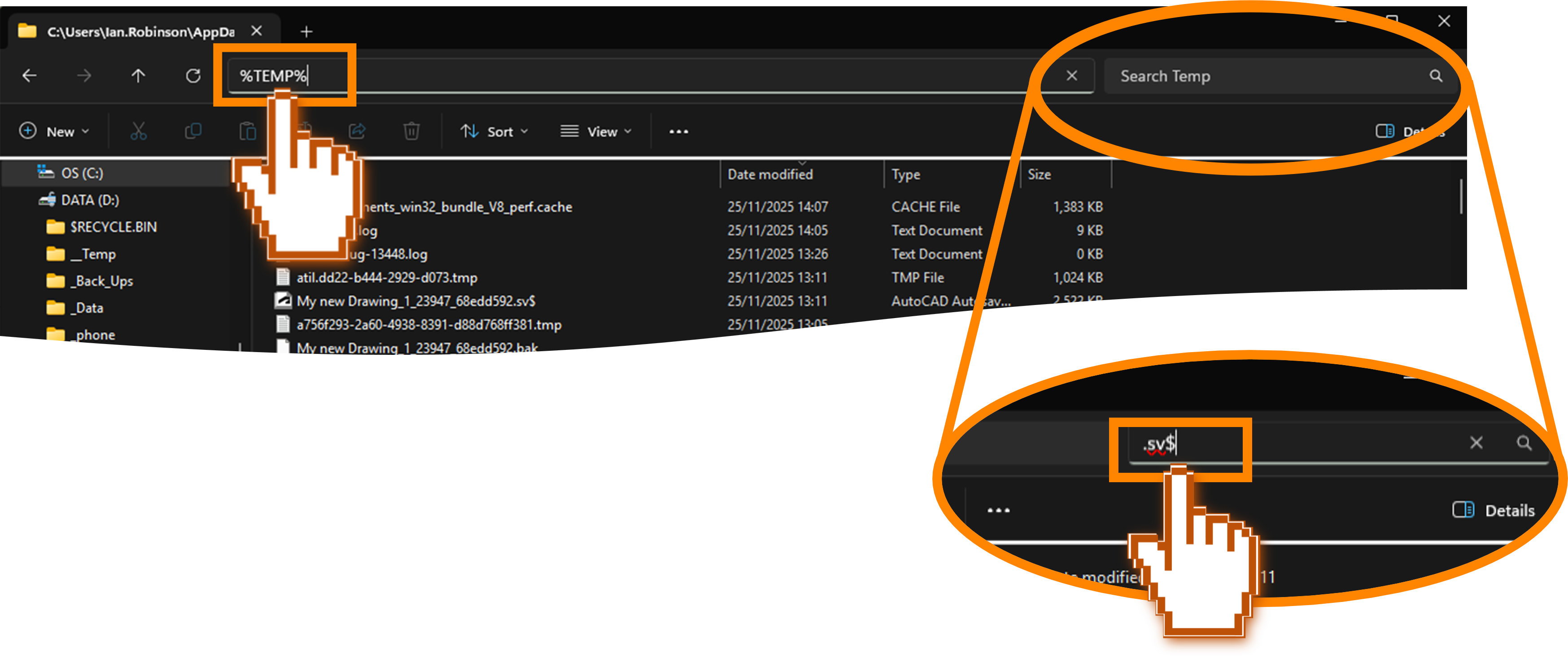
You can search for the files in the Search bar on the right.
The Autosave file is an exact copy of the DWG at the time of the autosave and is automatically deleted when you save your drawing.
You may have noticed in the command line something similar to:
Automatic save to C:\Users\[Your Profile]\AppData\Local\Temp\My new Drawing_1_23947_68edd592.sv$ …

Setting up Autosave: Type _options into the command line. In the options window, there are 2 things you can change now to make life easier. Firstly, set up your autosave file location and second, set up the interval.
In your Options window, go to the first tab, “Files”. Be careful in here! There are lots of useful things you can do, like setting up custom tool palette locations and which template QNEW opens. But there are also places where you can stop AutoCAD from working. So, if you have little knowledge of what everything does, don’t mess with anything else.
Find the Automatic Save File Location:
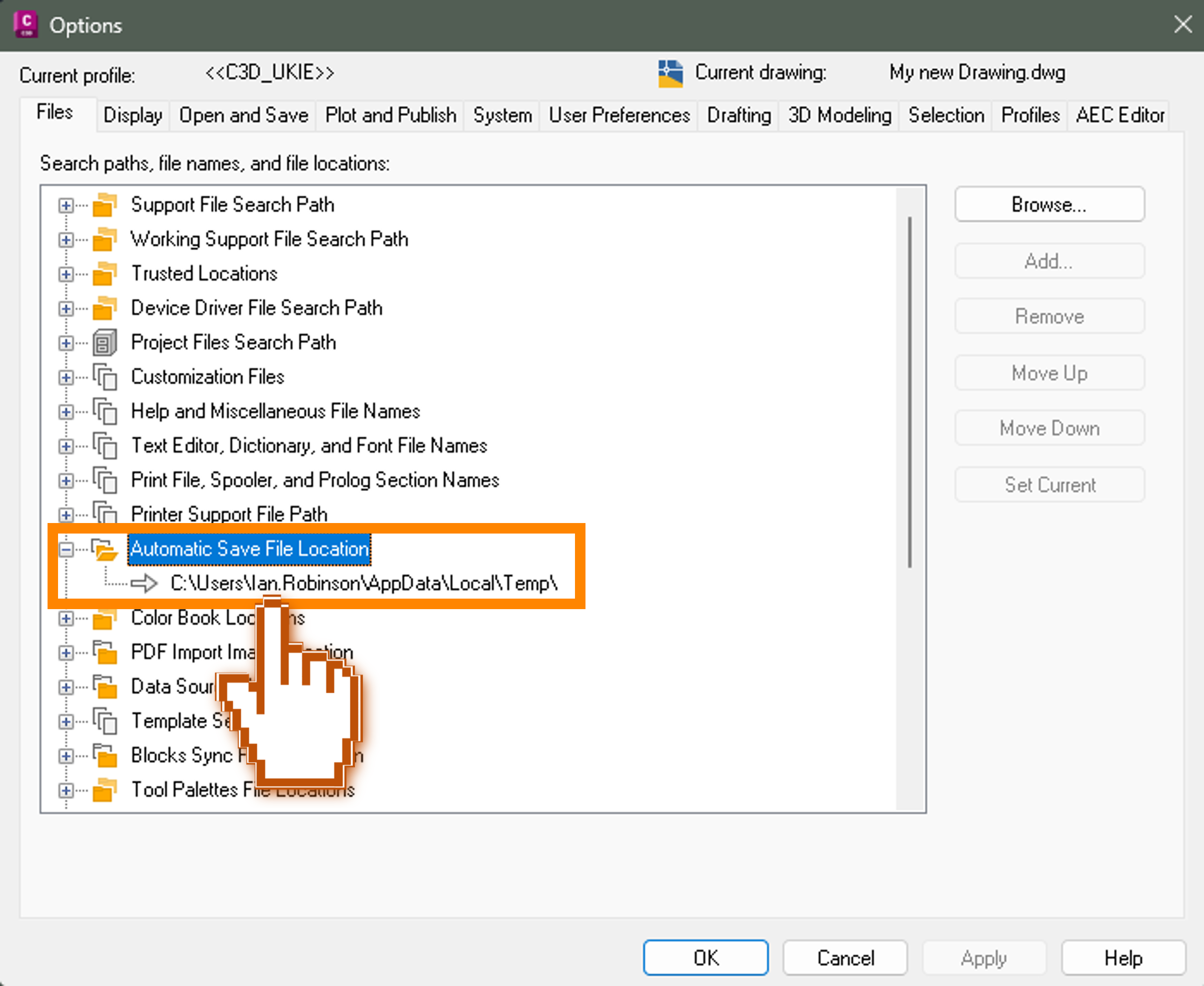
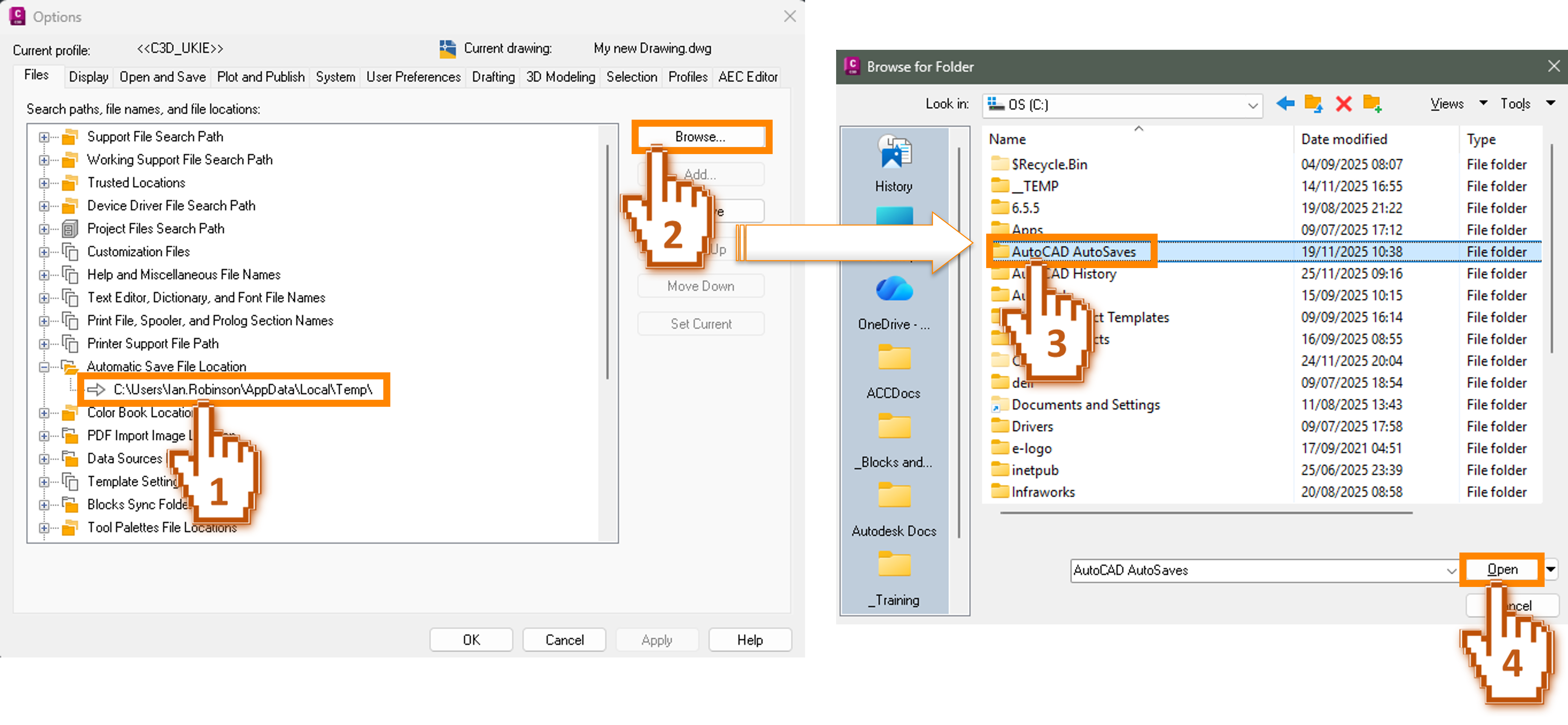
Note that the location will be set to the default location, your Windows temp folder. It would make sense to change this to a local drive. Preferably not one that is backed up into Microsoft’s One Drive. I always set mine directly on the C: drive. That way, it will always be local, and I can get to it easier. My recommendation is to add a folder on you C: drive and call it something sensible like “AutoCAD Autosaves”.
To select the new location, select the current location and then press Browse… select your new location then hit Open.
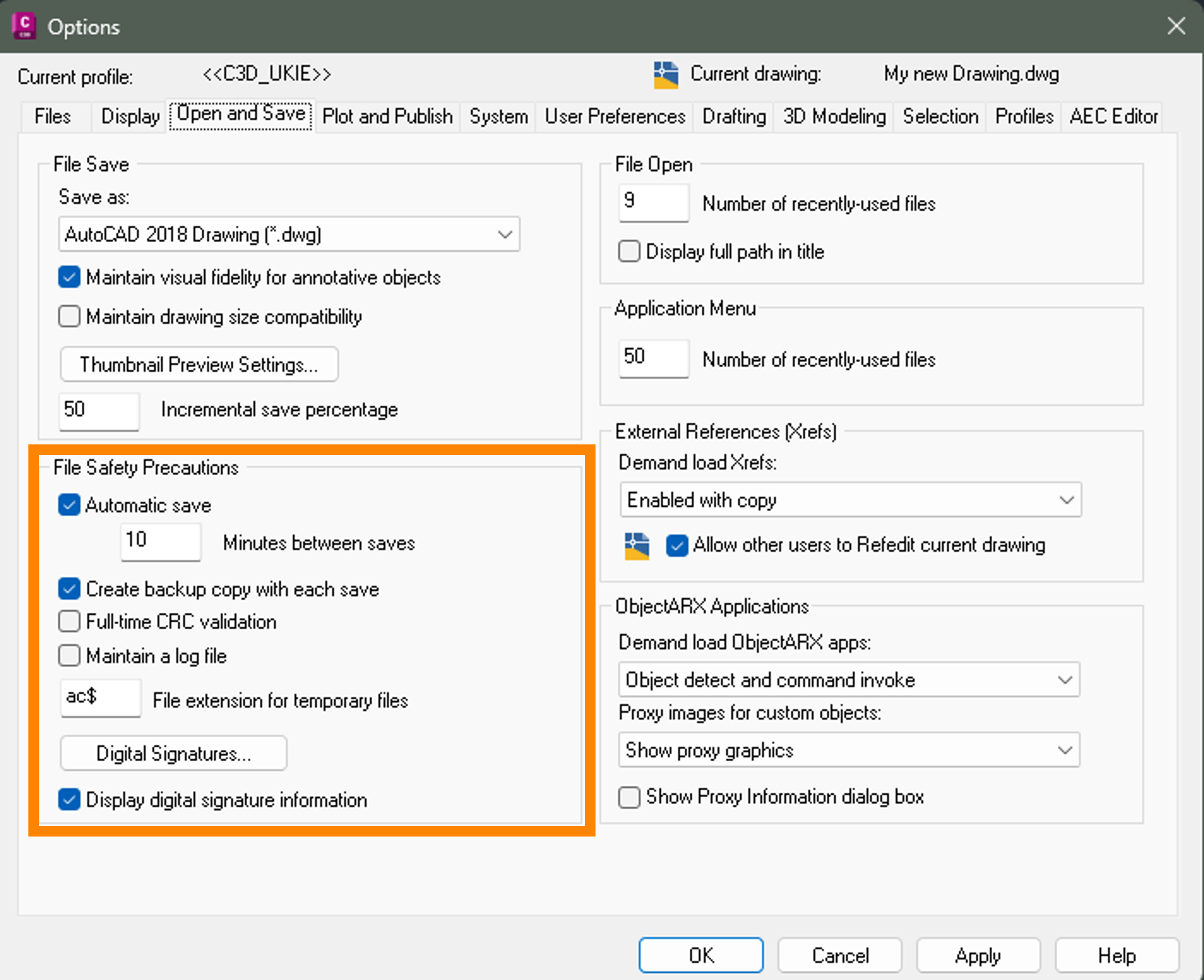
On the left side you will see an area called “File Safety Precautions” and this is where you can turn on or off the Autosave function and set the interval.
Top tip! Don’t turn it off!
It’s up to you how often you set this but note a few factors that might help you decide. It can take a while to save a file. 5 seconds is an eternity when you are trying to complete a task in AutoCAD, so if you set it too low and have to wait many times for the autosave function to complete, you may find that annoying. On the other hand, 30 minutes might be more convenient, but if you get a lot of work done in 30 minutes, do you want to run the risk of losing it? These are the dilemmas, only you can decide what’s best for you.
You will also note that there is a tick box for “Create Backup copy with each save”. This gives you an extra level of comfort when it comes to recovering lost work. Remember what was said about .BAK files. It’s the previous save. If you leave the interval to 10 minutes then 10 minutes after the last save, it will create an autosave .SV$ file. 20 minutes after the save, it will update the .SV$ file and create a backup of this file which will be the previous autosave. So, you will have a version of your drawing at 10 minutes (the .BAK file) and a version at 20 minutes (the .SV$ file).
The other items there are often ignored and in most cases, you can ignore them too. They are as follows:
- Full-time CRC validation – this is an error checking system. If you are experiencing corrupted drawings and you think it’s a hardware or software issue, turn this on. Note: not available in AutoCAD LT.
- Maintain a log file – you might find this useful in some circumstances. This will right a text file of everything written in the command line. Having it on by default will quickly fill your C: Drive with potentially 1000’s of text files.
- File extension for temporary files – there should be no reason to change this.
- Digital Signatures – if you have a Digital Signature, this is where you tell AutoCAD to turn them on or off.
You can see from this that you can always quickly go back to the previous save by opening the .BAK file. Everything you have done in the session up to the last autosave will be in the .SV$ file. If you have a crash or a UBF (unexpected brain fart), and you close without saving, the .BAK file will not help you, but the .SV$ might.
Once set up, the Autosave function will make you feel like the CAD Gods are back on your side and if things go south, you might just save a few quid from the swear jar too.
The workflow looks like this:
Still got Questions?
Book Training
With our range of AutoCAD courses we can teach you best-in-class 2D and 3D design skills. This includes drawing, taking measurements, producing templates and everything required to create your designs.
Contact Us
We are here to ensure you receive a consistently high service and quality solutions for your business needs. We promise you won’t regret speaking to us, and if we can’t help you, we will try to find someone that can.