


In AutoCAD, you may sometimes draw a shape using the Line command, only to realise later that using the Polyline command would have been far more efficient. For example, you might create a shape from multiple individual lines and then want to offset the entire shape without leaving gaps.
When the object consists of separate lines, offsetting it usually requires a lot of extra work like trimming and extending to clean up the result. However, if those lines were a single polyline, the task would be much faster and cleaner.
Let’s look at how to convert these lines and arcs into a polyline.
- Draw some lines and maybe include an arc using only the line and arc command, like the below:
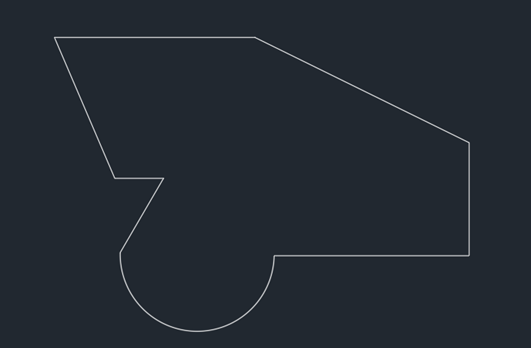
- I have selected a few lines to show these are single lines with an arc. This is not a polyline yet.
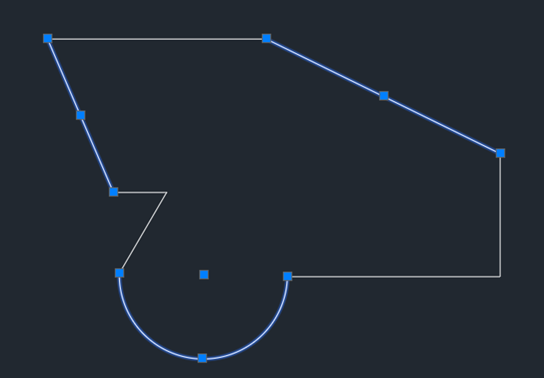
- Type PE (polyline edit) and enter.
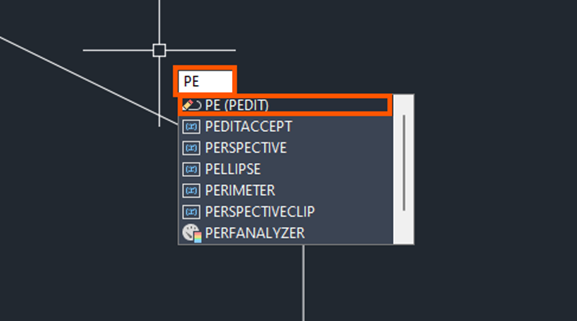
- Select any line.

- Do you want to turn it into one? <Y> – enter to select YES.

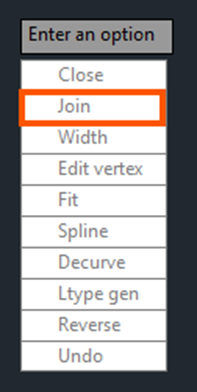
- Then select JOIN.
- Select all the geometry in your display.

- Enter twice to end the command.
- Select the object and you should see this is now listed as a polyline.
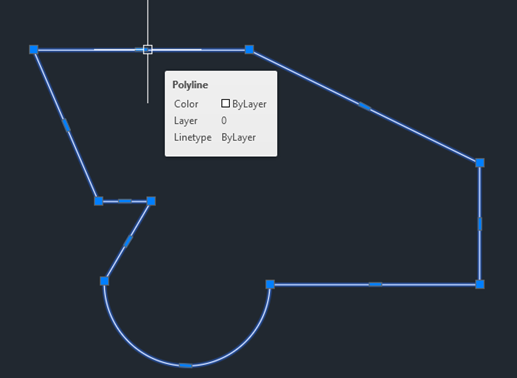
Here is the trick: if you do this a lot and that part that keeps asking if you want to turn it into a polyline – we can get rid of this prompt.
Type PEDITACCEPT and change the variable from 0 to 1. This will automatically convert it without the prompt!

Still got Questions?
Book Training
With our range of AutoCAD courses we can teach you best-in-class 2D and 3D design skills. This includes drawing, taking measurements, producing templates and everything required to create your designs.
Contact Us
We are here to ensure you receive a consistently high service and quality solutions for your business needs. We promise you won’t regret speaking to us, and if we can’t help you, we will try to find someone that can.