


Using External References (Xrefs) in AutoCAD is essential for managing large projects, improving performance, and facilitating team collaboration. Xrefs allow you to link external DWG files, images or PDFs to a host drawing, ensuring that updates in the source file are reflected automatically. But when do we use the Attach or Overlay option and what are the differences between Attach and Overlay?
Core Options
- Attach: Xref and its nested Xrefs travel with the host into other drawings.
- Example: A attached into B, B Xref’ed intro C > C sees A and B.
- Use when you need a full stacked background (masters, key composite models, plotted sheets).
- Overlay: Xref is only visible in the drawing it is directly reference into.
- Example: A overlaid into B, B Xref’ed into C > C sees B, not A.
- Use when you want context only and do not want that file passed further.
When to Use Each
Use Attach when:
- You are building a ‘master’ drawing that must always show the full stack wherever reused.
- You want lower-level files to come along automatically (eg, sheet files that must always bring all discipline xrefs).
Use Overlay when:
- You only need a file for context in the current drawing.
- You want to avoid circular references, deep nesting and long load times.
Rule of Thumb
- Default to Overlay for most background to keep the Xref tree clean.
- Use Attach only when you explicitly want the xref to travel with the host into other files.
What does this look like in AutoCAD?
- Type XREF in your CLI to see your External Reference Manager Palette (this can be docked or positioned anywhere in your display after initiating the command).
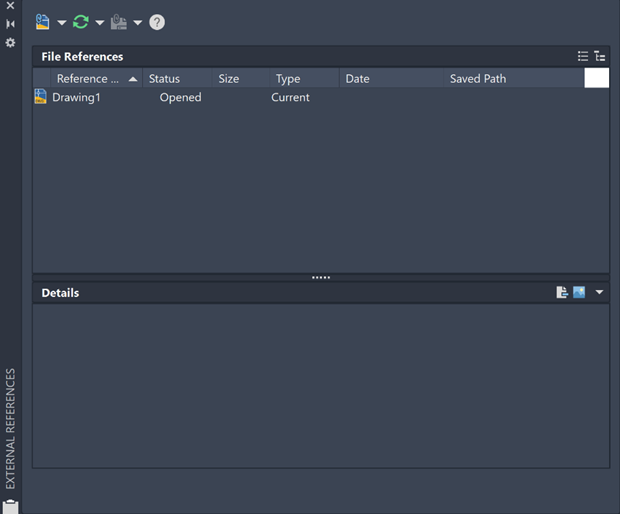
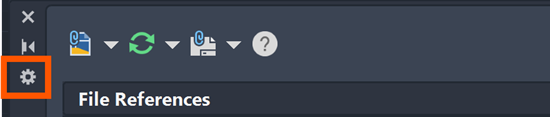
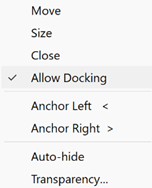
- To position, select the Settings icon and then select desired position or behaviour that you prefer.
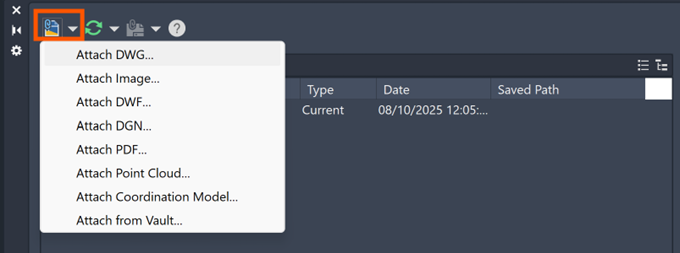
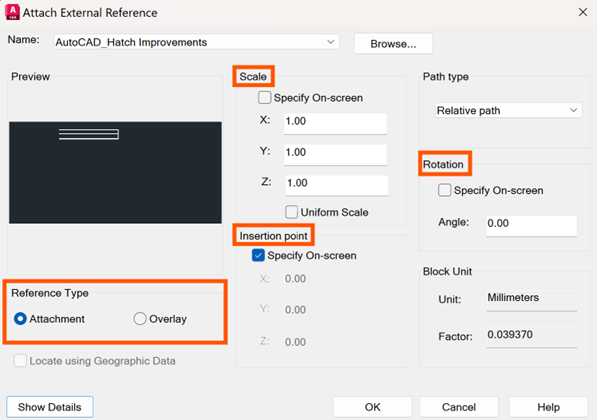
- Select the drop down as displayed in the image below, choose the file type to reference (the actual Attach or Overlay option will be selected in the next step).
- Set your Scale, Rotation and Insertion Point as you want it on the DWG you are placing it into. Here you will select the Attachment or Overlay option, as mentioned in the above step.
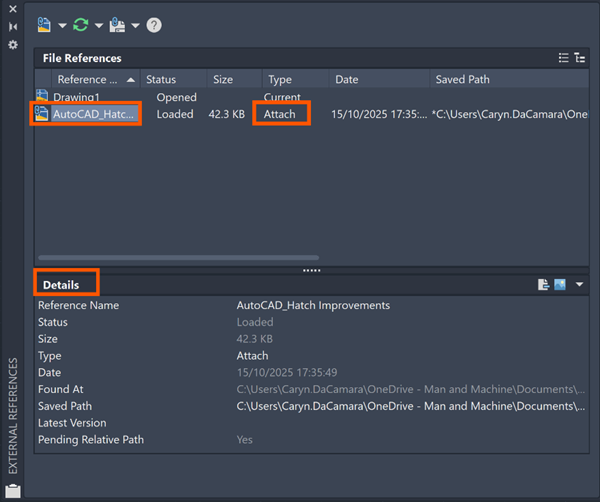
- You can see the Xref in the Xref palette and its current state or behaviour.
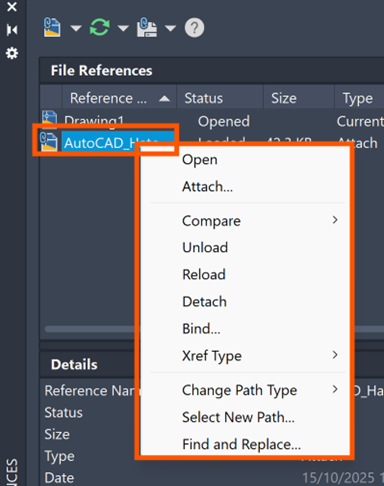
- When you right click on the referenced file name, you have a selection of options you can perform, fairly self explanatory, but let us look at these in more detail.
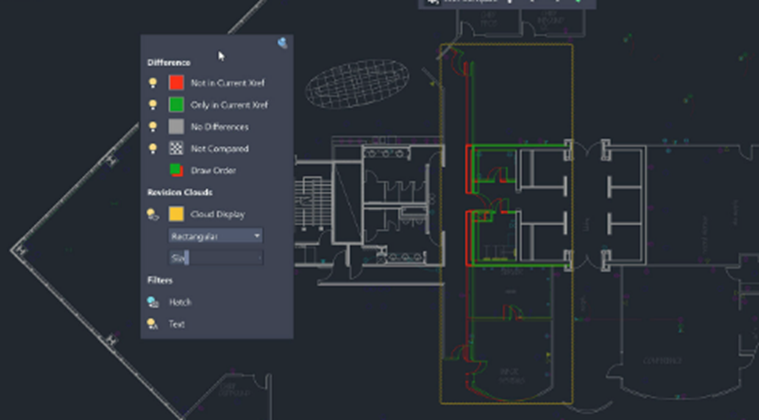
- Compare enables users to visually compare changes between an attached Xref and the source file, highlighting differences using colour-coded revision clouds. It identifies additions (green), removals (red), and no changes (grey), with options to compare recent changes or specific file versions.
- Unload keeps the Xref in the drawing but turns it off, you can reload it later without redefining paths or settings.
- Reload updates the currently opened drawing with the most recently saved version of an external reference file.
- Detach removes the Xref link entirely from the drawing, which is useful once references are no longer needed or have been fully incorporated.
- Bind converts the Xref into regular drawing content, bringing it permanently into the host while optionally prefixing its layers to avoid conflicts.
- Xref type just allows you to switch between Attachment and Overlay as required.
- Change Path Type lets you switch how the drawing stores the location of an Xref (for example, Absolute vs Relative vs, in some environments, Cloud). Absolute paths store the full drive and folder, relative paths store location relative to the host drawing (better when moving project folders), and cloud/special types are used when the file lives in connected cloud storage.
- Select New Path is used to update the location of a missing or moved drawing file. When an Xref is marked as ‘Not Found’ or ‘Unresolved’, this option allows users to navigate to the new location and restore the link.
- Find and Replace is used to update file paths for multiple broken or moved references at once. it allows users to search for a specific saved path string and replace it with a new path for all selected Xrefs, rather than re-pathing each file individually.
Experiment with Attach and Overlay, and you’ll quickly get a feel for which option suits each situation best. Working with External References (Xrefs) keeps AutoCAD projects light, coordinated and modular instead of bloated single files.
Still got Questions?
Book Training
With our range of AutoCAD courses we can teach you best-in-class 2D and 3D design skills. This includes drawing, taking measurements, producing templates and everything required to create your designs.
Contact Us
We are here to ensure you receive a consistently high service and quality solutions for your business needs. We promise you won’t regret speaking to us, and if we can’t help you, we will try to find someone that can.