


When managing both licenses and users, we have the ability to assign licenses by groups. This is an alternate method than assigning seats to a user, and can be used to help speed up the process whilst managing many users and licenses. Groups allow us to assign licenses to a group, therefore when users are added they are automatically assigned a seat of each product.
To begin, we need to create a group. Head into the management portal (https://manage.autodesk.com/home) > User Management > By Group.
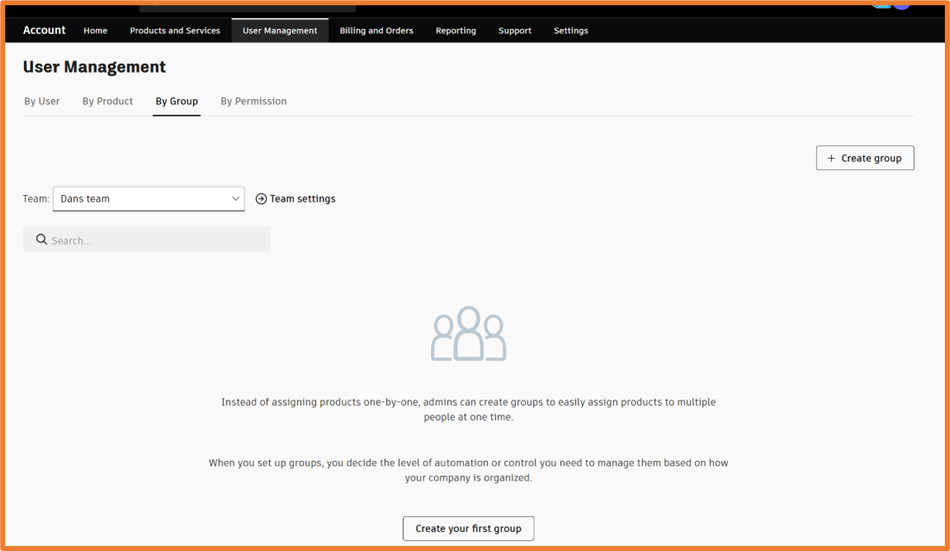
Select the team you want the group to reside within the team dropdown, then press Create Group. **Note, we can only assign licenses from the same team the group sits within.
Once you’re given the group a name, you’ll be greeted with the following screen.
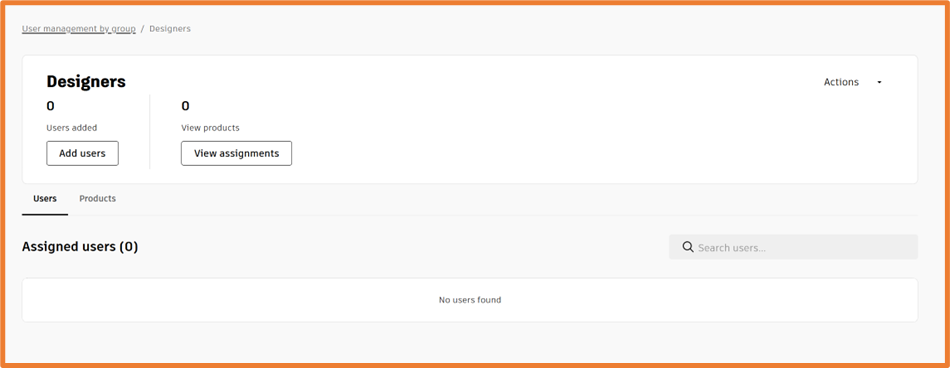
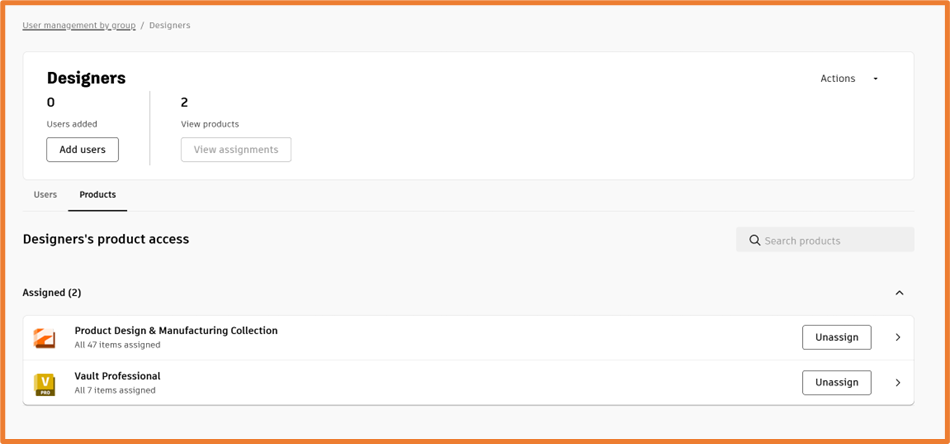
First, let’s assign products to the group. Select View Assignments or Products and assign the license(s) you wish to be included within the group. It’s crucial to understand we cannot invite more users than the number of seats available, there must be enough seats for new members.
In this case, I’ve assigned one seat of PDMC and one seat of Vault Pro. From here, we also can unassign licenses from the group, should you wish to use them somewhere else.
Select Add Users, a dialog will appear allowing you to search for the user’s name or invite if not already within the team. From here, we can select which user(s) we want to assign to the group using the add button.
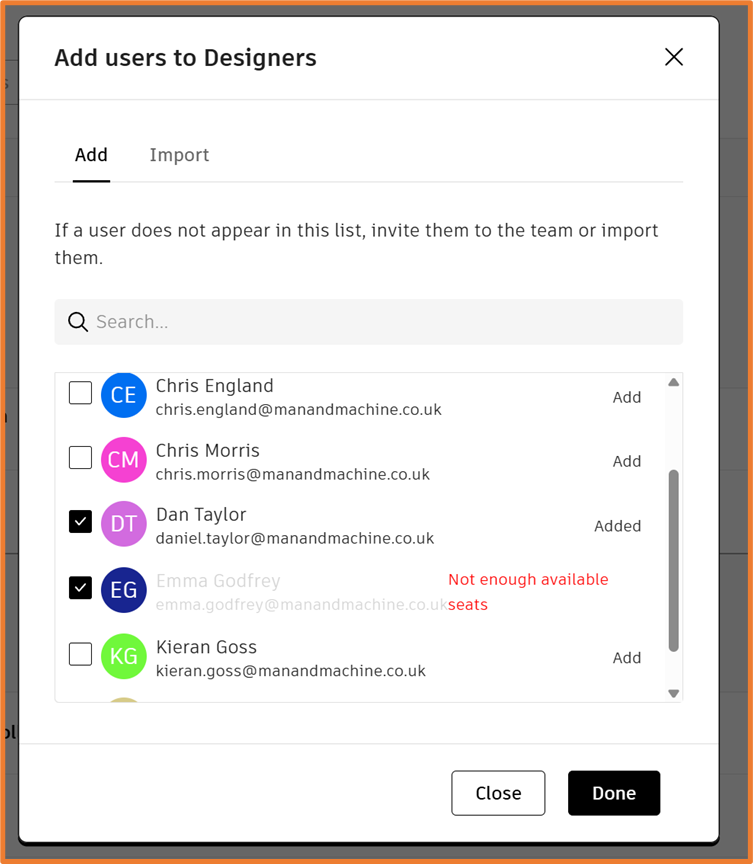
As I’ve only assigned one seat of two products, when attempting to add a second user I’ll be met with an error – Not enough available seats. Either you’ll need to assign more seats to the group, or remove users from the group.
After selecting ‘done’, all users added (as well as future users), will automatically be provided with the licenses assigned to this group.
Still got Questions?
Buy Software
Autodesk is a global leader in software for architects, builders, engineers, designers, manufacturers, 3D artists and production teams. Contact us now to find out which software is right for you.
Contact Us
We are here to ensure you receive a consistently high service and quality solutions for your business needs. We promise you won’t regret speaking to us, and if we can’t help you, we will try to find someone that can.