


Fusion Manage is a really powerful tool for managing your product lifecycle, and it’s super flexible, letting you tailor it to fit your needs. One way to make it even better is by adding new environments. In this blog post, we’ll check out how the Fusion Manage Templates Library can make this whole process a lot easier.
What’s the Fusion Manage Templates Library?
Basically, it’s a bunch of pre-made process templates that help you quickly get up and running with industry best practices. These templates come with everything already set up – fields, tabs, workflows, roles and permissions – which saves you a ton of time and really boosts your ROI!

Why Add More Environments?
Adding new environments to your Fusion Manage tenant can be a game-changer! Here’s why:
- Streamline Processes: You can create specific spaces to manage different parts of your product lifecycle, like engineering change management, quality management, or new product introduction.
- Get Organised: Keep your data and workflows nice and tidy by separating them into different environments.
- Boost Collaboration: Give your teams workspaces that are customised with the tools and information they need.
- Increase Efficiency: Use those pre-configured templates to quickly set up new environments without having to start from scratch.
How to Add Environments Using Templates
Here’s a basic rundown of how to add environments using templates from the Fusion Manage Templates Library:
- Access the Template Library: In your Fusion Manage tenant, go the the Administration section and open up the Template Library.

- Pick a Template: Browse through the templates and choose the one that works best for you. They’re usually grouped by process, like ‘Change Management’, ‘New Product Introduction’, ‘Engineering Change Order’, ‘Bill of Materials Management’ or ‘Document Control’.
- Check out the Details: Before you install a template, it’s a good idea to review its details to see what workspaces, fields and workflows it includes.

- Install the Template: Install the template into your Fusion Manage tenant. Just so you know, if there are any duplicate components, they’ll get a suffix added to avoid any conflicts.
- Customise your Environment: After installing, you can further customise the environment by adding custom fields, modifying workflow stages, adjusting user permissions and configuring notifications to align with your organisation’s specific processes.
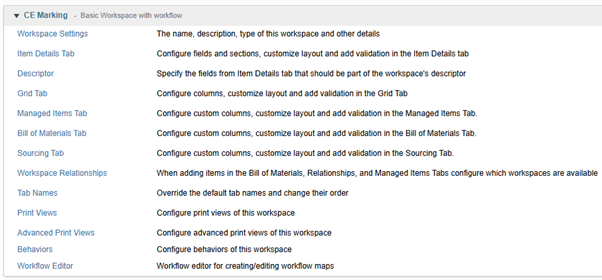
- Assign Roles: Make sure everyone has the right roles and permissions to access and use the new environment.
Much easier than creating environments from scratch, defining your own fields, limitations and scripts, these templates provide an ideal starting point for any new environment, even if it only serves as a template for your own creation.
Why Use Templates?
Using templates has some awesome benefits:
- Faster Implementation: You’ll save a lot of setup time thanks to the pre-configured components.
- Best Practices: You’ll be using industry-standard workflows and processes.
- Better ROI: You’ll get Fusion Manage up and running faster and get more value out of it.
- Customisation Options: You can adapt the templates to fir your unique business needs.
Ready to supercharge your Fusion Manage? Explore the Template Library today to discover how easy it is to add new environments and streamline your processes. Remember to provide adequate training to your users to ensure they can effectively utilise the new environments.
Still got Questions?
Book Training
Through hands-on exercises, you will acquire the key skills and knowledge required to design models using Fusion. It will teach you everything from product development to simulation and fabrication.
Contact Us
We are here to ensure you receive a consistently high service and quality solutions for your business needs. We promise you won’t regret speaking to us, and if we can’t help you, we will try to find someone that can.