


Autodesk simplifies the transition from 2D to 3D with the flexibility of its tools. However, a common question we encounter is ‘how do I change the scroll wheel zoom direction to match AutoCAD?’.
We understand it can be frustrating to adapt to new software and find yourself scrolling in the wrong direction.. Fortunately both Inventor and Fusion make this adjustment straightforward.
Let’s being with Inventor. To change to the opposite behaviour:
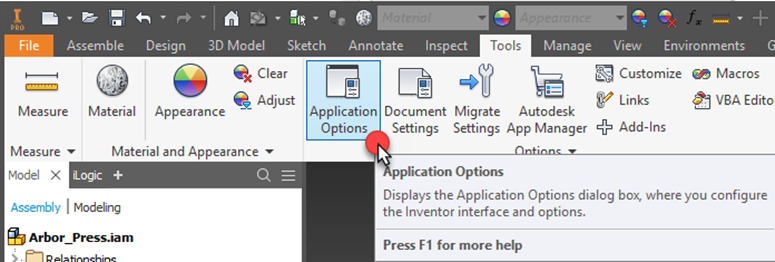
1.Go to Application Options (Ribbon > Tools > Application Options):
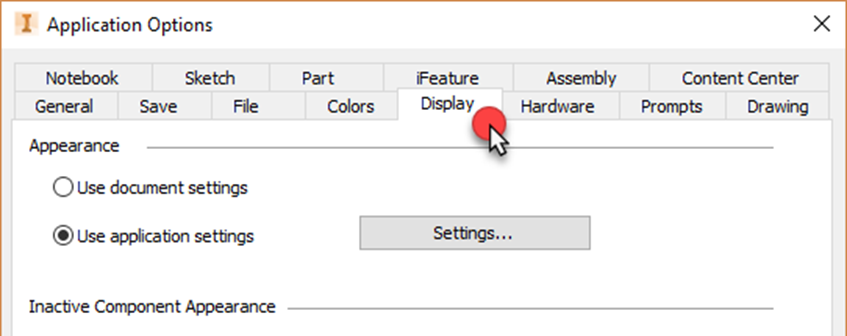
2. Change to ‘Display Tab’:
3. Tick the option ‘Reverse Direction’ in 3D Navigation/Zoom Behaviour section:
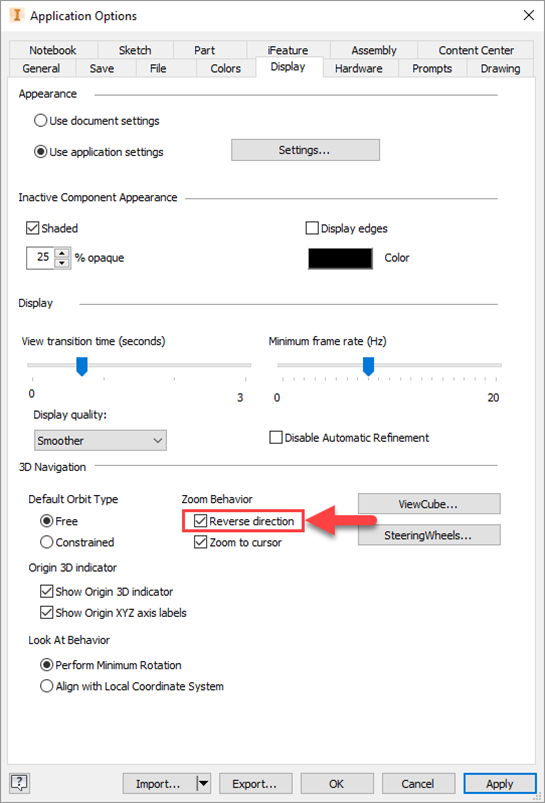
4. Apply the changes and leave the dialog.
Now lets do the same thing in Fusion:
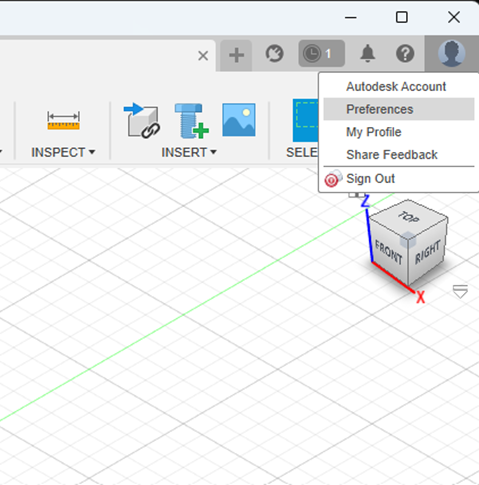
1.Open the Preferences for Fusion. This can be located by clicking your name in the top-right corner of Fusion to show the drop down menu that contains preferences:
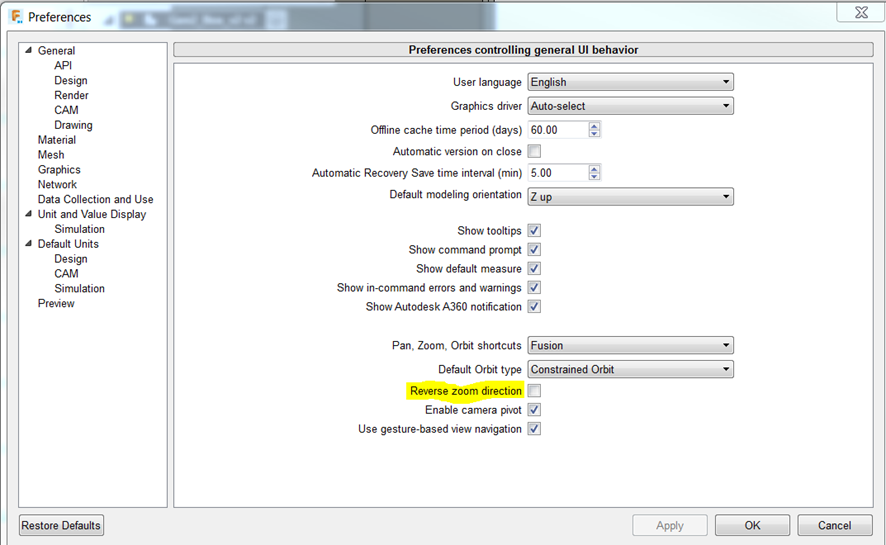
2. On the General tab that pops up, there is a checkbox for ‘Reverse Zoom direction’. Check this box:
Still got Questions?
Book Training
Our range of Autodesk Inventor training courses will teach you how to create production-ready parts and assemblies through hands-on learning experience. Make sure you contact us to find out which course is best for you.
Contact Us
We are here to ensure you receive a consistently high service and quality solutions for your business needs. We promise you won’t regret speaking to us, and if we can’t help you, we will try to find someone that can.