


After purchasing new licenses, you may find you’re unable to view these within your management portal. It’s important to understand the rules that determine which team these land in.
- If the Contract Manager is not an admin in any team, a new team is created for the licenses to reside in.
- If the Contract Manager is an admin for one team, new licenses are assigned to that team.
- If the Contract Manager is an admin for multiple teams, you’ll need to manually assign the licenses to your preferred team.
Assigning Subscriptions to a Team
If you find yourself managing multiple teams, and have purchased new licenses (not renewals), these won’t be ready to assign to users in your teams. To assign a license to a team, please follow these steps:
- Log in to your management portal: (https://manage.autodesk.com/home)
- Navigate to Billing and Orders > Subscriptions and Contracts
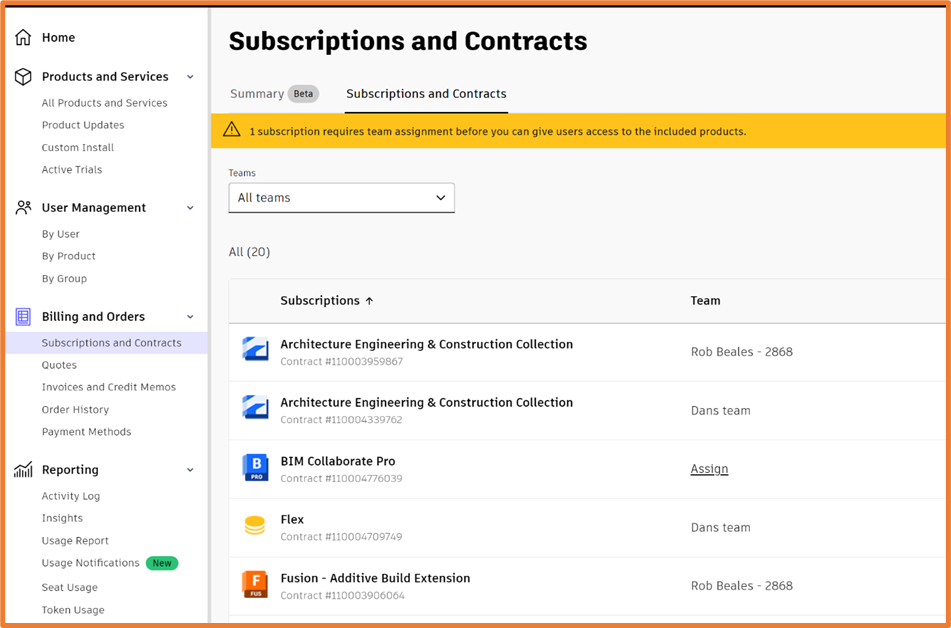
3. You should see your subscriptions, along with the team each are in. Click the assign button on the missing licenses.
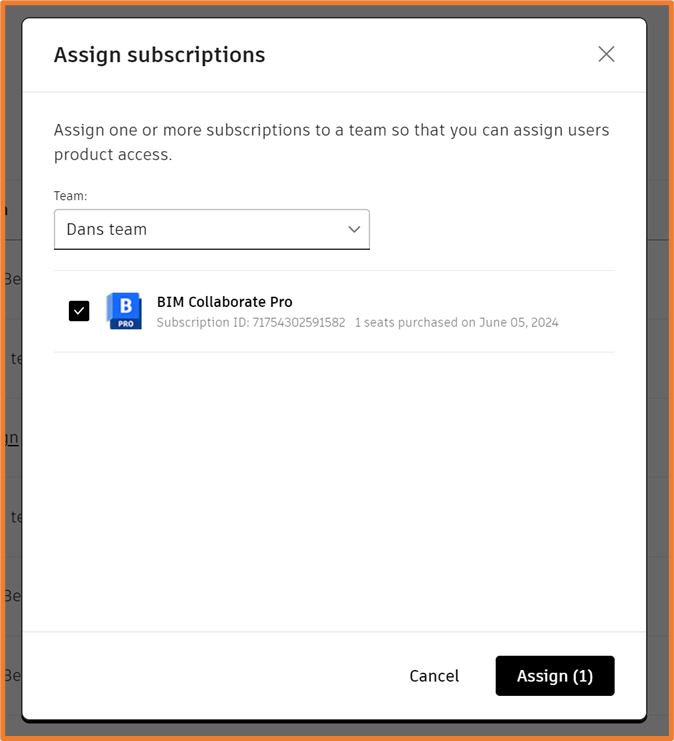
4. A dialog will appear, giving the choice to assign the licenses to a team. Select the correct team and click assign.
Still got Questions?
Buy Software
Autodesk is a global leader in software for architects, builders, engineers, designers, manufacturers, 3D artists and production teams. Contact us now to find out which software is right for you.
Contact Us
We are here to ensure you receive a consistently high service and quality solutions for your business needs. We promise you won’t regret speaking to us, and if we can’t help you, we will try to find someone that can.