


**Please note, as of 24th March 2026, Autodesk Forma has been rebranded to Forma Site Design.**
Autodesk Forma allows you to create multiple proposals but chances are once you have ran an analysis, such as Sun Hours, you are going to want to compare the results. Autodesk Forma makes comparing multiple proposals simple and quick.
In this blog I will show you how to compare results.
Step 1: Run Analysis Tools
It goes without saying that you will need to have multiple proposals and to have ran some analysis tools.
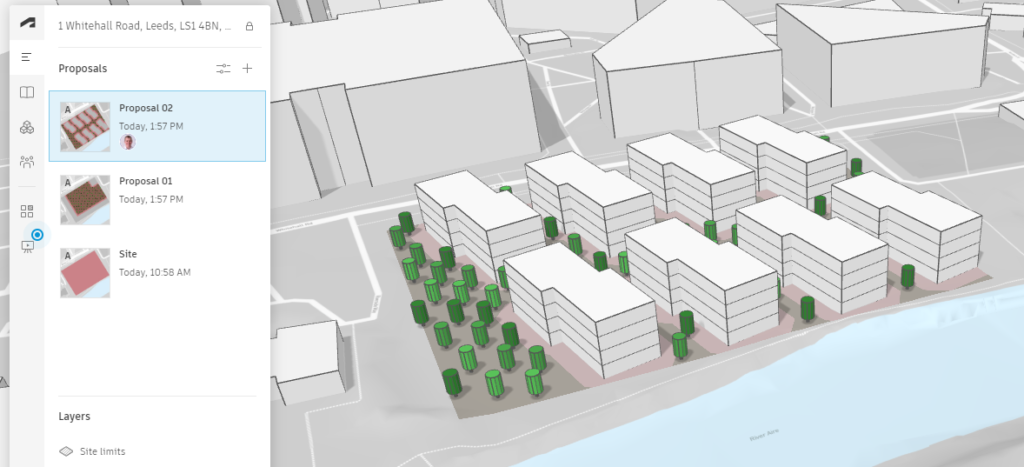
Step 2: Start Compare Tool
On the left panel you have a tab called Compare, click this to access the compare tool.
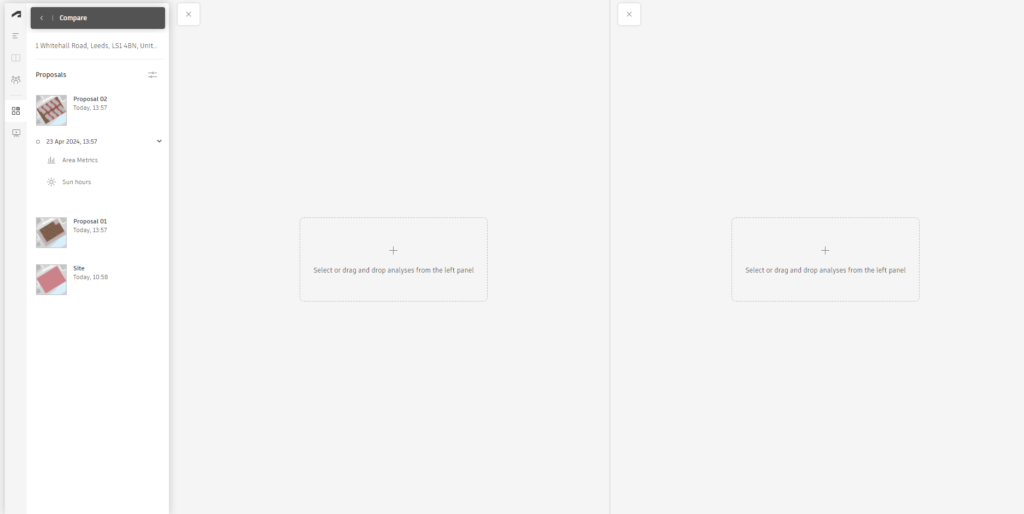
Step 3: Select Proposals
Choose the first proposals to compare, select a proposal and from the dropdown choose the results you want to display.
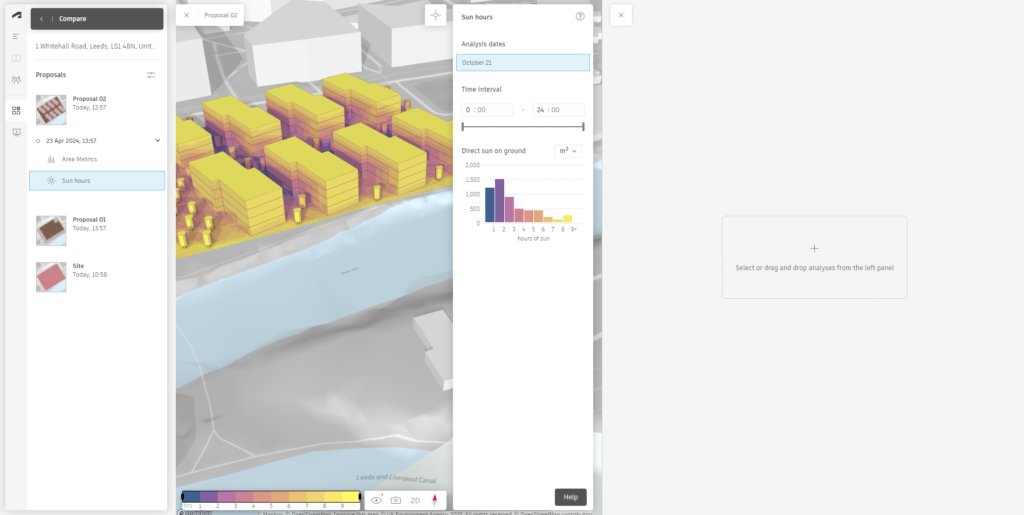
Step 4: Repeat The Process
Now finally, repeat the process to select the second proposal you wish to compare.
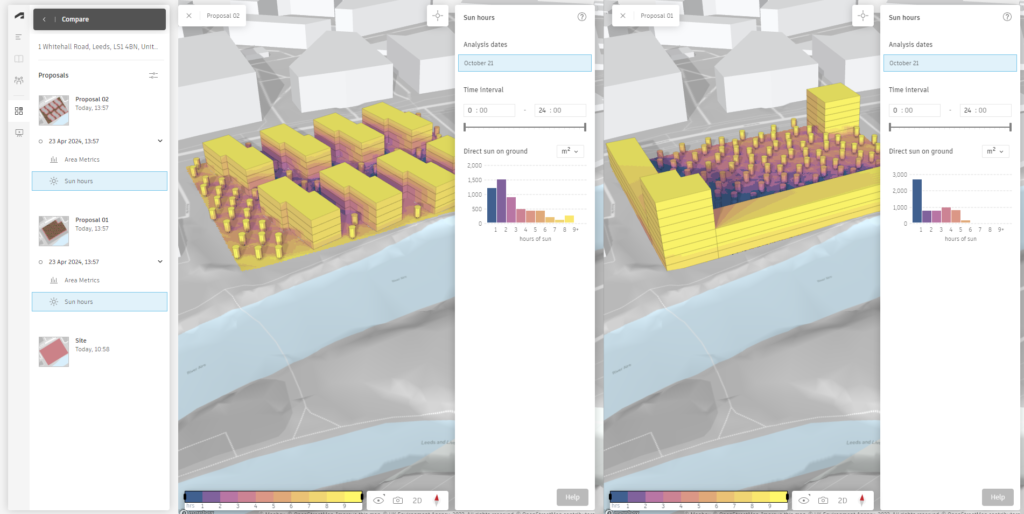
You don’t have to compare identical results, you could compare wind and solar side by side or even just two models without any test results to compare designs. You can even compare more than two at a time by selecting a third proposal.
Still got Questions?
Buy Collection
The Autodesk AEC Collection offers a comprehensive set of tools designed to support your project needs no matter how complex. When great minds have great tools they can accomplish great things!
Contact Us
We are here to ensure you receive a consistently high service and quality solutions for your business needs. We promise you won’t regret speaking to us, and if we can’t help you, we will try to find someone that can.