


Once you have created a Viewport and set its scale, it is normal to annotate the viewport with its scale and/or use an attribute in the border stating the scale.
Using a field it is possible to automate this process.
First create your drawing, layout and viewport and set it to a suitable scale, in my example it is set and locked to 1:100.
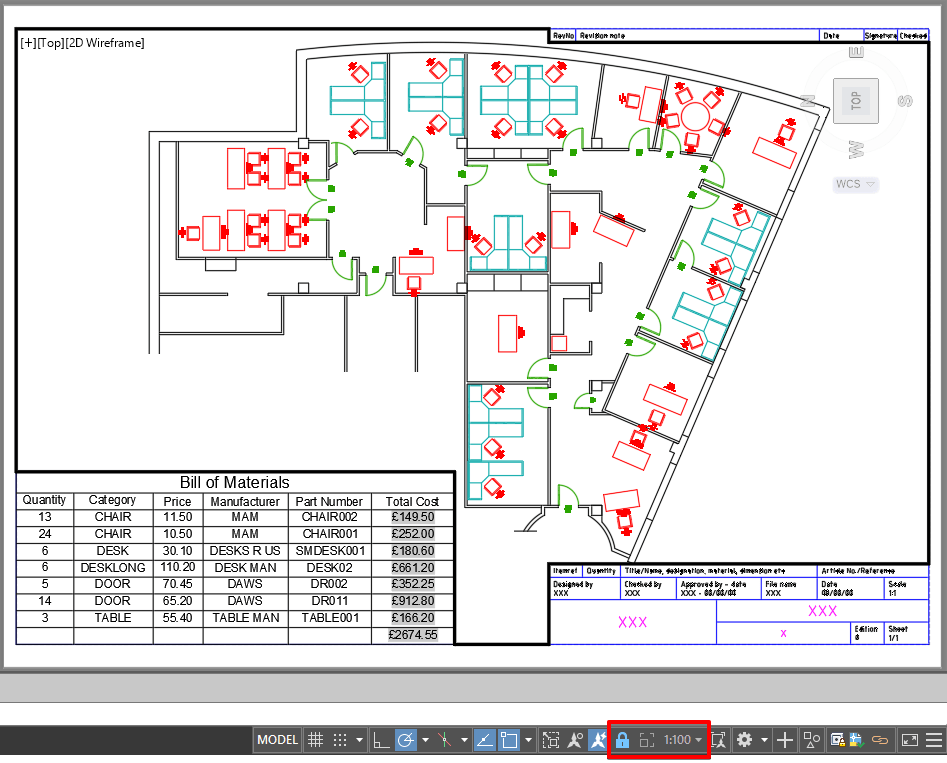
On the Insert tab you will see the option to Insert Field.

Once selected, change the category to objects, select object in the Field names, use the pick icon on the object type to select the viewport geometry, the property is ‘Custom Scale’ and the format is ‘Use Scale Name’.
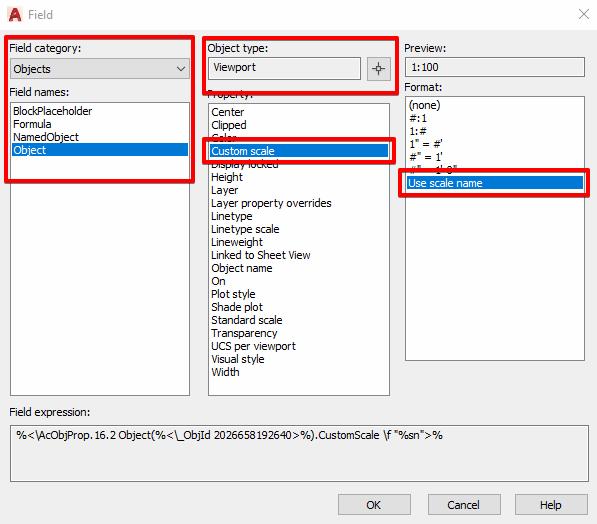
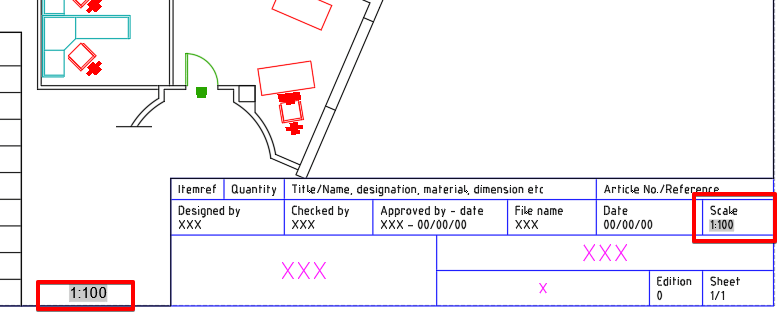
Click OK and place the field on your page layout near your Viewport. If you right click in an attribute value, you can select ‘Insert Field’ from there and follow the same procedure to use a field as an attribute value.
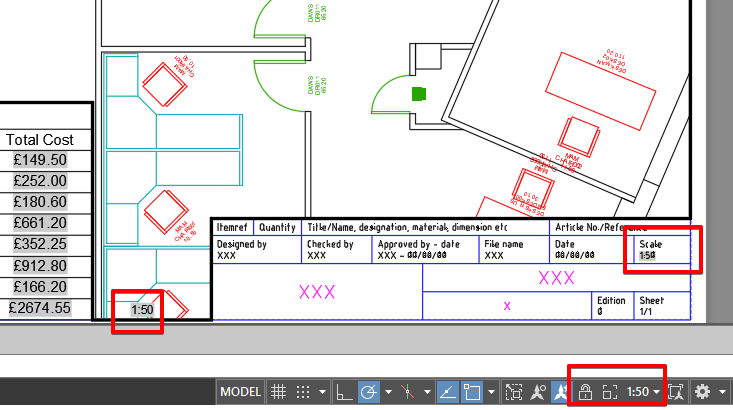
If you change the Viewport scale and save the drawing, the Fields will automatically update.
In conclusion, you can use Fields to automate the entry of data onto your drawing. Fields can pick data from almost any property within the drawing. Other useful fields are the DWG properties, author and date.
Still got Questions?
Book Training
With our range of AutoCAD courses we can teach you best-in-class 2D and 3D design skills. This includes drawing, taking measurements, producing templates and everything required to create your designs.
Contact Us
We are here to ensure you receive a consistently high service and quality solutions for your business needs. We promise you won’t regret speaking to us, and if we can’t help you, we will try to find someone that can.