


It is a common problem when your Autodesk software cannot find the network license service and gives you the FLEXnet License Finder dialog box instead. Usually it is down to either the license services being moved to a different server or for some reason the software was installed incorrectly, either way it can be a bit of a pain to put right.
However, there is a quick fix for this which will enable you to point all your Autodesk software to the new or correct server in one go. It is also the solution for using multiple servers which host multiple license services (distributed servers).
Here is how you can use the environment variable to specify one or more license servers for your Autodesk products (Windows 10):
1. Open the Windows Control Panel
2. Double-click System
3. In the System bar down the left hand side select ‘Advanced system settings’.
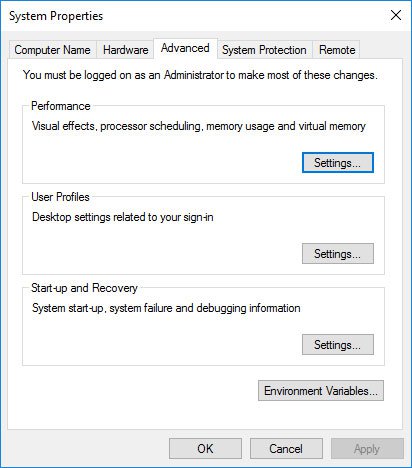
4. Click ‘Environment Variables’
5. Under System Variable, click ‘New’
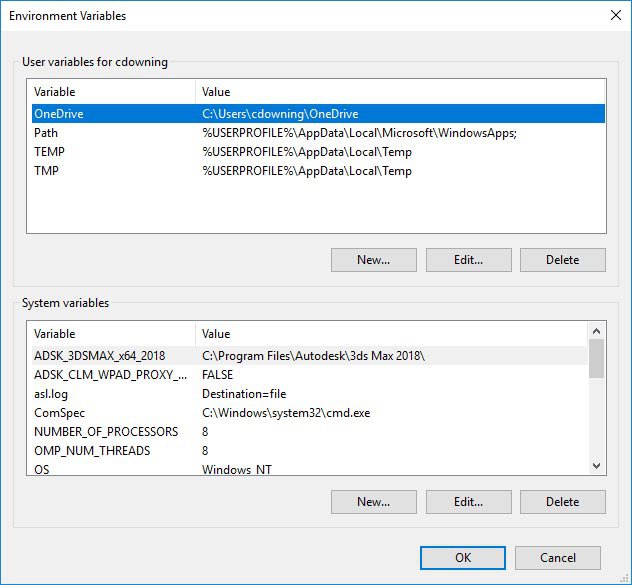
6. In the Variable Name box, enter ADSKFLEX_LICENSE_FILE
7. In the Variable Value box, enter the license server(s) in the following format, the ‘@’ symbol followed directly by the server name:
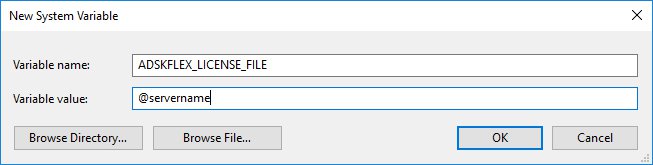
@server1;@server2;@server3 (where server is the hostname or IP address of your license server). If you wish to specify a custom port of the server, format the value as port@server where port is the custom port number your license server is running on.
8. Click OK to close each dialog box.
Once this has been created, all your software should re-direct to look for the licenses on the server name specified.
Still got Questions?
Buy Software
Autodesk is a global leader in software for architects, builders, engineers, designers, manufacturers, 3D artists and production teams. Contact us now to find out which software is right for you.
Contact Us
We are here to ensure you receive a consistently high service and quality solutions for your business needs. We promise you won’t regret speaking to us, and if we can’t help you, we will try to find someone that can.