


If you’ve ever needed to align an object perfectly in AutoCAD but didn’t know the exact angle, there’s a powerful feature built just for that; the Reference option in the ROTATE command.
Instead of guessing angles or calculating degrees manually, you can rotate objects by referencing existing geometry. This is especially useful when aligning objects to slanted lines, walls, or irregular shapes. Let’s walk through how this works!
- Draw up something like the below using the Line and Rectangles command.
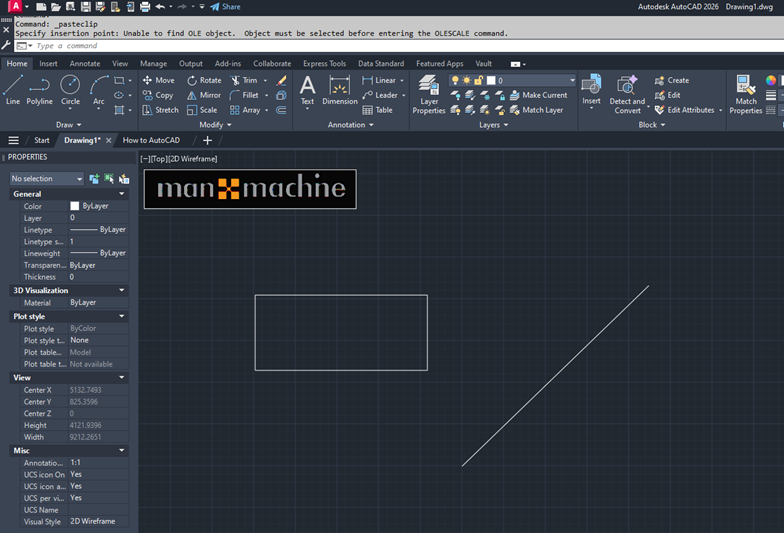
- Activate the Rotate command or type RO.
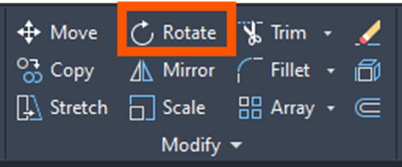
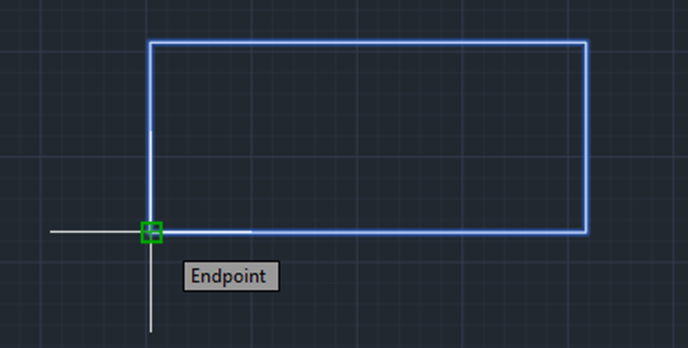
- Select your object (the rectangle) and base point, click the end point as displayed in the below image.
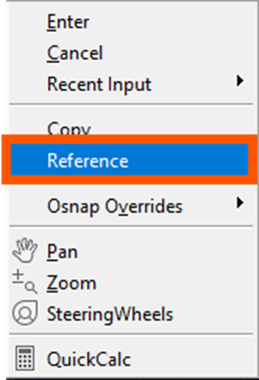
- Specify rotation angle, here select R (Reference), or right click to select Reference option.
- Select the same end point as you did for your base point, and select the opposite lower end point.
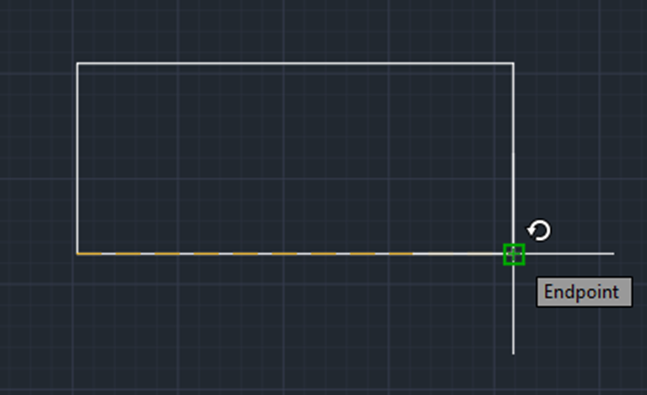
- Select two points defining the current angle, and either type the new angle or pick points to align to.
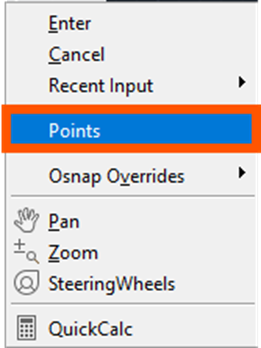
- Specify the new angle or [Points], here select points or right click and select Points option.
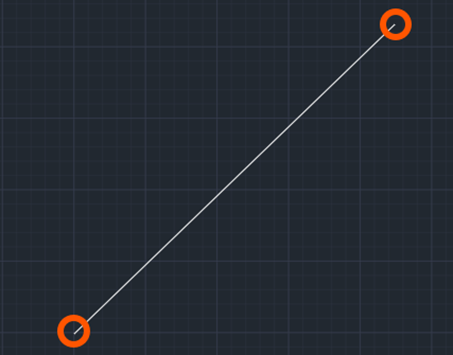
- Select the first end point of the line and the second point of the line, as shown on the image below.
- Result:
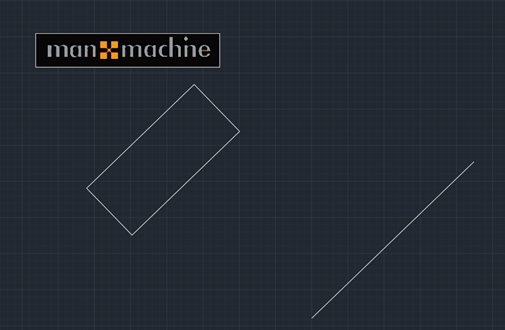
This allows you to align objects to existing geometry without knowing the exact angle! Many users miss this option within the Rotate command.
Still got Questions?
Book Training
With our range of AutoCAD courses we can teach you best-in-class 2D and 3D design skills. This includes drawing, taking measurements, producing templates and everything required to create your designs.
Contact Us
We are here to ensure you receive a consistently high service and quality solutions for your business needs. We promise you won’t regret speaking to us, and if we can’t help you, we will try to find someone that can.