


**Please note, as of 24th March 2026, the Autodesk Construction Cloud has joined the Forma industry cloud and has been rebranded as Forma. Find out more details here.**
From AutoCAD, sheets can be published to PDF directly to Autodesk Docs. The process is quick, efficient and makes it easy to work collaboratively with other teams and members.
It goes without saying that before we begin, you need a drawing with sheets that you wish to publish, and you will need access to an Autodesk Docs project where you wish to publish the drawings to.
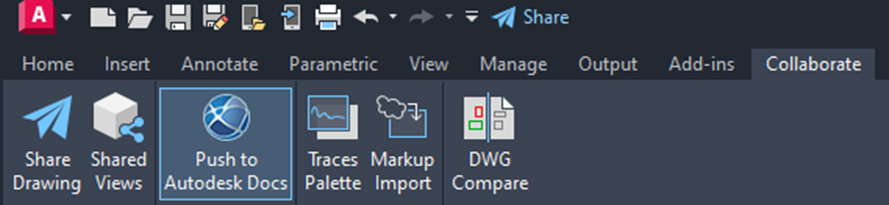
Inside an AutoCAD drawing, go to the Collaborate tab, and in the Autodesk Docs group click the ‘Push to Autodesk Docs’ button.
From this window, you will see a list of sheets available to be published in the current drawing:
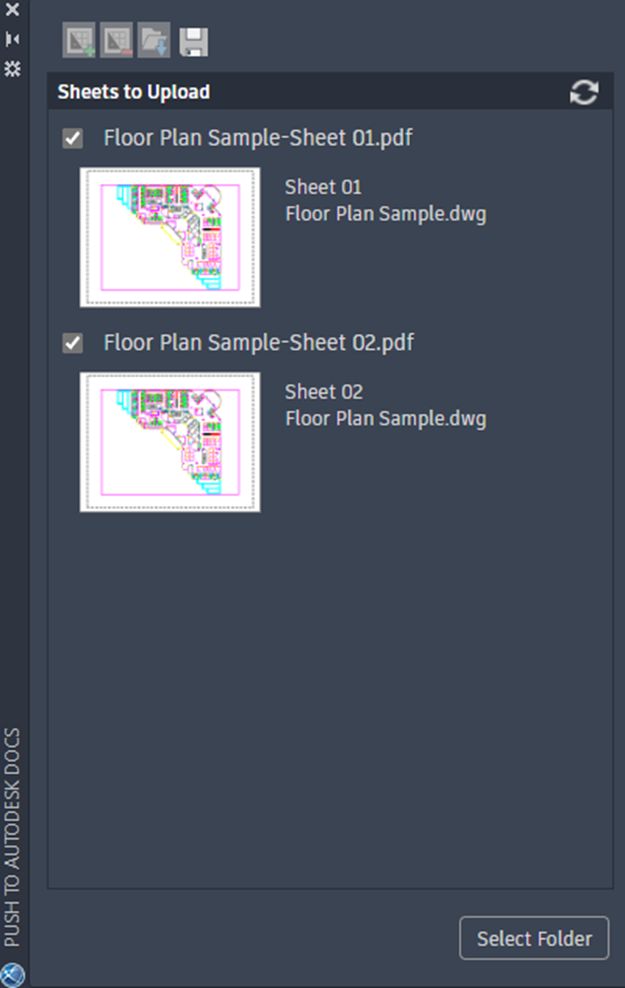
Should you wish, you can also add sheets from other drawing files at this point using the Add button at the top:

Click the Add Folder button at the bottom of the window to choose an ACC project and folder location for the sheets to be published to:
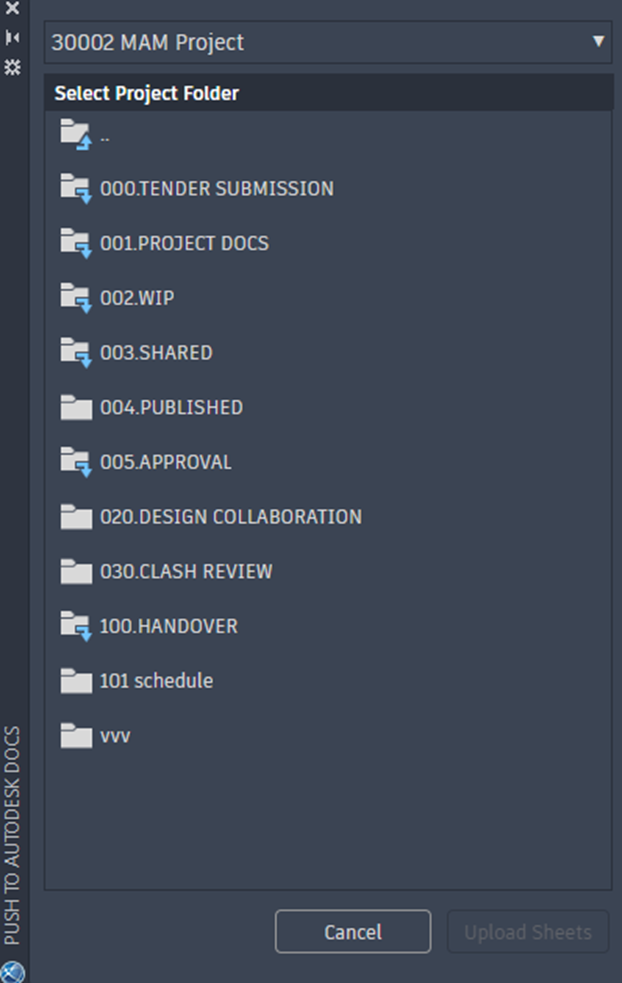
Once a folder has been chose, click the Upload Sheets button to start the process. The more sheets you upload, the longer the upload process may take. Once uploaded, a PDF file of the sheets will be created in Autodesk Docs and available for all members who have access to that location.
Still got Questions?
Book Training
We have developed a robust set of onboarding and deployment services to ensure best-in-class implementation of Autodesk Forma (formerly the Autodesk Construction Cloud).
Contact Us
We are here to ensure you receive a consistently high service and quality solutions for your business needs. We promise you won’t regret speaking to us, and if we can’t help you, we will try to find someone that can.