


In this blog I will take you through how to zoom into detailed areas of your model in AutoCAD, whilst keeping the wider context in view.
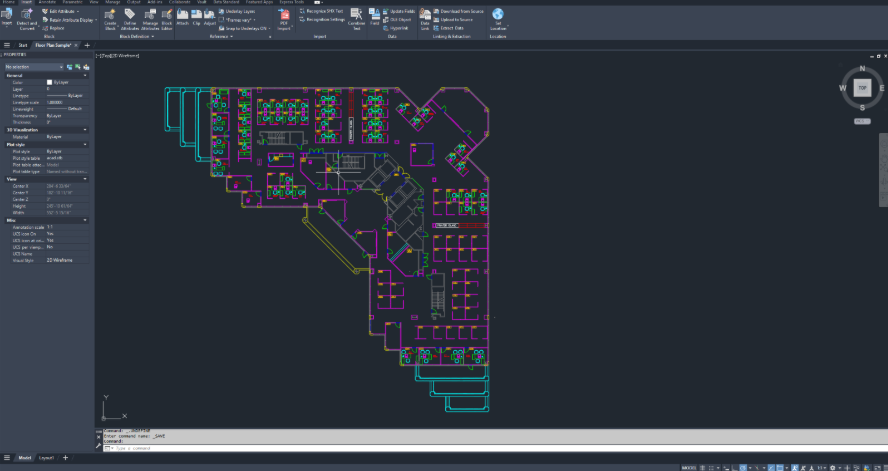
Why split your display area?
When you are working on a large or detailed model, constantly zooming in and our can slow you down and make it harder to understand how a small edit affects the wider design. Splitting the model space into multiple viewports gives you a better workflows: one area can stay zoomed in for detailed editing, while another remains zoomed out so you can keep the overall model in sight.
What is a viewport?
A viewport is a rectangular viewing area that shows your model. In model space, you can divide the drawing area into two or more viewports, each showing a different view of the same model. You can pan and zoom independently in each viewport, making it easier to work in one area while checking the effect elsewhere.
How do you divide the display area?
- Open your model and make sure you are working in model space.
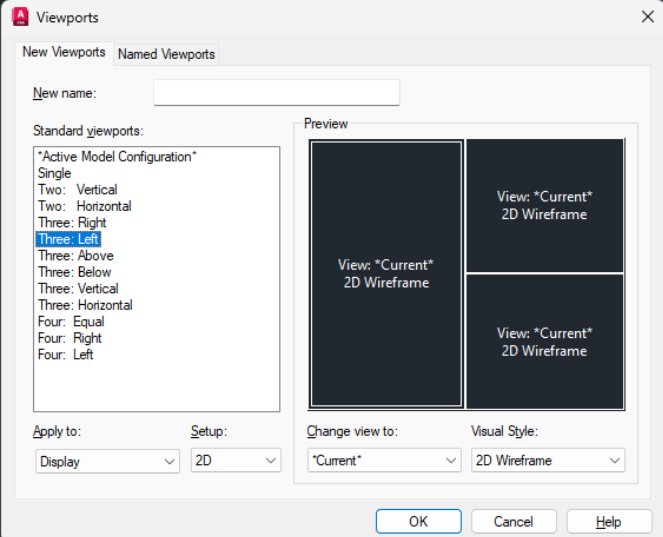
- Go to the View tab and locate the Model Viewports or Viewport Configuration option, or type VPORTS in the command line.
- Choose a split layout that meets your requirement, such as two vertical, two horizontal, or a three left arrangement.
- Click inside the viewport you want to use for detailed work, then zoom into the area of the model you need to inspect or edit.
- Click inside another viewport and leave it zoomed out, or set it to a different angle, so you can continue to see the wider model context.
- Pan and zoom each viewport independently as you work.
Working More Efficiently with Split Views
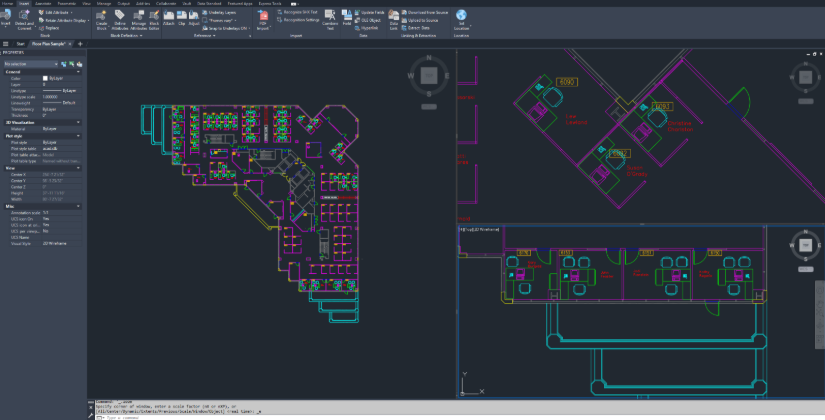
Split views are especially useful when you need to make precise changes without losing sight of the full design. For example, you can keep one viewport focused on a detailed component while another shows the overall layout. If your model includes both plan and 3D views, you can use one viewport for editing and another to check how the change appears from a different perspective.
Tips for a Smoother Workflow
- Use one viewport as your overview and avoid zooming it in too far.
- Keep your editing viewport focused on the detail you are changing.
- Click inside a viewport before panning or zooming so you adjust the correct view.
- If the layout feels cramped, drag the viewport boundary to resize the viewing areas.
- Use a named viewport configuration if you want to return to the same arrangement later.
- Type Vport and select Single to return to one viewport.
Conclusion
Dividing your screen into multiple model space viewports is a simple way to work with more confidence. You can zoom in for accuracy, stay aware of the bigger pictures, and reduce the time spent navigating back and forth across the model. For detailed designs, complex layouts, or 3D checks, split views help you stay focused without losing context.
Still got Questions?
Book Training
With our range of AutoCAD courses we can teach you best-in-class 2D and 3D design skills. This includes drawing, taking measurements, producing templates and everything required to create your designs.
Contact Us
We are here to ensure you receive a consistently high service and quality solutions for your business needs. We promise you won’t regret speaking to us, and if we can’t help you, we will try to find someone that can.