


Whether it’s your own drawing or one you’ve received from internal or external sources, there may be times when you notice that a set of layers is named incorrectly or doesn’t follow the required specifications. Instead of renaming each layer individually, you can now easily update them all at once, especially if they follow a common naming convention or belong to a group.
Let’s have a look how:
- In my drawing, I have a list of layers, such as:
- C DET ceiling
- C DET floor
- C DET table
- C DET wall
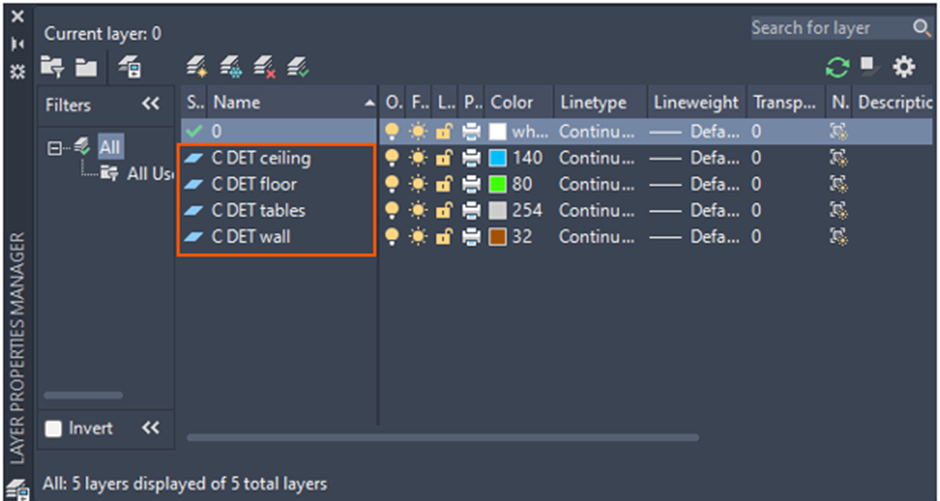
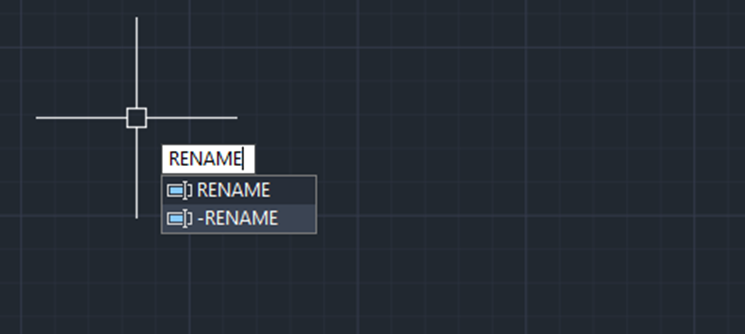
- I want to change the naming from ‘C DET’ to ‘C Detail’, with the suffixes remaining the same. Type RENAME in the display area or in the command line (CLI).
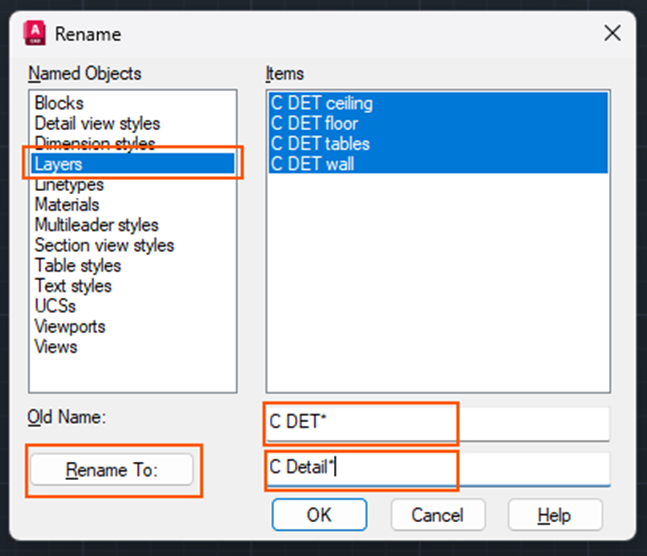
- In the dialog box, click Layers.
- I the Old Name field: type C DET* (do not forget the Asterisk at the end).
- In the Rename To field: type your new name, C DETAIL* (do not forget the Asterisk at the end).
- Then click the Rename button.
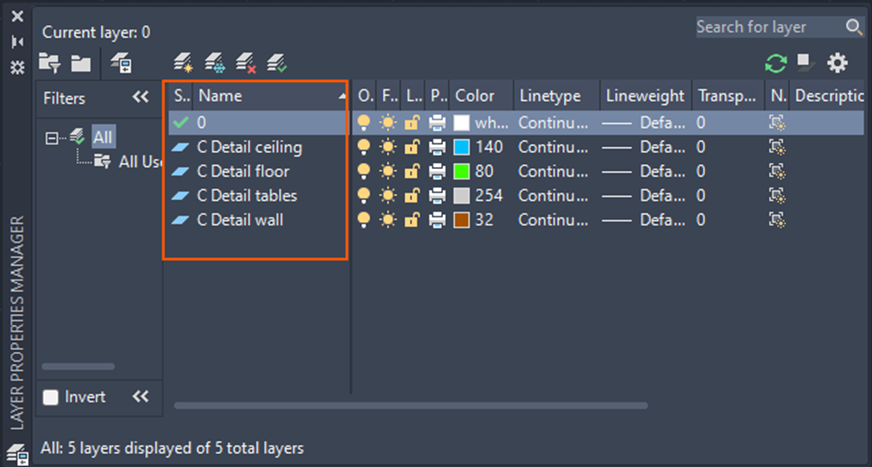
- You will see the layer names have updated as displayed in the below image:
Still got Questions?
Book Training
With our range of AutoCAD courses we can teach you best-in-class 2D and 3D design skills. This includes drawing, taking measurements, producing templates and everything required to create your designs.
Contact Us
We are here to ensure you receive a consistently high service and quality solutions for your business needs. We promise you won’t regret speaking to us, and if we can’t help you, we will try to find someone that can.