


A common question we get from customers using AutoCAD is how to change the units from millimeters to inches for example and vice versa. This is a very simple change and one that can be made in a couple of ways.
- Use DIMSTYLE in the command bar, this will bring up the Dimension Style Manager. Here you can amend the changes you need, see below;
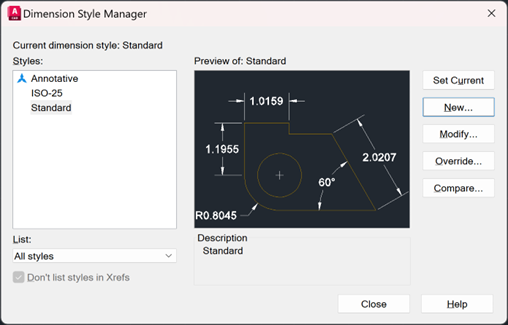
- Select the dimension style in use.
- Select Modify.
- Navigate to the Primary Units tab.
- Set Unit Format to Decimal.
- Set the Precision to be displayed. For whole inches, set the Precision to 0.
- In the Suffix box, add the inch symbol (“).
- Press OK.
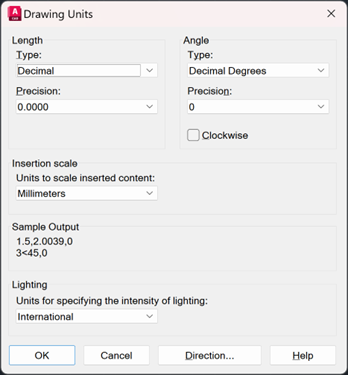
- Type in UNITS on the command bar, this will bring up the Drawing Units browser. Here you can change the units to scale, precision, angle and length.
Still got Questions?
Book Training
With our range of AutoCAD courses we can teach you best-in-class 2D and 3D design skills. This includes drawing, taking measurements, producing templates and everything required to create your designs.
Contact Us
We are here to ensure you receive a consistently high service and quality solutions for your business needs. We promise you won’t regret speaking to us, and if we can’t help you, we will try to find someone that can.