


As many of you will know, Autodesk Inventor ships with an out of the box technology called iLogic. iLogic allows you to program automation in a variety of different ways into your model using simple Visual Basic code alongside an intuitive interface.
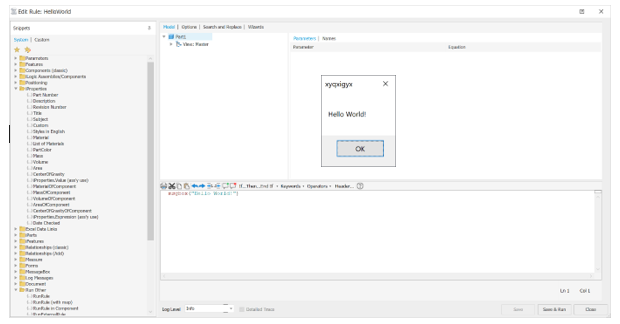
As much as iLogic is a huge benefit, and offers fantastic automation possibilities one stumbling block is that fact that whilst it is as simple as it can be, it does need to have some understanding of coding to be able to use it properly. With that in mind, here are some simple VB snippets to get you started with iLogic.
IF Statement
Simply put, an if statement will trigger an action upon matching a certain criteria. iLogic uses them well, and you will find them very common in iLogic code. For example, if we have an extrusion which features a simple hole cut through the center. If we wanted that hole to be cut if the length of the extrusion was over 1 meter, we could use the following simple statement.
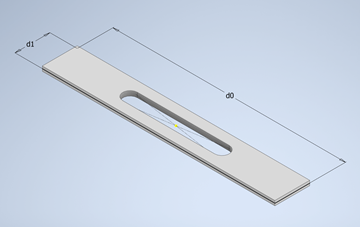
‘Check to see if d0, the dimension that controls the length, is greater than 1m
If d0 > 1000 mm Then
‘If the length is greater that 1, turn on the cut.
Feature.IsActive(“Extrusion2”) = True
End If
This IF statement can include an ELSE statement as well if necessary, which will catch any other criteria and give it an action. For reference, ElseIF can also be used to add specific criteria to the same statement.
‘Check to see if d0, the dimension that controls the length, is greater than 1m
If d0 > 1000 mm Then
‘If the length is greater that 1, turn on the cut.
Feature.IsActive(“Extrusion2”) = True
‘If the criteria did not match
Else
‘The length is less that 1m, turn off the cut.
Feature.IsActive(“Extrusion2”) = False
End If
CASE Statement
A CASE statement is similar to an IF, but is arguably an easier way to handle several different variations or criteria. For instance, with the same model as the above we could drive a different size of hole depending on the length of the product.
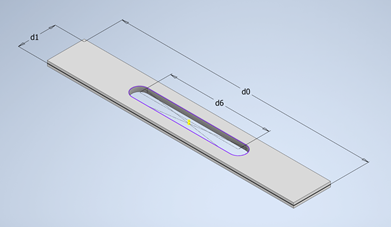
‘Select the dimension that we want to interrogate
Select Case d0
‘Define that you want something to happen when the length is 1250mm
Case = 1250 mm
‘Set d6, the length of the hole, to 200mm
d6 = 200 mm
‘Define that you want something to happen when the length is 1250mm
Case = 1500 mm
‘Set d6, the length Of the hole, To 200mm
d6 = 250 mm
‘Define that you want something to happen when the length is 1250mm
Case = 1750 mm
‘Define that you want something to happen when the length is 1250mm
‘Set d6, the length Of the hole, To 200mm
d6 = 300 mm
‘Define that you want something to happen when the length is 1250mm
Case > 1750 mm
‘Set d6, the length Of the hole, To 200mm
d6 = 350 mm
‘End the interrogation of the length
End Select
For Each Loop
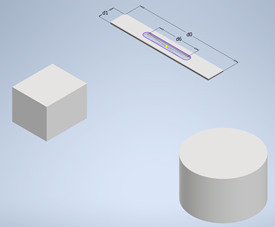
The final useful snippet I want to cover in this short blog is a simple loop where the code will iterate through a loop until it reaches a certain count. This is useful for many things, including iterating through all instances of a component within an assembly, to looping through all dimensions on a drawing. For this example we will go into a little more detail and cover an assembly based rule, where by I would like to identify the total number of components within the assembly and have their name displayed via a messagebox.
‘Define a variable called oAsmCompDef…
Dim oAsmCompDef As AssemblyComponentDefinition
‘and reference it to the Assembly Definition
oAsmCompDef = ThisApplication.ActiveDocument.ComponentDefinition
‘Define a variable called ComponentOccurrence
Dim oOccurrence As ComponentOccurrence
‘Iterate through every occurrence
For Each oOccurrence In oAsmCompDef.Occurrences
‘Display its name via a messagebox
MsgBox(oOccurrence.Name)
‘Go through to the next iteration…
Next
‘Give the total number of occurrences via a dialog box
MsgBox(oAsmCompDef.Occurrences.Count)
Still got Questions?
Book Training
Our range of Autodesk Inventor training courses will teach you how to create production-ready parts and assemblies through hands-on learning experience. Make sure you contact us to find out which course is best for you.
Contact Us
We are here to ensure you receive a consistently high service and quality solutions for your business needs. We promise you won’t regret speaking to us, and if we can’t help you, we will try to find someone that can.